Greetings Calvman,
It sounds as though your Apple TV is experiencing an issue while browsing for content. You’ve mentioned Restarting your device, but you may want to consider a Restore to resolve the issue:
Apple TV (2nd and 3rd generation): Restoring your Apple TV - Apple Support
This article will help you resolve the following issues:
- Unexpected or inconsistent behavior within the Apple TV interface
- Interruption during an Apple TV software update
- Unit does not fully start or progress to the main Apple TV menu
- Stops responding to remote control commands (only displays a solid white LED)
- On Apple TV, choose Settings > General > Reset, and then click Restore.
- Your Apple TV will restore to factory settings and will download and install the latest Apple TV software. This process may take some time. Do not disconnect your Apple TV's power cable during the restore process.
If you cannot use this process, and you have a micro-USB cable, try the steps in the next section.
This restore process requires a micro-USB cable (sold separately), a computer with iTunes, and a high-speed Internet connection. This will install the latest software and revert the device to factory settings.
- Disconnect the power and HDMI cables from the Apple TV.
- Verify that you are using the latest version of iTunes:
- Mac: Choose iTunes > Check for Updates
- Windows: Choose Help > Check for Updates
- Open iTunes on your computer.
- Connect your Apple TV to a computer (determine which Apple TV model you have):
- Apple TV (2nd generation): Connect one end of the micro-USB cable to the back of your Apple TV, and the other end to one of your computer's USB ports.
- Apple TV (3rd generation): Connect one end of the micro-USB cable to the back of your Apple TV, and the other end to one of your computer's USB ports. Connect the power cable from your Apple TV to a power outlet.
- Click Restore Apple TV from the Apple TV summary page. This step may take some time, depending on the speed of your Internet connection.
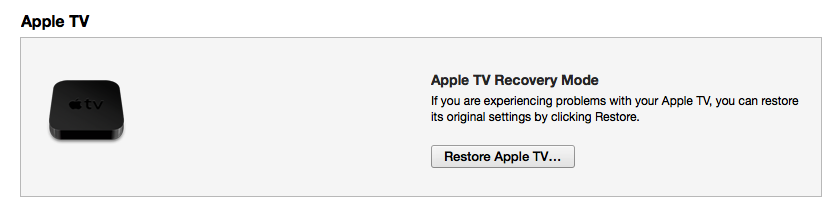
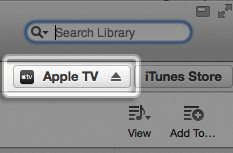
Note: If you don't see the above screen in iTunes, it may be necessary to choose Apple TV from the upper right of the iTunes window.
- During the restore, do not unplug any cables.
- After the restore process completes and the Apple TV icon disappears from iTunes, disconnect the micro-USB and power cables (if applicable), then reconnect to your TV with HDMI and power cables.
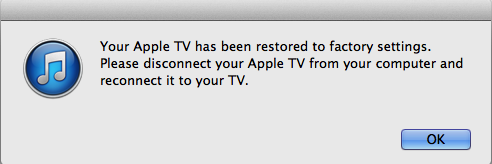
Important: If the Apple TV remains plugged in to your computer with a micro-USB cable after restoring, it may loop back into restore mode. If this occurs, unplug all cables from Apple TV then connect with power and HDMI to your TV normally.
Thank you for contributing to Apple Support Communities.
Cheers,
BobbyD