When trying to preview image in Messages, a blank image pops up

The image I received shows up in the Messages window, but when I double click on it too maximize it, I get the blank image as shown below.


I recently got a new computer and transferred over all my old messages and attachments. Every attachment prior to Apr. 21 works just fine, even when trying the maximize view. I'm not sure what's happening to the newer images and I couldn't find any threads on this particular topic.


User uploaded file

MacBook Pro with Retina display, OS X Yosemite (10.10.3)

Posted on Apr 28, 2015 8:55 PM

Reply
16 replies

Apr 29, 2015 2:09 PM in response to lllewell

Hi,


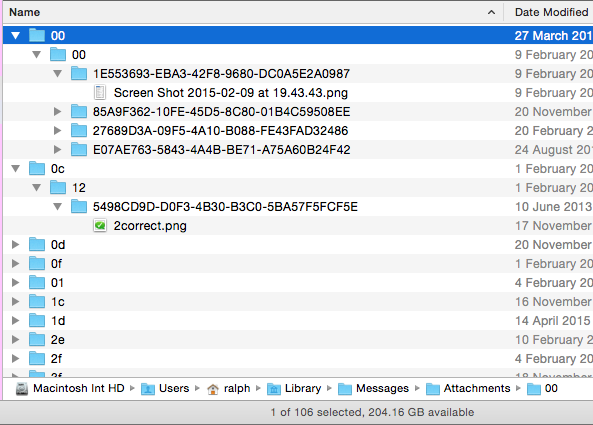
Check the pic is in ~/Library/Messages/Attachments.

You will find many seemingly random names on the files so the Modification Column if shown is likely to give clues to the dates.
User uploaded file


Even then the actual pic is still several sub folders deep.


In the Finder > View Menu is > Show Path Bar and this make the Path or route to the folder/file get shown across the bottom of the window.

The Modification option is also in the Finder > View Menu > Show View options


Once you know you can se the place(s) the pics are right click one and select Get Info

It should open an Info Panel and at the bottom is the Read and Write Permission.

Your Short Name (The same as the Little House Icon) should be listed.

You should have Read and Write permissions.

Highlight your Name and Unlock the padlock then use the little cogwheel type icon under the list.

This should read "Make yourShortName (Me) the Owner in greyed out text (already done).


Now right click and select Get info and repeat for all the folders back to the Library (I.e. the folder 00 in this case then Attachments then Messages)


If you don't have Read and Write Permissions to the folders then it may not be writing new pics to the folder.



User uploaded file

10:09 pm Wednesday; April 29, 2015


 iMac 2.5Ghz i5 2011 (Mavericks 10.9)
 G4/1GhzDual MDD (Leopard 10.5.8)
 MacBookPro 2Gb (Snow Leopard 10.6.8)
 Mac OS X (10.6.8),
 Couple of iPhones and an iPad

Apr 30, 2015 11:29 AM in response to lllewell

Hi,

What about the attachments folder itself and the ones that contain that folder (messages and the Library itself) ?


As you transferred some items you can already access then I would expect you to Own the lower folders sand have Read and Write permissions.


The issue is whether the 'new" items are being saved.


Also go to ~/Library/Containers/com.apple.iChat/Data/Library/Messages and the Alias for the attachments folder (This is the actual Read and Write route used during the app's operation).


The Alias should open the real Attachments folder.

You should have Read and Write permissions to all the containing folders.


User uploaded file

7:29 pm Thursday; April 30, 2015


 iMac 2.5Ghz i5 2011 (Mavericks 10.9)
 G4/1GhzDual MDD (Leopard 10.5.8)
 MacBookPro 2Gb (Snow Leopard 10.6.8)
 Mac OS X (10.6.8),
 Couple of iPhones and an iPad

Apr 30, 2015 12:58 PM in response to lllewell

Hi,


I found that I didn't have the Ownership of the ~/Library/Messages/Attachments.

However changing this has not improved things for me.


In a related issue I have been looking for where the list and the text of the visible chats is stored and I cannot find this either.


The New Attachments should be stored in ~/Library/Messages/Attachments.

The long path has a Alias at the end which then point to the Attachments folder.

If you are seeing new pictures or files in there then that part works.


In the Chats/Conversations I have "Open" in the main Messages window the double click of a pic does reveal it so I can stretch it larger or open it in another app (It offers me Preview).


However in one Chat I did find two attempts to send me a Pic.

The Attachments folder shows the attempt but no Content.

User uploaded file


It shows zero Bytes for the folder and the folder has nothing in it.


This is somewhat closer to your original question in that it refers to a specific picture.


I am still struggling to find a replica of your situation where the pic appears to be "Saved" as an attachment but fails to be double click-able (my situation above was found by trying to double click the items).


User uploaded file

8:58 pm Thursday; April 30, 2015


 iMac 2.5Ghz i5 2011 (Mavericks 10.9)
 G4/1GhzDual MDD (Leopard 10.5.8)
 MacBookPro 2Gb (Snow Leopard 10.6.8)
 Mac OS X (10.6.8),
 Couple of iPhones and an iPad

May 1, 2015 11:15 AM in response to lllewell

Hi,


What I do get on the ones that work is a Name across the top rather that further down like your first post pic.

I also get an option to Open with and it shows Preview.

User uploaded file


If you Right Click the picture it offers a Contextual Menu and this has Quick Look as an option and this is the same as a Double Click.

Do you get the same options and the same result ?


If so can you select Quick Look of other pictures such as Screen Shots on the Desktop or items in the ~/Pictures folder ?

i.e. is Quick Look working ?


User uploaded file

7:15 pm Friday; May 1, 2015


 iMac 2.5Ghz i5 2011 (Mavericks 10.9)
 G4/1GhzDual MDD (Leopard 10.5.8)
 MacBookPro 2Gb (Snow Leopard 10.6.8)
 Mac OS X (10.6.8),
 Couple of iPhones and an iPad

May 1, 2015 12:21 PM in response to Ralph-Johns-UK

I right-clicked on the image and it offers "Open" and "Quick Look." Open works - the image comes up in Preview. Quick Look has the same problem happen, with the blank paper image.


I went to my desktop and tried Quick Look on a few pictures, and those worked perfectly. Further, I went to Library/Messages and the images in question, and all of them allow me to right-click and do a Quick Look.


So it's just Quick Look associated with Messages.

May 1, 2015 12:44 PM in response to lllewell

Hi,


Thanks for the detail.


Try this.

In Applications/Utilities open the Disk Utility.

Highlight the Boot Drive by the name that appears on the Desktop (normally Macintosh HD)

Use the First Aid tab on the right hand pane.

Use the Repair Permissions option at the left of the bottom of the right hand pane.


This will take a little while.

It does not change anything in your Home Folder (or any other User's folder)

It uses the updated database (from Updates and Installs) as to what the permissions are supposed to be.


This may re-establish the link between Messages and Quick Look.


If that does not work Install the COMBO version of the 10.10.3 Update over what you have

OS X Yosemite 10.10.3 Combo Update


User uploaded file

8:44 pm Friday; May 1, 2015


 iMac 2.5Ghz i5 2011 (Mavericks 10.9)
 G4/1GhzDual MDD (Leopard 10.5.8)
 MacBookPro 2Gb (Snow Leopard 10.6.8)
 Mac OS X (10.6.8),
 Couple of iPhones and an iPad

Aug 19, 2015 12:20 PM in response to lllewell

I just solved this problem for myself.


The issue was that (for some reason) the symlink ~/Library/Containers/com.apple.iChat/Data/Library/Messages/Attachments was pointing to /Library/Messages/Attachments and not ~/Library/Messages/Attachments.


Changing the symlink to point to the correct folder solved the problem.


To do this, open up the terminal application and run the following command:


ln -sf ~/Library/Messages/Attachments ~/Library/Containers/com.apple.iChat/Data/Library/Messages/Attachments


Which means "Create a symlink called ~/Library/Messages/Attachments that points to ~/Library/Containers/com.apple.iChat/Data/Library/Messages/Attachments, and overwrite it if it already exists"


Good luck.

Aug 19, 2015 1:08 PM in response to ssadowski

Hi,


As the Attachments folder was in the "right' place I am surprised you didn't just replace the Alias.


However the info is useful and points to a possible place to look.


Have you any idea how your Alias got moved or the Symlink itself was changed originally ?


User uploaded file

9:08 p.m. Wednesday; August 19, 2015


 iMac 2.5Ghz i5 2011 (Mavericks 10.9)
 G4/1GhzDual MDD (Leopard 10.5.8)
 MacBookPro 2Gb (Snow Leopard 10.6.8)
 Mac OS X (10.6.8),
 Couple of iPhones and an iPad

Aug 19, 2015 1:59 PM in response to Ralph-Johns-UK

I was trying to fix an issue with Messages where pictures were not showing up at all. As I recall, the correct solution was to change a specific file to a folder and set the appropriate permissions. However, I tried a few things before that, and I believe that this was one of the things I tired. Now, I believe I was following another guide online about how to fix the missing image issue. It could be that I fat-fingered one of the commands that guide listed, or that guide could have had a typo in it. It's been a few months since I fixed the issue, so I don't remember exactly what happened. I do remember that I was the one messing around with the symlink in the terminal though.

This thread has been closed by the system or the community team. You may vote for any posts you find helpful, or search the Community for additional answers.

When trying to preview image in Messages, a blank image pops up

Welcome to Apple Support Community
A forum where Apple customers help each other with their products. Get started with your Apple Account.