
I'm making a photo book and I added too many pages. How do I remove unused pages.
I'm making a photo book and I have some extra pages with not photo. How do I remove these empty pages?
MacBook Air, OS X Yosemite (10.10.4), book making
I'm making a photo book and I have some extra pages with not photo. How do I remove these empty pages?
MacBook Air, OS X Yosemite (10.10.4), book making
several ways - if they are all at the end click on the book looking icon in the top bar and move the number of pages slider to the left to the number you want - the extras will be deleted - or you can select a page to remove and click on the page with the "+" on it and elect remove page
The Help menu is a great place to check for help
Add, remove, and reorder book pages
You can add, delete, or reorder book pages. You can insert new pages anywhere in a book, except between the outside cover page and the inside cover.
Note: A book must have an even number of pages. If changing the number of pages creates an odd number of pages, Photos automatically adds or deletes a blank page to keep the page count at an even number.
 in the toolbar and choose Add Page.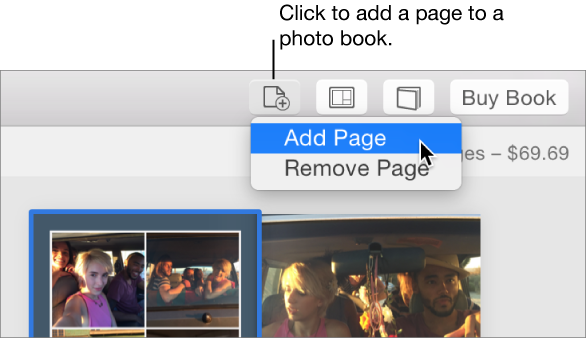
 in the toolbar and drag the Number of Pages slider.
 in the toolbar, choose Remove Page, then click Continue. You can also Control-click the page, choose Remove Page, then click Continue.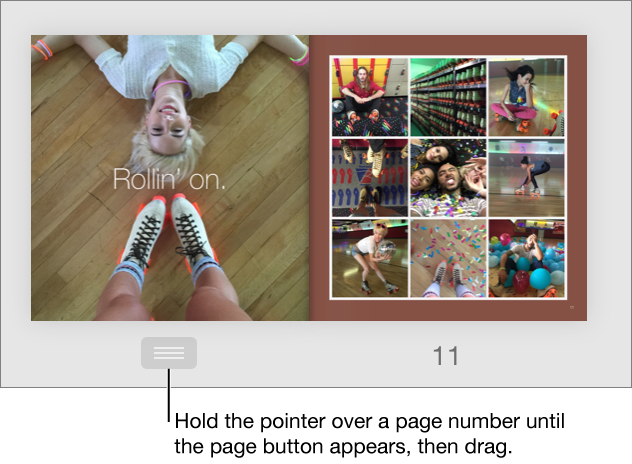
Was this help page useful? Send feedback.
LN
That's good, thank you!
How do I add text to the cover photo and can I position it (at bottom right) for instance?
How do I add text to the cover photo and can I position it (at bottom right) for instance?
Click on the cover page and there should be a text box that you can enter your cover text in. As to the text's location on the cover, that would be dependent on the theme that you use.
Click on the Options button below the cover and you can change the layout and possibly (depending on the theme being used) the location of the text box.
Thanks OT, but I don't like the "options" option of adding text because it just adds a blank white space below the photo where one can type. I would like to put text ON the photo. Is this doable?
Is this doable?
No, not with Photos. You would have to export a copy of the cover photo original file to the Desktop and use a 3rd party editor to add the text to the image. Then import the new file and use it for the cover.
Some Image Editors That Support layers:
Photoshop Elements 11 for Mac - $79
GraphicConverter - $40Rainbow Painter - $30
Imagerie - $38
Acorn - $50
Pixelmator - $60
Seashore - Free
GIMP for Mac - Free
I'm making a photo book and I added too many pages. How do I remove unused pages.

