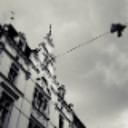
Photos appearing pixelated

Hi,


Hoping someone can help with this... or can Apple please explain why this is a problem and when are they likely to resolve it.


My iPhotos library transferred successfully to the new Photos app... and I have also imported brand new photo's from my camera into Photos app.


Every single photo appears blurred and not the sharp image I expect from my SLR. When I zoom in on a photo, it appears pixelated at first and then corrects itself. I then zoom out and the photo appears as it should and no longer blurry\pixelated. If I close the application and go back to the photos i've just looked at... the problem reoccurs and i'm having to zoom in and out again.

I review loads of photos regularly and delete rubbish ones... and having to zoom in and out for the image to appear properly is really frustrating.


Has anyone experienced this problem and do you have a fix for it ?


... and does anyone else find the name of this new app annoying as well ?? Trying to search for fixes online when the name is simply 'Photos', makes it difficult to find what you're looking for 😟


** I have a macbook pro and everything else works as it should and fast with no issues.


Mich

MacBook Pro, iOS 8.4.1

Posted on Aug 13, 2015 4:17 PM

Reply
31 replies

Feb 21, 2016 10:19 AM in response to Old Toad

Old Toad wrote:


I'm at a loss as to the cause of the issue. I don;t consider the left hand image pixelated, just blurry. Matter of semantics.

I agree, I wouldn't have used the word "pixelated" either, it's indeed just blurry - that said, the issue might have been worse in the original poster's case. Speaking of the OP, I'd love to know if he eventually managed to fix the problem somehow...


Anyway, I'm going to install El Capitan in the coming days (that should have the same effect as a re-install of Yosemite would, right?) and go from there. I will report back in any case 🙂

Thanks and cheers, Anna

Feb 21, 2016 10:45 AM in response to sweet-jane

I to have been fighting this problem for so many hours I feel like it's my new job. What I have been told, and believe, is that what you see on your iphone are thumbnails. That means low resolution images that are only suitable for viewing as thumbnails. When you select a image to look at it's download on the fly from the cloud. The really sad thing is that unless you have a connection to the internet you won't get a downloaded image so you'll only see the stupid thumbnail. It's very frustrating to be somewhere with a poor or no internet connection and you want to show someone a picture. What photos system allows is for you to have a really large library on your phone that takes very little space. I personally find this unworkable for me so my idea was to create a new library where I cut down the size of the jpgs to a size more tailored to my iphone and also ran jpgmimi on them to create the smallest reasonable quality images. I would then use the "download and keep originals" option on my iphone. I wish I could say my experiment was a success but nope. It did not download my full images and I still get the thumbnails.


In addition to the thumbnails I find photos to be a memory hog. Or at least my iphone does. There's no way I can get as many pictures in my library as I did with iphoto. I'm in the process of running some experiments but all I can say is looking at what your iphone shows as memory available is pretty random. It makes no sense period.


My question is does anyone have an app that they'd recommend that actually works on the iphone and mac? I really don't want to waist my time being a beta tester for apple. Why couldn't apple have left us be with iphoto?

Jul 8, 2016 8:53 AM in response to sweet-jane

I am glad to find this discussion, as I am experiencing the same issue. I'm on a mid 2011 iMac, 10.11.2, and I use a Nikon D3300 DSLR camera. I first noticed the problem when in full screen mode viewing pictures full screen. The images appeared blurry, which should not be happening with my camera and my skill level.


I selected edit to try and 'fix' the image, and the blurriness disappeared: there wasn't anything wrong with the photo. I am unsure if this is happening to every photo, but I am fairly certain that it is not happening to images from my iPhone 6, and I seem to notice it more when I am viewing images full screen and using the arrow keys to move quickly between photos. As others have reported, the images are rendered correctly in the finder preview, as well as in other photo editing apps, so this seems to be an issue specifically with the Photos app.


I have a suspicion about the cause of this issue, based on a different incident with another camera, a Canon Rebel DSLR. In some cases after importing images from this camera, the Photos app subsequently 'lost' the images, which then had to be reimported. My work around was to get the images imported and then immediately quit the app. After restarting Photos, the images remain and are no longer 'lost.' I have also checked and found that the blurry issue is not apparent with images taken on the Canon camera.


I have also determined that import date does not change the issue with images taken on my Nikon: images taken and imported a year ago have the same issue as those imported two weeks ago. The issue also occurs with both jpeg and RAW format images (the RAW images seem to take longer for the Photos app to correct). Therefore, this doesn't seem to be an issue of the Photos app quietly doing background optimizing of photos over time, as 'waiting' does not fix the problem.


Based on these experiences, the suspicion that I alluded to earlier is that the Photos app is not handling images from different cameras equally, which points to compatibility issues with particular camera manufacturers, who use their own unique file systems to create and store images. Or, it might be something as simple as the image file size itself when using the Photos app on systems with less RAM and CPU power: my Nikon images are 24 megapixel, but the Canon are 18 megapixel. Does larger image size cause a delay in fully rendering the image? As noted before, my Nikon images render correctly outside the Photos app, but neither the Finder preview nor other photo editing apps have huge photo libraries to load and maintain. At this point, I could therefore ask if the Photos library size has a correlation with the problem? (probably not, as the post on using a test library suggests, but just covering the bases here)


At any rate, as Apple wants the Photos app to be the application of choice for the majority of its users, it falls to Apple to insure compatibility, especially with something as simple as jpeg or RAW images produced on a camera made by an industry leader like Nikon.


I shudder to think how many images I have deleted before noticing this issue only recently. In the 80s & 90s, we used to say of Apple, "it just works." Now, "it just works, sort of." Any other insight that those reading this discussion can offer is appreciated, and thanks to all who have contributed!


Best Regards-- Todd

Nov 3, 2016 1:41 PM in response to samgy84

@samgy84, I wish I could tell you that I managed to fix this issue - but no dice. Photos.app behaves exactly like it did when I first posted here (blurry photo ---> zoom to the max and back ---> sharp photo). I did upgrade to El Capitan eventually, but totally screwed up the install for some reason and had to restore my Yosemite backup. I didn't even get far enough to open Photos.app to do some testing... I'm still on Yosemite, but it doesn't seem to make a difference anyway.

My workaround is to sort through all new photos in the Finder (with Xee), trash the bad ones and only import the good ones into Photos.app & iCloud Photo Library, so I don't have to rely on Photos.app to determine sharpness or quality. Also, I started to use my Magic Trackpad instead of the mouse whenever I do something in Photos.app - it's quick & easy to pinch-to-zoom on a photo in full screen and it becomes sharp immediately. It's still a hassle, for sure, but it's not half as bad as using the mouse or the keyboard to zoom around.


@Todd, I'm sorry that I missed your post back in the summer - I find it fascinating that 1) you are using a mid 2011 iMac, as that's the exact machine I'm using, and 2) you are seeing the problem with your Nikon but not with the Canon. My SLR is a Canon and it's the Canon-photos that I'm having issues with. I re-checked some of my iPhone pictures and I did encounter a veeeeeeery slight blurriness here or there, that goes away after a zoom, but it's barely visible.

I never had problems with loosing images or anything like that - no issues whatsoever with Photos.app, except for the blurry previews.

Regarding your idea about file & library size: almost all of my Canon-photos are below 10MB in size, they're all jpg's. The library contains a little under 20.000 images by now and has a size of 70GB - but even the empty test library I created exhibited the problem... my Mac is a 2,7 GHz Intel Core i5 with 12GB of RAM and Photos.app is super fast and stable for me, it doesn't look like it's taxing the system at all. And the sharp preview renders pretty much instantly once I zoom in on a picture. But who knows, the Mac is not exactly new and I suppose Apple is optimizing their apps for the latest and greatest machines - and since you're using a 2011 iMac as well... I really don't know if the hardware could somehow be the root of the problem.

@samgy84, what kind of Mac are you using?


Oh, there's one more thing I noticed: on my system the blurriness-problem is visibly worse on photos taken in portrait mode. Landscape photos are blurry as well, but it's not as bad as it is for portrait photos. It took me a while to realize this was the case because it doesn't make any sense. At all. At least not to me 😉

This thread has been closed by the system or the community team. You may vote for any posts you find helpful, or search the Community for additional answers.

Photos appearing pixelated

Welcome to Apple Support Community
A forum where Apple customers help each other with their products. Get started with your Apple Account.