Hi DCRIOW,
If you want to adjust the settings of your Magic Mouse 2, take a look at the resource below for adjusting settings in System Preferences.
Using System Preferences
System Preferences controls system-wide settings ("global" settings), and is available from the Apple () menu at the upper-left corner of the screen. System Preferences lets you adjust things like your screen resolution, keyboard control, mouse control, sound, printer settings, sharing settings, accounts, and more.
Customize your mouse
The Mouse preferences pane looks different depending on what kind of mouse you use. These settings let you set the sensitivity of the mouse to control how fast the pointer moves across your screen when you move your mouse, and adjust for your double-click reflexes. Other controls may be available, depending on the type of mouse you're using.
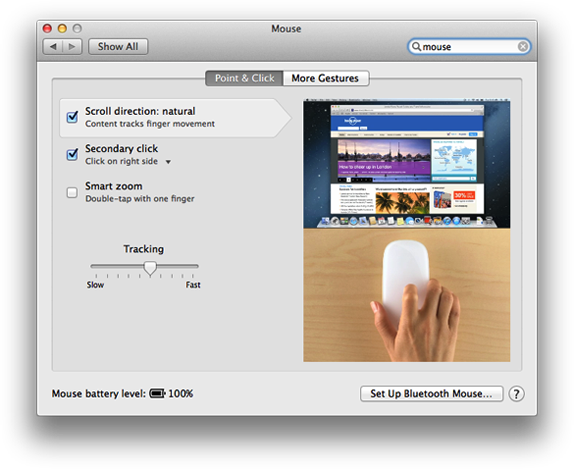
- From the Apple Menu, open System Preferences.
- Choose View > Mouse, or click the Mouse icon.
- To control how fast the pointer (cursor) moves across your screen when you move the mouse, click Point & Click and use the Tracking slider to adjust speed.
- If Double-Click Speed appears, you can use the Double-Click slider to adjust speed.
- To change gesture settings, click the More Gestures tab. You can enable and disable gestures for swipe and Mission Control.
Set up your Apple wireless devices
Follow these steps to set up your Magic Mouse 2, Magic Keyboard, or Magic Trackpad 2:
- Connect the Lightning to USB cable to the Lightning port on the device, and connect the other end of the cable to your Mac.
- Make sure the device's power switch is in the ON position. (Green will be visible.)
- The device appears in Bluetooth Preferences and automatically pairs with your Mac.
- The Bluetooth Preferences window shows the connection status and charge level of your device. When the device is charged, unplug it for wireless use.
Note: Magic Mouse 2 can't be used while connected to the cable.
Take care,


