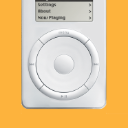
It appears only in iTunes, not in Finder.
If iTunes is running, the iPod only appears in Finder when iTunes is actively syncing the iPod, or if Enable disk use is turned ON in the iPod's Summary settings (or it's currently in Disk Mode). If the Restore fails or it is still corrupted after doing a Restore, there's a good chance the hard drive is faulty.
There is one other thing you can try. But do not do this with your iPod, if you want a chance at off-loading its music. With iTunes NOT running, run Disk Utility. Does the iPod appear in the Disk Utility sidebar? Put it in Disk Mode, if necessary. If you can get it to appear in Disk Utility, you can try reformatting (erasing) the iPod using Disk Utility. You need to do this in a particular way. Here's how to do it using the re-designed Disk Utility that was released with El Capitan (OS X 10.11). If you are using an earlier OS X, Disk Utility works differently; please post back.
Select the iPod device in the Disk Utility sidebar. Select the device, not the volume indented below the device. To the right, click Erase. Set the Erase setup pane like this
Name: [does not matter]
Format: OS X Extended (Journaled)
Scheme: Apple Partition Map
If you have other external storage devices connected, confirm you have the iPod selected in the sidebar. Click Erase button. It should take less than a minute to complete. If the process hangs or errors out, the iPod's hard drive is probably bad. If it completes successfully, quit Disk Utility. Run iTunes. iTunes may not prompt you to do a Restore, but you need to do a Restore because the iPod does not have any of its onboard software after erasing in Disk Utility. Hopefully, the outcome is better.