Hello there, Tbell96.
It sounds like you are trying to record your screen, while using your headphones for voiceover. The following Knowledge Base article offers up some great steps to follow:
How to use QuickTime Player
QuickTime Player can record a movie from your camera, or record the screen of your iPhone, iPad, or iPod touch. It can also record audio from a microphone or record the screen of your Mac.
Movie recording works with your built-in camera and many external cameras. If you're using OS X Yosemite or later, you can also record the screen of any iOS device (iPhone, iPad, iPod touch) with a Lightning port and iOS 8 or later.
- Choose File > New Movie Recording.
- To change the recording settings, click the arrow next to the Record button. Then choose your camera or iOS device, microphone, and recording quality.
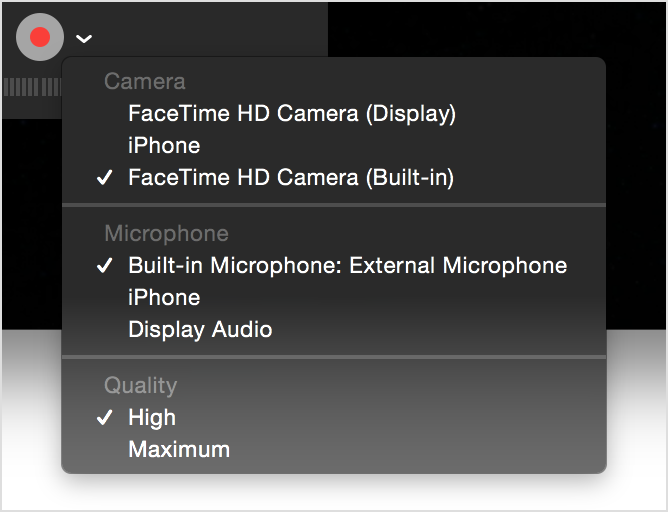
- To monitor audio while it's being recorded, use the volume slider.
- Click the Record button
 to start recording. Click it again to stop recording.
Audio recording works with your built-in microphone, external microphone, or other Core Audio-compliant audio device.
- Choose File > New Audio Recording.
- To change the recording settings, click the arrow next to the Record button. Then choose your microphone and recording quality.
- To monitor audio while it's being recorded, use the volume slider.
- Click the Record button to start recording. Click it again to stop recording.
Screen recording creates a movie of all or part of your Mac screen. To record the screen of your iPhone, iPad, or iPod touch, use the movie-recording function instead.
- Choose File > New Screen Recording.
- To change the recording settings, click the arrow next to the Record button. If you don't want to record a voiceover or other audio, choose None as your microphone. If you want to show a black circle for every onscreen click, choose Show Mouse Clicks in Recording.
- To monitor audio while it's being recorded, use the volume slider.
- To start recording, click the Record button , then click anywhere on the screen to begin recording the entire screen. Or drag to select an area to record, then click the Start Recording button within that area.
- To stop recording, click the Stop button
 in the menu bar, or press Command-Control-Esc (Escape).
Thanks for reaching out to Apple Support Communities.
Cheers.


