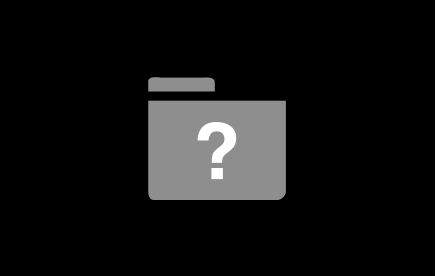
Question (?) Mark, Blinking Folder, or Gray Screen at Startup
These are related but not identical issues. Their causes are outlined in Intel-based Mac- Startup sequence and error codes, symbols. Solutions may be found in:
A flashing question mark or globe appears when you start your Mac
Mac OS X- Gray screen appears during startup
In most cases, the problems may be caused by one or more of these:
a. Problem with the computer's PRAM - See Resetting your Mac's PRAM and NVRAM.
b. Boot drive's directory has been corrupted - Repair with Disk Utility.
c. Critical system files are damaged or deleted - Reinstall OS X.
d. The disk drive is physically non-functional - Replace the hard drive.
Note that the information provided is what Apple recommends, If other users suggest different solutions than found here, then be sure what they recommend does not impact on your warranty, if any, or ability to get continuing Apple service.
Please don't start removing drives or changing cables unless you know what you are doing and have exhausted other non-invasive alternatives outlined here. If you perform any work yourself that is unapproved by Apple, then you will void any warranty you may have and lose all further Apple Support.
Repair the Hard Drive and Permissions
Boot from your Snow Leopard Installer disc. After the installer loads select your language and click on the Continue button. When the menu bar appears select Disk Utility from the Utilities menu. After Disk Utility loads select your hard drive entry (mfgr.'s ID and drive size) from the the left side list. In the Disk Utility status area you will see an entry for the S.M.A.R.T. status of the hard drive. If it does not say "Verified" then the hard drive is failing or failed. (SMART status is not reported on external Firewire or USB drives.) If the drive is "Verified" then select your OS X volume from the list on the left (indented entry below the drive entry,) click on the First Aid tab, then click on the Repair Disk button. If Disk Utility reports any errors that have been fixed, then re-run Repair Disk until no errors are reported. If no errors are reported click on the Repair Permissions button. Wait until the operation completes, then quit Disk Utility and return to the installer.
If Disk Utility reports errors it cannot fix, then you will need Disk Warrior and/or Tech Tool Pro to repair the drive. If you don't have either of them or if neither of them can fix the drive, then you will need to reformat the drive and reinstall OS X.
The main difference if you are using Lion or later is that you must first boot from the Recovery HD. Simply boot from the Recovery HD to perform the above.
Boot from the Recovery HD:
1. Restart the computer.
2. Immediately after the chime press and hold down the
"COMMAND" and the "R" keys together.
3. Release the keys when the Utilities Menu appears.
Reinstall Snow Leopard Without Erasing The drive
1. Repair the Hard Drive and Permissions
Boot from your Snow Leopard Installer disc. After the installer loads select your language and click on the Continue button. When the menu bar appears select Disk Utility from the Utilities menu. After Disk Utility loads select your drive's out-dented entry (mfgr.'s ID and drive size) from the the left side list. In the Disk Utility status area you will see an entry for the S.M.A.R.T. status of the hard drive. If it does not say "Verified" then the hard drive is failing or failed. (SMART status is not reported on external Firewire or USB drives.) If the drive is "Verified" then select your OS X volume from the list on the left (indented entry below the drive entry,) click on the First Aid tab, then click on the Repair Disk button. If Disk Utility reports any errors that have been fixed, then re-run Repair Disk until no errors are reported. If no errors are reported click on the Repair Permissions button. Wait until the operation completes, then quit Disk Utility and return to the installer.
If Disk Utility reports errors it cannot fix, then you will need Disk Warrior and/or Tech Tool Pro to repair the drive. If you don't have either of them or if neither of them can fix the drive, then you will need to reformat the drive and reinstall OS X.
2. Reinstall Snow Leopard
If the drive is OK then quit Disk Utility and return to the installer. Proceed with reinstalling OS X. Note that the Snow Leopard installer will not erase your drive or disturb your files. After installing a fresh copy of OS X the installer will move your Home folder, third-party applications, support items, and network preferences into the newly installed system.
Download and install Mac OS X 10.6.8 Update Combo v1.1.
3. Reinstalling Lion or Later Without Erasing The Drive
Restart the computer. After the chime hold down the Command and R keys until the Utility Menu appears. Select Disk Utility from the Utility Menu. When Disk Utility loads select the out-dented disk entry (usually, mfgr.'s ID and drive size) from the side list. In the Disk Utility status area you will see an entry for the S.M.A.R.T. status of the hard drive. If it does not say "Verified" then the disk is failing or failed. (S.M.A.R.T. status is not reported on external Firewire or USB disks.) If the disk is "Verified" then select your OS X volume from the list on the side (indented entry below the disk entry, usually Macintosh HD.) Click on the First Aid tab, then click on the Repair Disk button. If Disk Utility reports any errors that have been fixed, then re-run Repair Disk until no errors are reported. If no errors are reported click on the Repair Permissions button. When the process finishes quit Disk Utility.
Select Reinstall OS X and click on the Continue button.
Note: You will need an active Internet connection. I suggest using Ethernet if possible because it is three times faster than wireless.