Hello Theresa,
If I understand your question, you have apps on your iPhone 6 that are not showing in your iTunes Library on your new HP Computer, is that right?
You can download all of your past purchases from the iTunes Store to your computer, if you wish. Here's how:
Download your past purchases
On a Mac or PC
You can redownload apps for iOS devices in iTunes and apps for you computer in the Mac App Store.
From iTunes
- Open iTunes.
- If you’re not signed in, sign in with your Apple ID.
- From the menu bar at the top of your computer screen or at the top of the iTunes window, choose Account > Purchased. If you're a member of a Family Sharing group, you might see Family Purchases instead of Purchased.
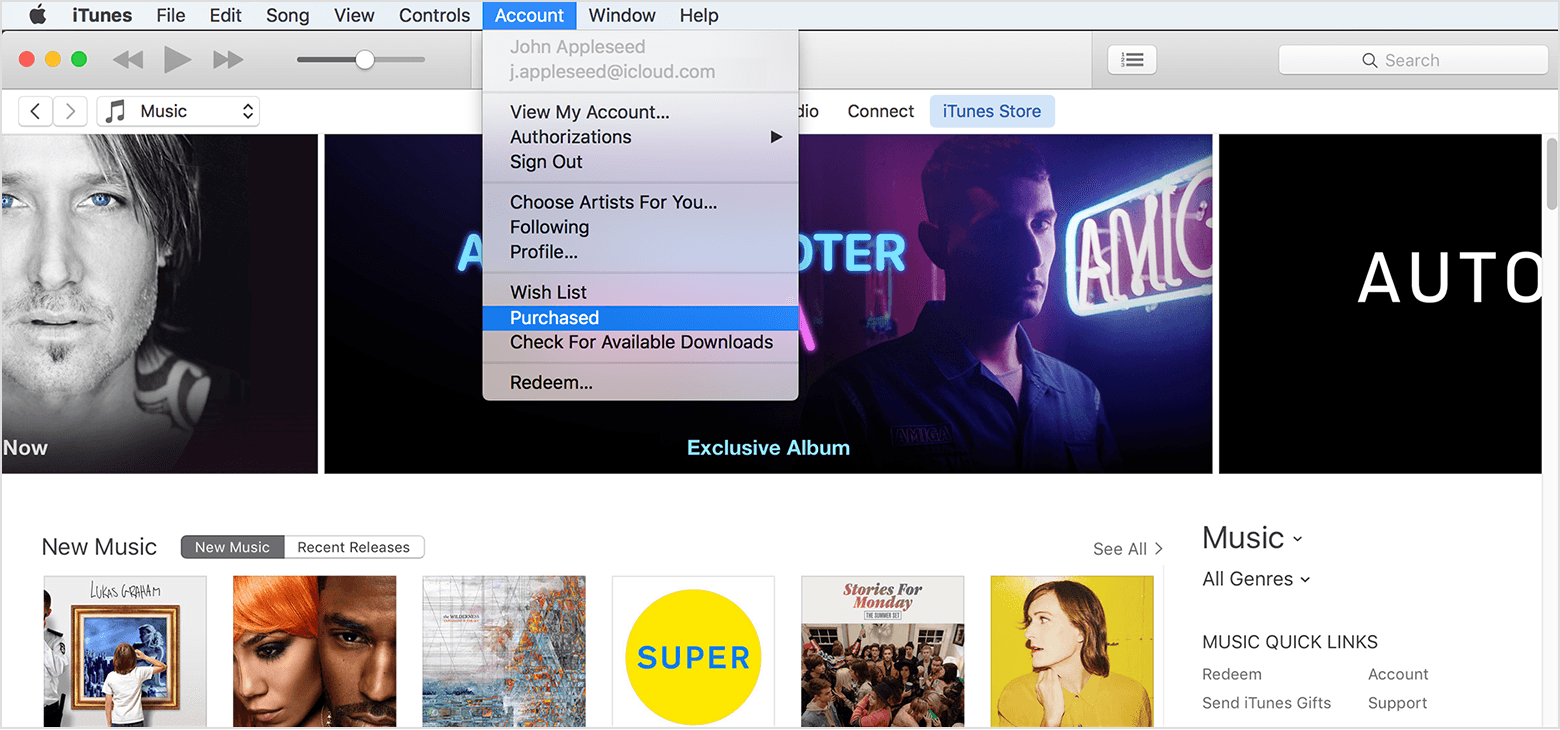
If you’re using Windows and can’t see the menu bar, learn how to turn it on.
- In the upper-right corner of the iTunes window, click Apps.
- Click "Not in My Library" to view purchased content that isn't on your computer.
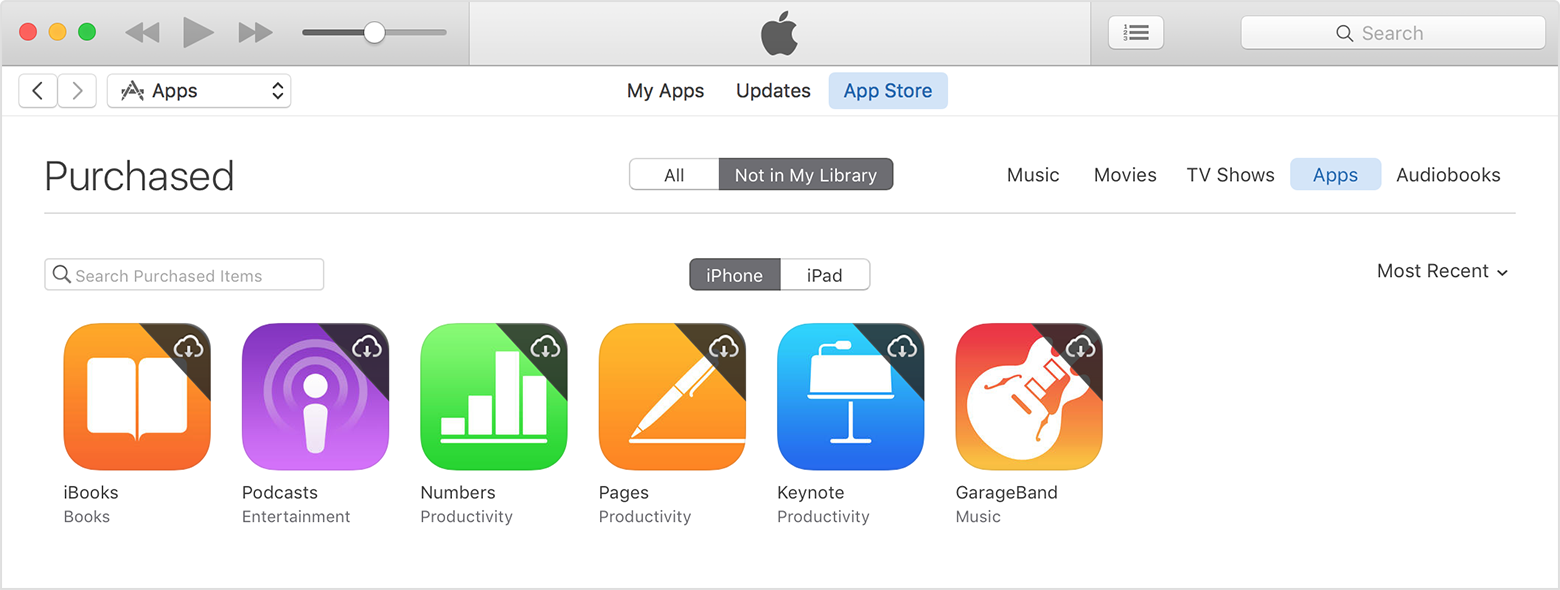
- Find the item that you want to download, then click the Download icon
 in the upper-right corner. Your app downloads to your library.
Theresa Robert, you can change a setting in iTunes so that all purchases are automatically downloaded to your iTunes Library in the future. Here's how:
Turn on Automatic Downloads for iTunes Store, App Store, and iBooks Store purchases
In iTunes, you can turn on Automatic Downloads for iTunes Store purchases such as songs, albums, movies, TV shows, or apps for your iPhone, iPad, or iPod touch.
- Open iTunes.
- If you’re not signed in, sign in with your Apple ID.
- If you haven't authorized your computer, choose Store > Authorize This Computer.
- Mac: From the menu bar at the top of your computer screen, choose iTunes > Preferences.
Windows: From the menu bar at the top of the iTunes window, choose Edit > Preferences. Learn what to do if you can’t see the menu bar.
- Click the Store tab, then select the content that you want to automatically download.
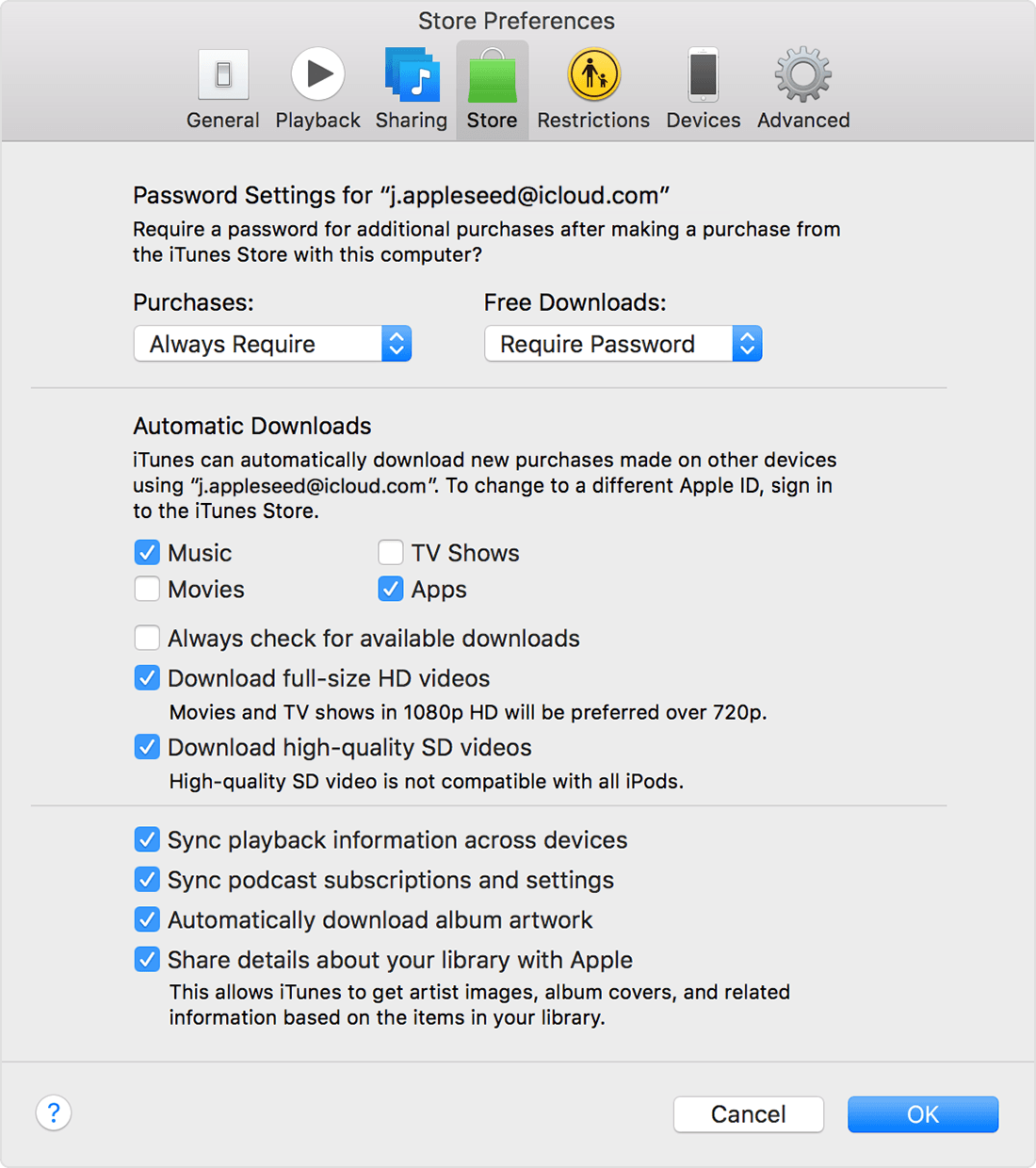
- Click OK.
Enjoy the rest of your day!



