Hi denisberk,
Thanks for your question. The resource below provides the steps you need to prepare yourself to record in GarageBand. It includes specific steps to adjust the input volume level of your microphone.
GarageBand User Guide - Before recording audio
You can record your voice, an acoustic instrument, or any other sound using your computer’s built-in microphone or a microphone connected to your computer. You record sound from a microphone to an audio track.
Before you start recording audio, do the following:
-
Connect a microphone to your computer and make sure the microphone is turned on and working.
-
Connect an electric guitar to your computer and make sure the guitar is working.
-
Select the audio track you want to record to, or add an audio track. Be sure to set the input source, input volume level, and monitoring for the track.
-
Set the project bit depth, which is the number of digital bits each sample contains. Recording at a bit depth of 24 bits is recommended for most situations and is the default setting.
-
Tune any instruments that are connected to your system to ensure that your external instrument recordings are in tune with any software instruments, samples, or existing recordings in your project.
-
Select the track you want to use, then click the Smart Controls button  in the control bar.
-
Click the Inspector button  in the Smart Controls menu bar to open the Smart Control inspector.
-
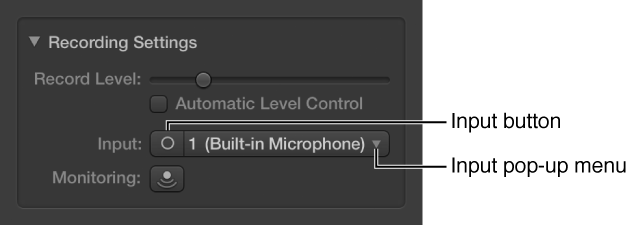
In the Recording Settings section, click the Input button to switch between a stereo input channel pair and a mono input channel, then choose the source from the Input pop-up menu.
-
Select the track you want to use, then click the Smart Controls button in the control bar.
-
Click the Inspector button in the Smart Controls menu bar to open the Smart Control inspector.
-
In the Recording Settings section, adjust the Record Level slider.
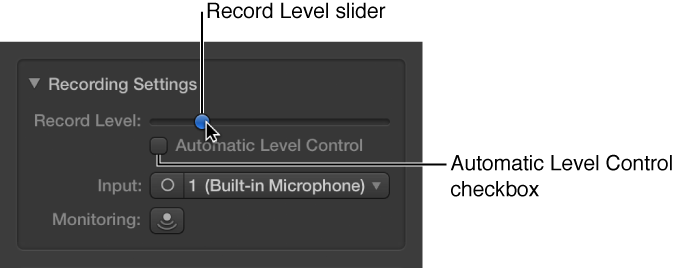
You can also select the Automatic Level Control checkbox to have the recording level adjusted automatically. It lowers the level to prevent feedback, and raises the level if too low.
Do one of the following:
-
Click the Monitoring button  in the track header of the track you want to use.
-
Select the track you want to use, then click the Monitoring button in the Recording Settings section of the Smart Control inspector.
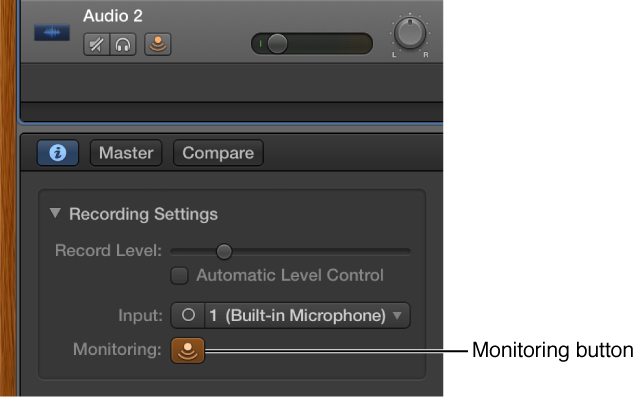
You can also select the Feedback Protection checkbox to avoid feedback while you play.
denisberk, If you've confirmed all of your recording settings are correct, and you are still getting too low of a record level with your microphone, you should test with a different microphone.
You may need to add an audio interface to your setup to boost the recording level further. Here are a few examples from the Apple Online Store:
IK Multimedia iRig PRO Universal Audio-MIDI Interface for iPhone,iPadand Mac
Apogee ONE USB Microphone and Audio Interface for iPad, iPhone, and Mac
Good luck!


