I am happy to hear you are seeking a way to backup your photos to your computer. It's always best to have backups.
Using the following reference:
Import photos and videos from your iPhone, iPad, or iPod touch/import to your Mac
Import to your Mac
You can use the Photos app to import photos from your iPhone, iPad, or iPod touch to your Mac without using iCloud Photo Library. These steps also work for importing images from digital cameras and SD cards.
- Connect your iPhone, iPad, iPod touch, or digital camera to your Mac with a USB cable. If you're using an SD card, insert it into the SD slot on your Mac, or connect it using a card reader.
- You might need to unlock your iOS device using your passcode. You might also see a prompt on the iOS device asking you to Trust This Computer. Tap Trust to continue.
- On your Mac, the Photos app automatically opens. If it doesn't, open the Photos app.
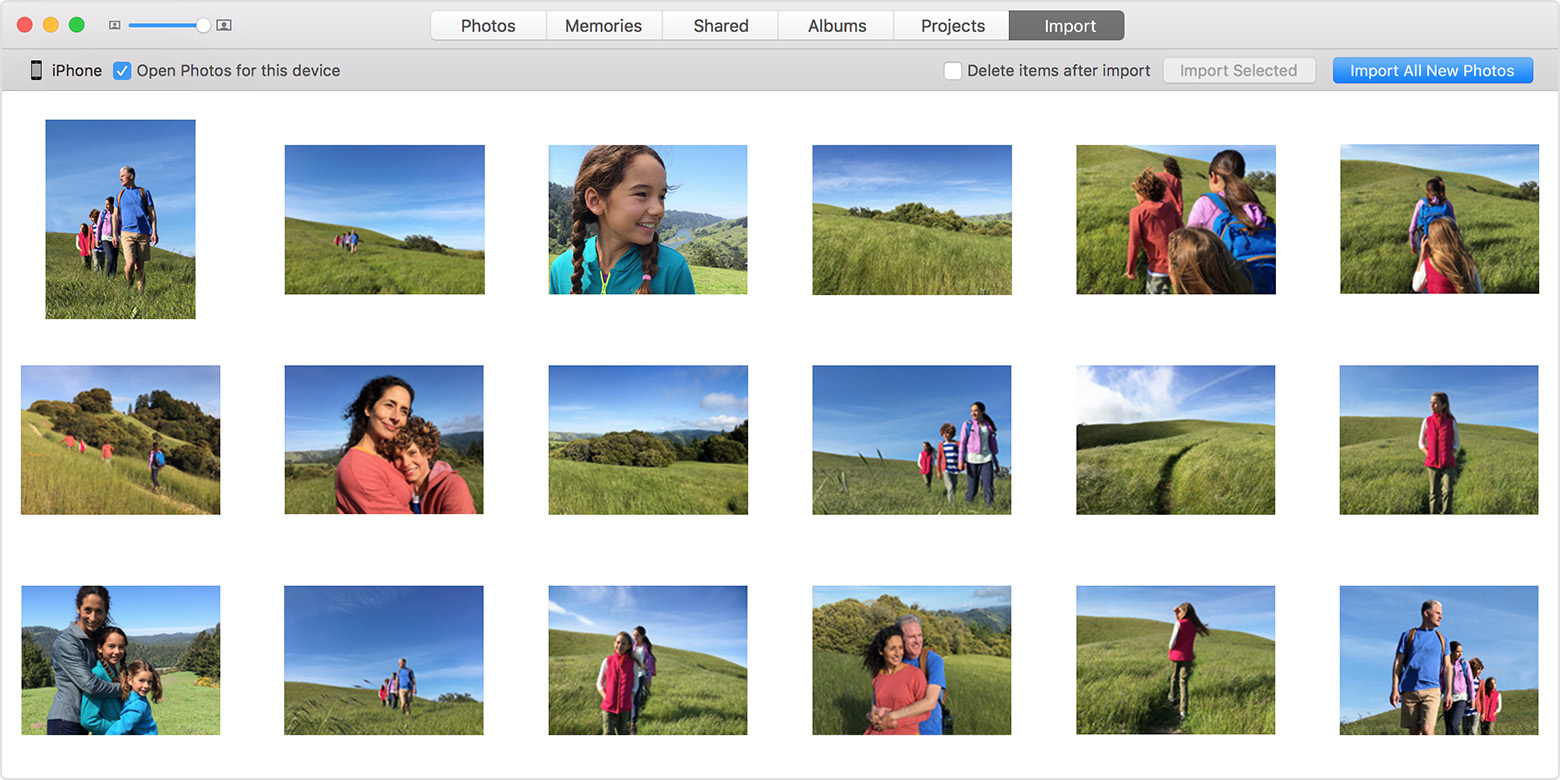
- The Photos app shows an Import screen with all the photos and videos that are on your connected device. If the Import screen doesn't automatically appear, click the Import tab at the top of the Photos app, or click the device's name in the Photos sidebar.
- To import a selection of photos, click the ones you want, then click Import Selected. To import all new photos, click Import All New Photos.
- When the import is complete, a message box asks if you want to delete or keep the photos on your device. Click Delete Items to remove the photos, or click Keep Items to keep them on the device.
If you select Keep Items, you'll have to delete them directly from your device when you want to remove them.- You can now disconnect your device from your Mac. If you imported photos from an SD card or other USB device, safely eject the device first.
Imported photos appear in the Photos app's Last Import album.
Photos and videos that you sync from your computer to your iPhone, iPad, or iPod touch using iTunes can't be imported back to your computer.
Learn what to do if you can't import photos from your iPhone, iPad, or iPod touch to your computer.
Things that could explain the variance in your numbers are.
1. You could be importing a Selection of the Photos (#5)
2. You could already have previously imported photographs to your Macintosh
3. You could have the same photograph that are in multiple albums.
The nice thing about this if your goal is to free up space on your iPhone, you can utilize number six, removing the newly imported photographs as part of that import process, deleting only those that it imported to your photo library.
Thank you for using Apple Support Communities. Have a great day.