Boot camp problems

Hi.

I have to install phisic Windows 7 pro. in my MacBook Air (end 2012), and I had to download bootcamp 5.1.5621 zip file (with my lion version boot was crashed!)

After unzip packed, the guide says to overwrite these files for update Boot Camp:

$WinPEDriver$ (folder)

AutoUnattend.xml

BootCamp (folder)

But where I have to ovewrite these files?

Is there a Boot Camp update dmg with normal auto-installation?

Thanks.

MacBook Air, OS X Mountain Lion (10.8)

Posted on Jul 18, 2017 7:24 AM

Reply
10 replies

Jul 18, 2017 7:35 AM in response to daryuss

Hi,


Perform a new install of Windows 7

Use these steps if you're installing Windows 7 on your Mac for the first time.

  1. Start up your Mac in macOS.
  2. Use the tables at the end of this article to make sure you have a Mac that supports the version of Windows you're installing.
  3. If your copy of Windows came on a DVD, you might need to create a disk image of it to work with Boot Camp.
  4. Connect a 16 GB or larger USB flash drive that you can erase. Leave this flash drive connected to your Mac until Windows installation is finished.
  5. Open Boot Camp Assistant from the Utilities folder (or use Spotlight to find it) and click Continue.
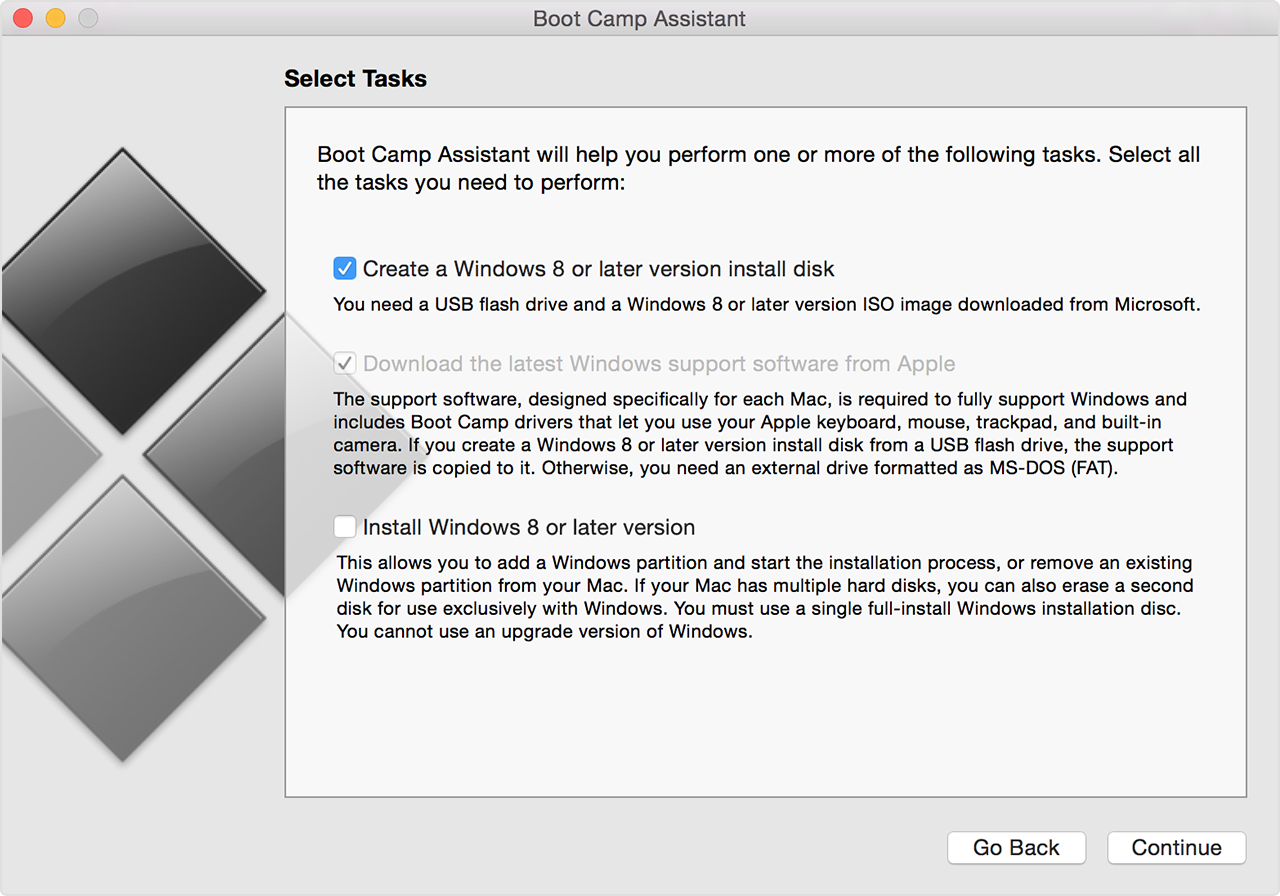
  6. Select only the options to create a Windows install disk and to download the latest Windows support software from Apple. Then click Continue.
    User uploaded file
  7. Insert your Windows install disc, or choose your Windows installation ISO, then click Continue. Boot Camp erases your USB flash drive and prepares it for Windows installation. When you see "Download Support Software for Windows 7", close the Boot Camp Assistant window to quit the app.
  8. Use the tables at the end of this article to find the Windows support software (drivers) you need for the version of Windows and the Mac that you're using.
  9. Click the link in the table to download the related software.
  10. After the file downloads, double-click it from the Finder to decompress (unzip) it.
  11. Open the resulting folder. Locate the following files in this folder and drag them to your USB Flash drive. When prompted if you want to replace the existing items on the flash drive, click Yes:
    $WinPEDriver$ (folder)
    AutoUnattend.xml
    BootCamp (folder)
  12. Open Boot Camp Assistant again, then click Continue.
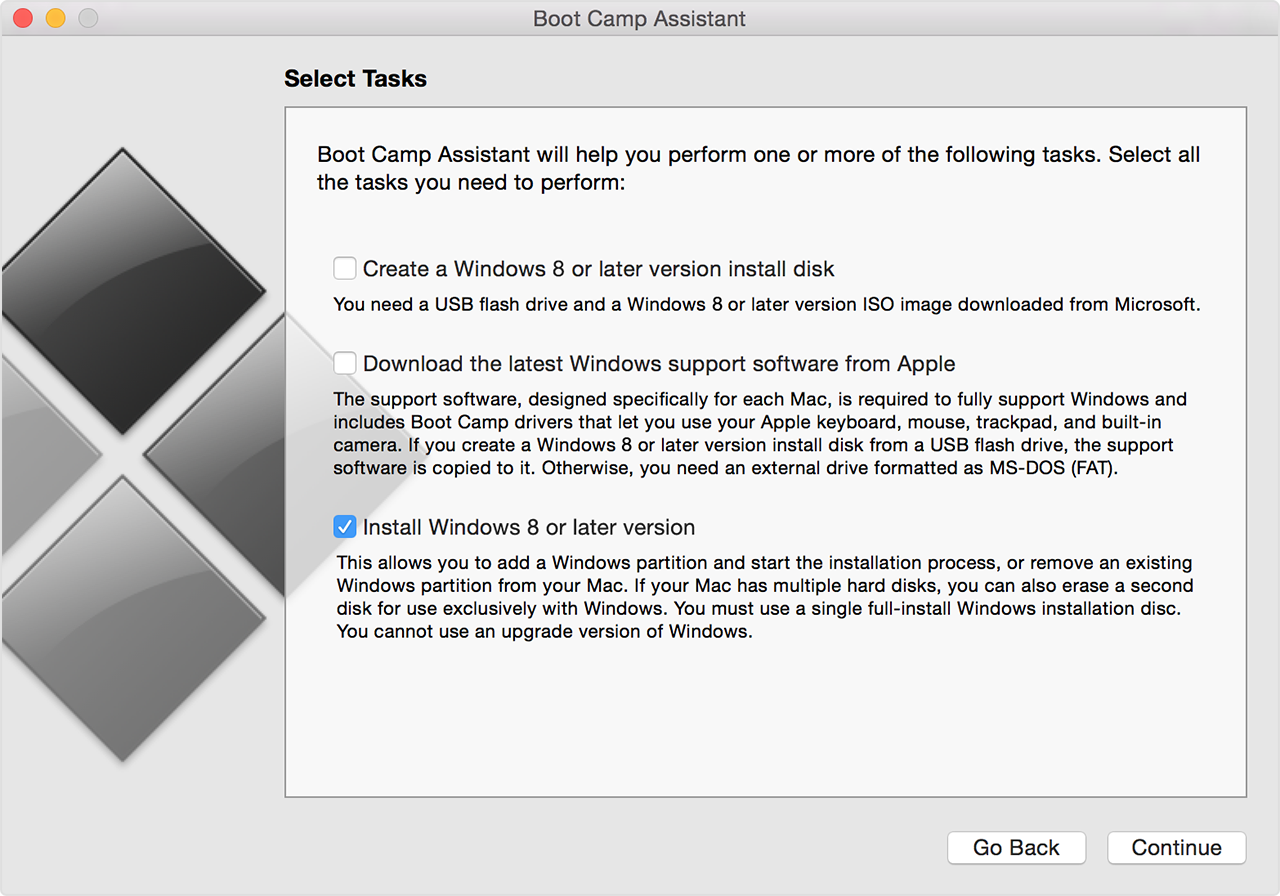
  13. Select only the option to "Install Windows… or later version."
    User uploaded file
  14. Click Install, then follow the onscreen prompts to repartition your drive and install Windows.
  15. When you complete the assistant, your Mac restarts to the Windows installer. When you're asked where you want to install Windows, select the BOOTCAMP partition, then click Drive Options and format your Boot Camp partition.
  16. Follow the onscreen prompts to finish installing Windows.


Install Windows 7 and earlier on your Mac using Boot Camp - Apple Support

Jul 18, 2017 10:17 AM in response to tjk

Hi.


Many thanks. But I have already read this guide.


My question is: (in the paragraph 11 of the guide)

Open the resulting folder. Locate the following files in this folder and drag them to your USB Flash drive. When prompted if you want to replace the existing items on the flash drive, click Yes:


$WinPEDriver$ (folder)

AutoUnattend.xml

BootCamp (folder)


Where do I have to overwrite the files described above? In which directory? In which folder? ... to update boot camp?


If there is a auto-installer (dmg) boot camp update and i And I can know where to download it is better 🙂


I have OSX 10.8.5 and boot camp is 5.0.4, and these versions crashed my O.S. boot and I had to reinstall O.S. on-line!


Jul 18, 2017 11:01 AM in response to daryuss

Click the link in the table to download the related software.

Is this successful?


After the file downloads, double-click it from the Finder to decompress (unzip) it.

Is this successful?

Open the resulting folder.

Is this successful?

Locate the following files in this folder

It sounds like these files

$WinPEDriver$ (folder)

AutoUnattend.xml

BootCamp (folder)

should be readily visible, not contained in any folder. Are they?

and drag them to your USB Flash drive.

Can you?


When prompted if you want to replace the existing items on the flash drive, click Yes:

Can you?

Jul 18, 2017 12:26 PM in response to daryuss

All I can do is say to follow the previous steps exactly and they're supposed to be there. If you did and they're not, the Apple document could be wrong. It wouldn't be the first time. I don't know if it's the right thing to do, but if it was me, I would still drag those files onto the flash drive and continue from there.

Jul 18, 2017 3:03 PM in response to tjk

Ok Thanks. I will try again as you suggested! However In the past, I installed Windows Vista in a old MacBook, and it did not give me any problems. After I splitted hard disk with boot camp assistant, and computer has been reset, Vista installation started and ended successfully. Instead, Windows 7 has eliminated the boot of both systems.

Jul 18, 2017 3:08 PM in response to daryuss

The steps outlined by tjk are correct. BC Assistant 6.x no longer puts the BC6 drivers, so the three folders/files are not on the USB created by BCA. Unzip the BC5 drivers package locally on the Mac side, unzip it, select the three files/folders as indicated and drag them to the USB root. You should not be prompted to 'replace', since these files are no longer begin provided.


In your screen shot, look inside the Bootcamp 5.1.5621 folder for these three files.


Please ensure that you are using a USB2 flash drive (480Mbps speed), not a USB3 (5 Gbps speed). Using a no-name flash drive will not work. SanDisk, Sony, Lexar work very well. Kingston Datatraveler and PNY have some boot ability issues.

This thread has been closed by the system or the community team. You may vote for any posts you find helpful, or search the Community for additional answers.

Boot camp problems

Welcome to Apple Support Community
A forum where Apple customers help each other with their products. Get started with your Apple Account.