After iTunes 12.7 how can I add custom ringtones?

Ringtones have been removed from iTunes with 12.7, so how can I add custom ringtones. I do not want to buy ringtones from the store, I want to manage my current custom ringtones and add new custom ringtones.

iPad 2, iOS 5

Posted on Sep 12, 2017 6:50 PM

Reply
Question marked as Top-ranking reply

Posted on Sep 12, 2017 7:10 PM

So, it looks like you can still drag ringtones onto your device listed in iTunes. This last part of the page at this link shows this process. Haven't tried it myself yet.


Manually manage content on your iPhone, iPad, or iPod touch using iTunes - Apple Support

121 replies

Sep 18, 2017 8:56 AM in response to schappell

  • In itunes, click on the device button near the top, looks like this (see screenshot #1 below): User uploaded file
  • Click on "Summary" tab on the left
  • Then on the right, in the "Options" section on the right, check "Manually manage videos" (Apple has really managed to hide this process in a convoluted way, why? I really don't understand).
    (see screenshot #2 below)
  • Then click the "Tones" section on the leftUser uploaded file
  • Drag a d drop an M4R ringtone file(s) of your choice from a finder window into iTunes window (see screenshot #3 below)


#1

User uploaded file

#2

User uploaded file

#3

User uploaded file

Jan 25, 2018 5:55 PM in response to schappell

I found that just copying ringtones into the list in iTunes no longer works. They'll appear on the list, but don't sync properly.


After spending a couple of hours wrestling with this I found the following does...at least for me:

  1. Copy the audio file you want into iTunes and export it as an m4a file...you'll find other tutorials on exactly how to do this elsewhere if you're not sure
  2. Change the file extension to m4r
  3. Launch GarageBand, open a new empty project and drag your m4r file into the track window (you might be able to use the m4a file in instead, but I haven't tried that)
  4. Select Share->Ringtone to iTunes and just let the command do its thing
  5. Go back to Finder, select your m4r file and copy it
  6. Go to the ringtone list for your device in iTunes and paste the file into the list
  7. Sync and the file should appear on your device


I'm sure there are easier ways to do this, but I couldn't find one that worked even using GarageBand on my phone, which other users have suggested.


For reference I'm using IOS 11.2.2, GarageBand 10.2.0, and iTunes 12.7.3.46.


Hope that helps a few of you.

Feb 16, 2018 4:20 PM in response to schappell

I was one of the 'tried everything and it doesn't work' people and luckily I've managed to sort it.


1) I did a hard reset of the phone, holding down the home button and the off button.

2) I made sure the phone had finished syncing (I think this is a key point). You need a full sync to complete.

3) I expanded the phone section in main iTunes (rather than clicking the Phone icon), clicked Tones, and when I dragged the .m4r files, there was a green + icon and they succesfully went in.


In the leadup to this, I selected 'manually manage music and videos', then restarted the phone, then unselected it, then synced the phone, then it worked.


I did not have to copy and paste from Finder, I just dragged and it worked.


Hope this is helpful.

Dec 29, 2017 4:45 PM in response to schappell

Here's how I did mine:


1. Add your song file to your iTunes Library (assuming it's an MP3 file)


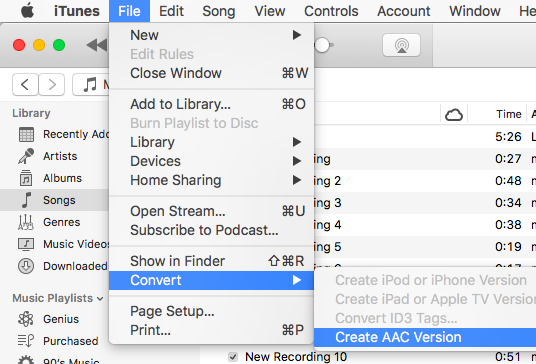
2. Once added, select the song, Select File > Convert > Create AAC Version
User uploaded file


3. Converted file will appear on your library with the same name as your original song file.


4. Select the AAC Version (verify through right clicking and selecting Song Info > File tab > kind AAC audio file)

User uploaded file

5. Once you know which file is AAC, right click and select Show in Finder


6. Your finder pops up where the AAC file is located. It's a file with a .m4a extension. Copy that file and paste it anywhere you want (it can be in that same folder).


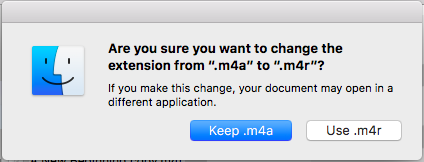
7. Select that copy you made and change the extension to ".m4r". A verification window will pop up asking you of the change. Select "Use .m4r"
User uploaded file


8. Once you've created the .m4r file, go back to iTunes where you iPhone is connected. Make sure you have selected "Manually manage videos"


9. Once that's ticked, Go to your iPhone's "Tones" library.


10. Simply drag the .m4r file in and voila! (It should start getting copied to your phone.)


11. You may check by going to your phone's Settings > Sounds > Ringtone. It should appear above the default tones.


Hope that helped!

Oct 27, 2017 12:00 AM in response to schappell

ok, I had the same problem but all you need to do is:

1. go to files.

2. click convert.

3. you should be able to then click "create AAC version"

(for those who don't know and or are new)

4. copy song (that is now 30 secs or less*) to desktop

5. rename from ".m4a" to ".m4r"

6. then copy that into ringtones.

*to change song's length right click, go to "song info", click options and change*

if you did not need a step then just skip it, I hope that this helped you in some way

^~^

-M

Nov 17, 2017 2:58 AM in response to schappell

hi, i think i have found a solution and it works.. Apple did remove the tones, books tab from the itunes, however we can still convert the files to m4a and then to m4r. We do not need to click on mannually manage music and videos, so your content will automatically sync (except tones and books).


All you need to do is, go in the folder( any folder) which has your tones and books saved, and directly from there, drag and drop them in the itunes in your device. you dont need to first take it to itunes and then drag it. its directly the computer file that is dragged in your device. also, you can delete the file from your computer and it wont delete it on your phone since the tones and books are not auto synced.


to delete the tones from your device, go to the tones section in your device on itunes and press delete.


Hope this helps everyone.

Jan 6, 2018 10:23 AM in response to schappell

I figured out the simplest process, I think.

1. Create your ringtones in Garage Band.

- Follow those steps, the instructional video is fairly handy.

- Share the ringtones to iTunes as per the sharing tab.

2. Go to the HD, open the Music folder tab, open the 'Import' folder, and see your created ringtones. They must have the .m4r extension to be recognized as a file that belongs in your phone's 'Tones' folder, which can only be accepted by your computer as a ringtone.

3. Go into iTunes, drag/drop the .m4r files into the 'Tones' tab.

4. Sync.

This thread has been closed by the system or the community team. You may vote for any posts you find helpful, or search the Community for additional answers.

After iTunes 12.7 how can I add custom ringtones?

Welcome to Apple Support Community
A forum where Apple customers help each other with their products. Get started with your Apple Account.