Printer Drivers Not Available

I'm running OSX 10.12.6 Sierra and having trouble configuring printer settings. I can view available printers, but under 'choose a driver', it always lists drivers as unavailable. I just configured the same printer on my MacBook, and followed the same steps on this Mac, so I know the driver is there, I just can't seem to access it using this Mac. I've had this problem in the past with other printers and the same computer, and the same issue persists in other user accounts with the same permissions (admin), so I'm not sure what needs to be fixed. If anyone has any ideas, please let me know. Thanks

iMac, macOS Sierra (10.12.6)

Posted on Sep 13, 2017 7:03 PM

Reply
Question marked as Top-ranking reply

Posted on Sep 15, 2017 7:12 AM

Thanks for replying, 2399, and that additional info, it really helps! Since that didn't fully resolve your issue, use safe mode to start up your Mac as it does the following things:

  • Verifies your startup disk and attempts to repair directory issues, if needed
  • Loads only required kernel extensions
  • Prevents startup items and login items from opening automatically
  • Disables user-installed fonts
  • Deletes font caches, kernel cache, and other system cache files


Log into your user account, reset your printing systems while in safe mode and test your issue in safe mode, then restart normally and test the issue again.


Use safe mode to isolate issues with your Mac
Limited graphics performance in OS X recovery or safe mode


Have a great day and thanks for using the Apple Support Communities!
8 replies
Question marked as Top-ranking reply

Sep 15, 2017 7:12 AM in response to 2399

Thanks for replying, 2399, and that additional info, it really helps! Since that didn't fully resolve your issue, use safe mode to start up your Mac as it does the following things:

  • Verifies your startup disk and attempts to repair directory issues, if needed
  • Loads only required kernel extensions
  • Prevents startup items and login items from opening automatically
  • Disables user-installed fonts
  • Deletes font caches, kernel cache, and other system cache files


Log into your user account, reset your printing systems while in safe mode and test your issue in safe mode, then restart normally and test the issue again.


Use safe mode to isolate issues with your Mac
Limited graphics performance in OS X recovery or safe mode


Have a great day and thanks for using the Apple Support Communities!

Sep 16, 2017 7:08 AM in response to 2399

Hey 2399, thanks for trying safe mode and reporting back what happened. Your next step is running First Aid on your hard drive with the built in Disk Utility tool, as this can correct issues like you're experiencing. Run First Aid and then restart normally and test your issue again.


Disk Utility for Mac: Repair a disk using Disk Utility


If you're still having this issue, you can make a backup of your personal data and put a fresh copy of macOS on your Mac using OS X Recovery mode, as that will overwrite these system files causing the issue.


macOS Sierra: Back up with Time Machine
Backing up your Mac hard drive
How to reinstall macOS


Best regards!

Sep 16, 2017 5:22 PM in response to 2399

Since it works in the Safe Mode, try running this program in your normal account, then copy and paste the output in a reply. The program was created by etresoft, a frequent contributor. Please use copy and paste as screen shots can be hard to read. On the screen with Options, please open Options and check the bottom 2 boxes before running. Click “Share Report” button in the toolbar, select “Copy Report” and then paste into a reply. This will show what is running on your computer. No personal information is shown.

Etrecheck – System Information

Sep 16, 2017 10:37 AM in response to 2399

WAIT. before re-installing your iMac to factory default from internet (which is easy if you don't have allot of personal files to restore) ....


TELL us what kind of printers you have exactly. I'm surprised the person above didn't ask.


The first step to trouble shooting is to ask what iMac, OS version, and printer hardware you have.


The reason I ask is because some printers are NETWORK printers, and we have no idea if your printer has network settings it remembers and if your PRINTER needs to be reset rather than your iMac. We also cannot confirm your printer is supported by the OS version if you haven't stated what it is.


(also: only the admin user or unlock using admin password can do some changes - so unlock the settings on your Settings tab first, and check the network settings. if networking is involved insure your macbook isn't connected and offering the printer indirectly - assuming you want direct attachment)


again: before talking about network and sharing (with users and other computers) preferences, let's start with what hardware/printer versions and OS versions.


good luck 🙂

Sep 14, 2017 5:43 PM in response to brenden dv

Thanks for the reply! I had already tried resetting, but I tried removing all drivers and that worked a little. I now have 3 printer options under the 'add printer' menu, all 3 for the same printer (though that's still 3 more options than before), and only one displays with an available driver. When I click add printer for this printer, however, it gives an error "Bad file descriptor". Any ideas on what this could mean? Should I start a new thread pertaining to this error?

Sep 15, 2017 5:38 PM in response to jeremy_v

Thanks again, I gave that a shot. It booted fine into safe mode, and everything worked great. Very fast to load the printers pane in system preferences (unlike before), and even let me add the printer (unlike before). Weird thing is, in safe mode, it showed two other printers under the printers section of system preferences. They were printers I've used before, but they had never showed up in a normal boot. I just tried booting normally again, and system preferences hardly opens. I can get through to the printer pane eventually, but it won't let me add a printer (just freezes) and it doesn't show the two printers that were shown before in safe mode, just a blank panel as if no printers have ever been added. I'm not super well versed with the MacOS safe mode, so I'm not entirely sure what this implies. Same thing happens with other user accounts, so I'm not sure what needs fixing here. Any help greatly appreciated, thanks.

Sep 16, 2017 4:23 PM in response to QuietMacFan

It's a Canon MG3022 that I'm trying to connect, and yes, its a network printer, but it obviously has the capacity to connect since it connected in safe mode, so I'm thinking the computer is the problem here. It's compatible with my OS (still 10.12.6) and you have to unlock to add a printer so the tab has been unlocked whenever I try to add a printer. The printer (+ its drivers) are offered via my MacBook on the same network, but I still run into errors trying to set up the printer to the Mac this way, and that's not the way I would prefer to have it connected. Thanks for the additional advice, I think Disk Utility is the best option I have at this point, but let me know if you have any other suggestions.

Sep 14, 2017 9:04 AM in response to 2399

Hello 2399,


Thanks for that info and choosing the Apple Support Communities. If I understand correctly, you are unable to add this printer to your iMac, but you were able to successfully add this printer to your MacBook. To help with this issue, please follow these steps from this article on your situation.

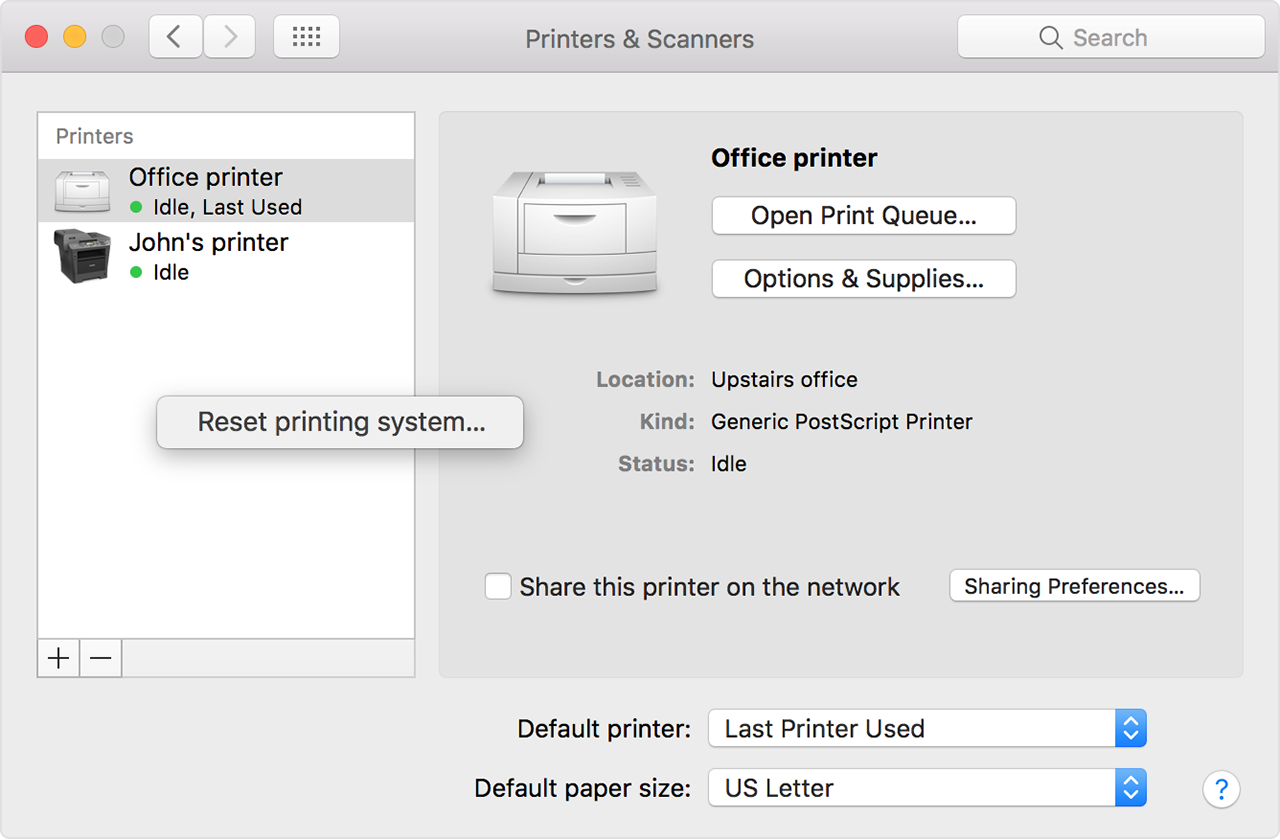
Reset the printing system

If the issue continues, reset the printing system on your Mac. This removes all printers and scanners—including their print jobs and settings—from Printers & Scanners preferences.

  1. Choose Apple menu > System Preferences, then click Printers & Scanners.
  2. While holding down the Control key on your keyboard, click anywhere in the list of devices.
  3. Choose “Reset printing system” from the menu that appears:

User uploaded file

Remove printer drivers

If the issue continues on your Mac after resetting the printing system, take these final steps to remove any currently installed printer drivers. These steps don't apply to AirPrint printers.

  1. From the menu bar in the Finder, choose Go > Go to Folder. Type
    /Library/Printers/
    and click Go.
  2. The Printers folder opens. Choose Edit > Select All, which selects all items in the Printers folder.
  3. Choose File > New Folder with Selection, which puts all of the selected items into a new folder named New Folder With Items. To save storage space, you can delete this folder.

If the issue continues, contact the printer manufacturer for support.


If you can't print from your Mac or iOS device


Cheers!

This thread has been closed by the system or the community team. You may vote for any posts you find helpful, or search the Community for additional answers.

Printer Drivers Not Available

Welcome to Apple Support Community
A forum where Apple customers help each other with their products. Get started with your Apple Account.