Reduce number of trusted devices

Is there a way to select which of my devices receives notifications and codes for 2FA? Aside from my phone, I've got a few ipads, ipod touches, a mac mini, mbp, and an imac. When I sign to icloud.com, for example, I have no way of knowing which device is going to get the notification + six-digit code. There must be an easy fix for this, right? thank you in advance!

iMac (27-inch, Late 2013), OS X El Capitan (10.11.5)

Posted on Nov 6, 2017 12:45 PM

Reply
2 replies

Nov 8, 2017 2:38 PM in response to Creeper74

Hello Creeper74,

Thank you for using Apple Support Communities. It's my understanding you'd like to reduce the number of trusted devices being used with Two-factor authentication for your Apple ID. I'm happy to help.

With two-factor authentication verification codes will be accessible on devices you've trusted. Trusted devices can be removed to prevent them from receiving verification codes. Please review the steps and information below:

View and manage your trusted devices

You can view and manage a list of your trusted devices in the Devices section of your Apple ID account page.

  1. Go to your Apple ID account page.
  2. Sign in with your Apple ID.
  3. Go to the Devices section.

The device list shows the devices that you're currently signed in to with your Apple ID. Select a device to view the model, serial number, and other useful information, including whether or not the device is trusted and can be used to receive Apple ID verification codes.

You can also remove a trusted device. Removing a trusted device will ensure that it can no longer display verification codes and that access to iCloud, and other Apple services on the device, is blocked until you sign in again with two-factor authentication. If you need to find or erase your device before you remove it from your trusted device list, you can use Find My iPhone.


Two-factor authentication for Apple ID

Have a wonderful day!

Nov 8, 2017 2:54 PM in response to Creeper74

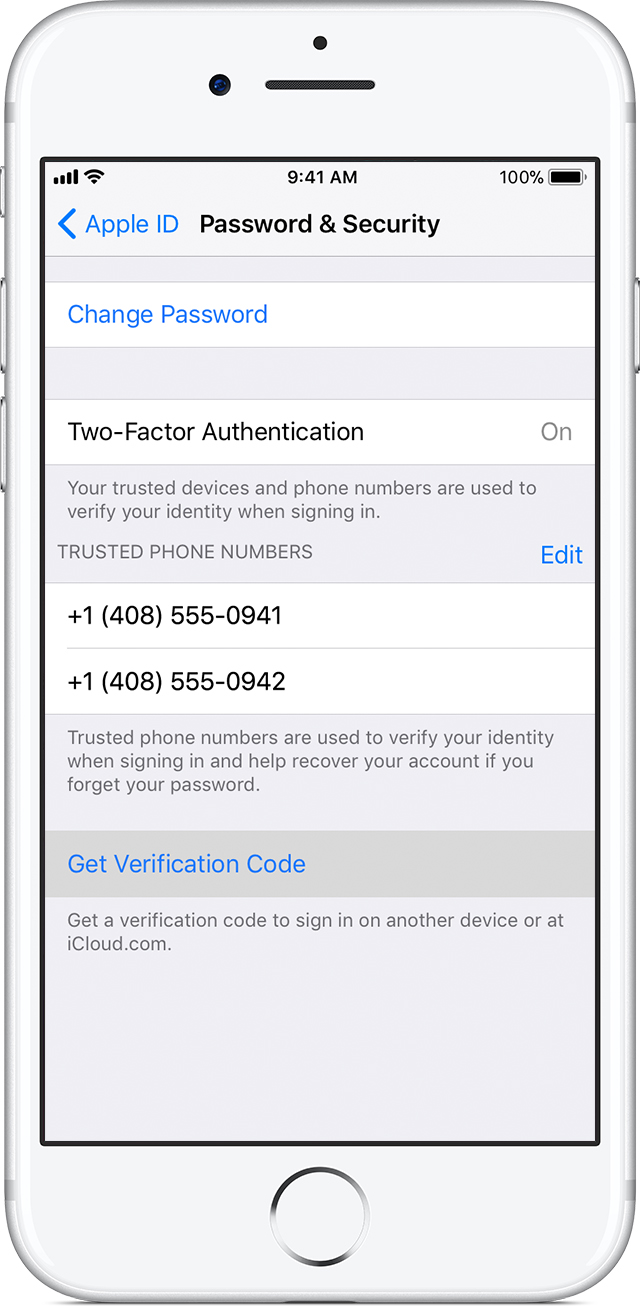
This is how I set mine up to receive a verification code and specificy a device:

User uploaded file

User uploaded file

Get a code from Settings on your trusted device

If you can’t receive a verification code on your trusted devices automatically, you can get one from Settings, even if your device is offline.

From your iPhone, iPad, or iPod touch:

In iOS 10.3 or later:

  1. Go to Settings > [your name].
  2. Tap Password & Security > Get Verification Code.

In iOS 10.3 or later, if your device is offline:

  1. Go to Settings > [your name].
  2. Tap Password & Security.
  3. A message says "Account Details Unavailable." Tap Get Verification Code.

In iOS 10.2 or earlier:

  1. Go to Settings > iCloud.
  2. Tap your Apple ID username.
  3. If your device is offline, tap Get Verification Code. If your device is online, tap Password & Security > Get Verification Code.

From your Mac:

  1. Go to Apple Menu > System Preferences > iCloud.
  2. Click Account Details.
  3. If your device is offline, click Get Verification Code. If your device is online, click Security > Get Verification Code.

(Get a verification code and sign in with two-factor authentication - Apple Support)

This thread has been closed by the system or the community team. You may vote for any posts you find helpful, or search the Community for additional answers.

Reduce number of trusted devices

Welcome to Apple Support Community
A forum where Apple customers help each other with their products. Get started with your Apple Account.