Deleting a text box
I’m in a pdf and notice that I can put in a text box with my Apple Pencil. How do I remove TEXT (the text box)
I’m in a pdf and notice that I can put in a text box with my Apple Pencil. How do I remove TEXT (the text box)
Good morning fingers 61,
Welcome to the Apple Support Communities!
I understand you want to delete a text box you created when marking up a PDF. All you need to do is tap with your finger to select the text box and you will see three options appear - Delete, Edit or Duplicate.
Tap the Delete option.
Use Markup in Mail on your iPhone, iPad, or iPod touch
Edit a photo or PDF you receive with Markup
When you get an email attachment, you can make changes and send it back—all without leaving the Mail app. Here’s how:
- Tap the attachment, then tap
.
- Choose a tool and mark up your attachment, then tap Done.
- Write your message, then tap Send.
Tools for Markup
Sketch, add text, zoom in, or add your signature to photos or PDFs in the Mail app. If you make a mistake, tap
to undo. To delete a markup, tap
, then tap the portion of the markup that you want to delete.
Sketch
Use the Pen tool to draw directly on a photo or PDF. Tap
Zoom in
Tap
, then tap
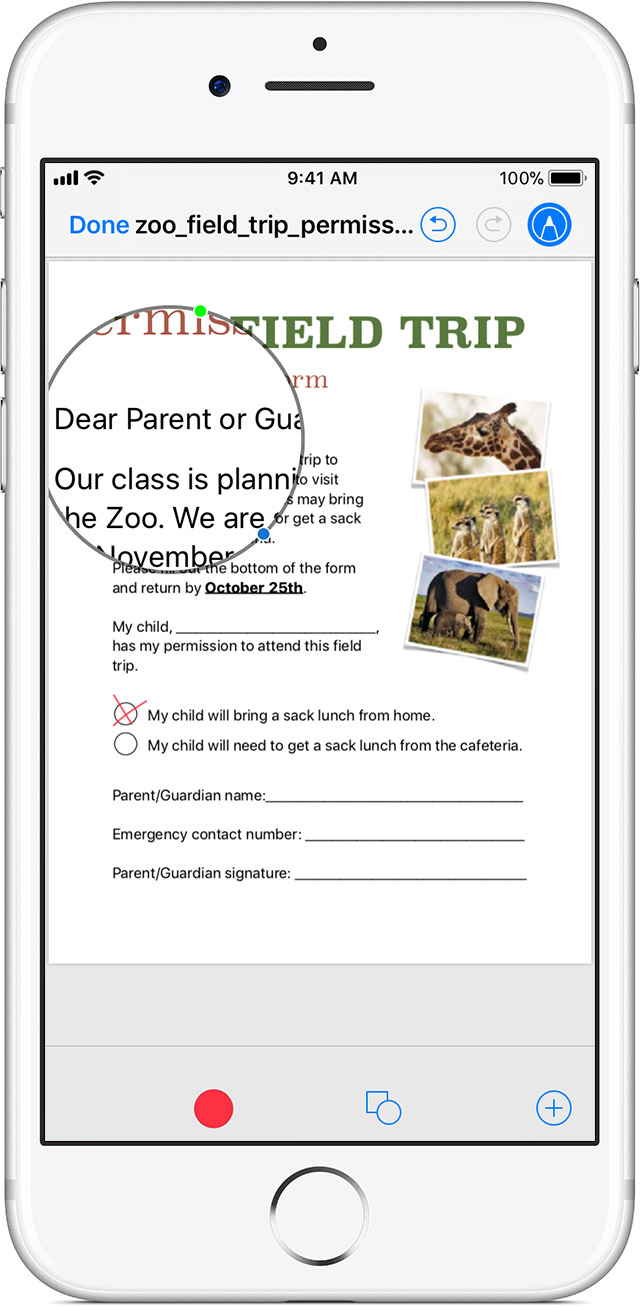
to zoom in on part of an image or PDF. Drag the blue dot along the edge of the circle to increase the area that you want to magnify. Drag the green dot to zoom in or out.
Add text
Tap
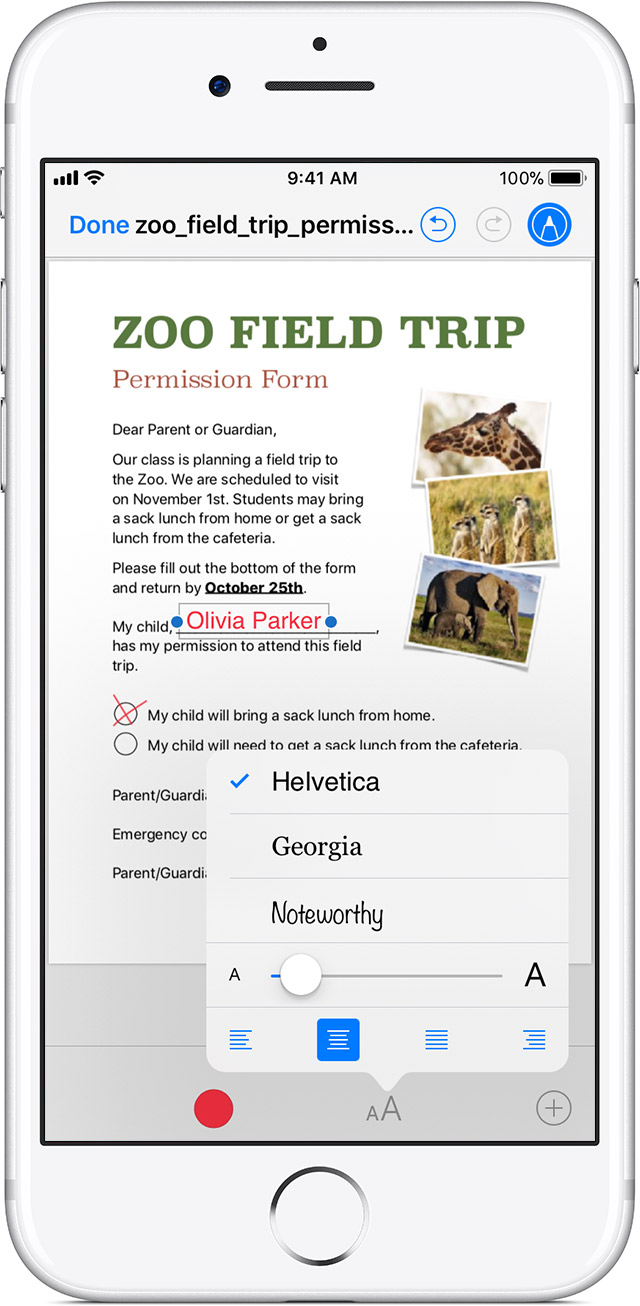
to add text. Choose a color for your text. Double tap inside the text box to bring up the keyboard. To change the font or size of your text, tap
. To move the text box, drag it.
Sign a document
Tap
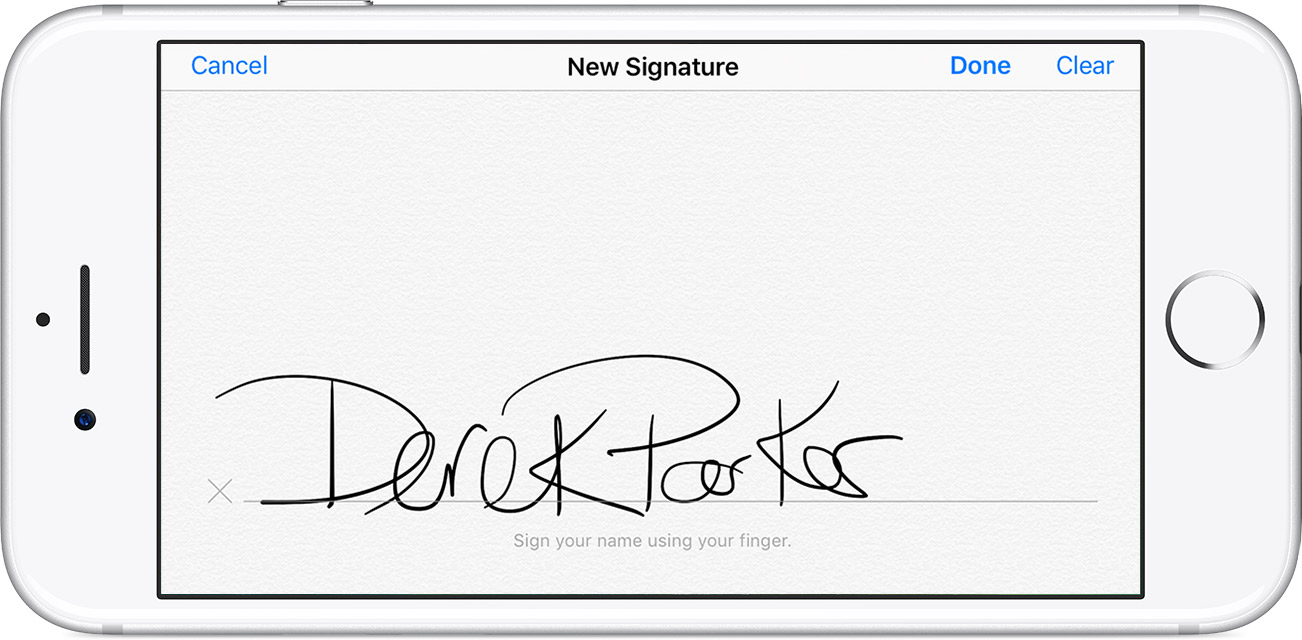
, use your finger to sign your name, then tap Done. If you already have a signature, tap

All the best to you in 2018!
Good morning fingers 61,
Welcome to the Apple Support Communities!
I understand you want to delete a text box you created when marking up a PDF. All you need to do is tap with your finger to select the text box and you will see three options appear - Delete, Edit or Duplicate.
Tap the Delete option.
Use Markup in Mail on your iPhone, iPad, or iPod touch
Edit a photo or PDF you receive with Markup
When you get an email attachment, you can make changes and send it back—all without leaving the Mail app. Here’s how:
- Tap the attachment, then tap
- Choose a tool and mark up your attachment, then tap Done.
- Write your message, then tap Send.
Tools for Markup
Sketch, add text, zoom in, or add your signature to photos or PDFs in the Mail app. If you make a mistake, tap
Sketch
Use the Pen tool to draw directly on a photo or PDF. Tap
Zoom in
Tap
Add text
Tap
Sign a document
Tap
All the best to you in 2018!
Deleting a text box