Can't delete cookies - Mac OS High Sierra version 10.13.2

I can't delete cookies. I'm using Mac OS High Sierra version 10.13.2. I use the Manage Website data tool. It takes several passes but deletes all cookies. Then after a few minutes they start reappearing and after a few hours, several hundred re-appear. I've also tried using Develop > Empty Cache but that does not work either.

iMac, macOS High Sierra (10.13.2)

Posted on Jan 26, 2018 6:59 PM

Reply
Question marked as Top-ranking reply

Posted on Jan 28, 2018 1:51 PM

Deleted Website Data reappearing?


Safari 11


Website Data comprises of Caches, Cookies, Local Storage and Databases.

Cookies and Caches help Safari run faster by storing relevant information locally.

But you can remove all those website data without any problem, it may even help.

Next time you visit the site, related cookies will be restored.


Websites one visits may have links embedded in to other web sites.

Those sites will store cookies in the cookies folder.

Cookies may not have the same name as the original website.

The homepage I have set, adds about 70 cookies.


A website may use service from other service providers.

When a user signs into ASC, a cookie from Badgeville will appear.


Cookies from websites added to AutoFill will appear automatically.

Websites that are related to widgets like Weather channel will reappear.

Cookies from built in search engines like Bing, Yahoo and other favorites like Facebook will reappear.

One of these may add additional cookies.

Cookies can come from Plug-ins and extensions installed on our Mac. There are Flash cookies.

Cookies from some of the bookmarked/favorites sites will reappear.


macOS stores cookies in different folders like Cookies folder, Databases folder, Local Storage folder, etc

This issue is not particular to Safari.

Compared to other browsers, Safari is more willing to show the presence of website data.

Private browsing helps a little bit.


Note: Shopping and notification sites

Empty the shopping cart/ bag.

Log out of the account.


1. Empty Caches


Safari > Preference > Advanced

Checkmark the box beside "Show Develop menu in menu bar".

Develop menu will appear in the Safari menu bar.

Click Develop and click "Empty Caches" from the dropdown.

Do this twice.


2. Delete Cookies

Safari > Preferences > Privacy > Cookies and Website Data...:

Click the “Manage Website Data” button.

Remove all cookies except ones from Apple, your internet service provider and banks.

Quit Safari. Relaunch Safari holding the Shift key down.

Repeat the procedure again. Restart the Mac.


3. Safari > Preferences > Search > Smart Search Field > Enable Quick Website Search

Click the “Manage Websites “ button. Click “Remove All” button and then “Done”.


4. Delete Databases and Local Storage items


Remove the item from Reading List, Bookmarks, iCloud Tabs and History.

Log out of the sites if you have logged into these sites.

Backup your Mac.


Quit Safari.


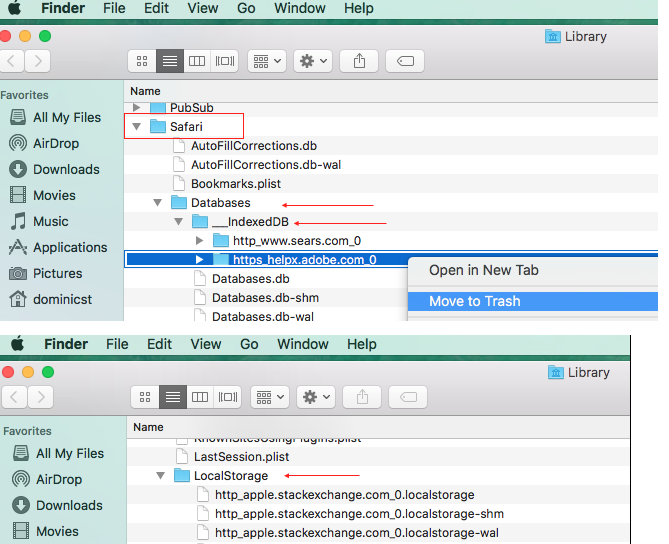
Hold the Option key on the keyboard down and click the “Go”menu in the Finder menu bar.

Choose “Library” from the dropdown.

Scroll down the list.


Click open the Safari folder.

Scroll down the list and click open the “Databases” folder.

Click open the “IndexedDB folder”.

If you find the items there, right click and choose “Move to Trash”

or select all and move to Trash.


Scroll down the list and click open the “Local Storage” folder

Right click the items you want to remove and choose “Move to Trash”.

Restart your Mac, launch Safari holding the shift key on the keyboard down and test.

User uploaded file


iCloud syncing will restore some of this data.

You can temporarily disable iCloud syncing.

System Preferences > iCloud > Safari

It is not easy to remove cookies known as “Evercookies”

5 replies
Question marked as Top-ranking reply

Jan 28, 2018 1:51 PM in response to NotTooSmart

Deleted Website Data reappearing?


Safari 11


Website Data comprises of Caches, Cookies, Local Storage and Databases.

Cookies and Caches help Safari run faster by storing relevant information locally.

But you can remove all those website data without any problem, it may even help.

Next time you visit the site, related cookies will be restored.


Websites one visits may have links embedded in to other web sites.

Those sites will store cookies in the cookies folder.

Cookies may not have the same name as the original website.

The homepage I have set, adds about 70 cookies.


A website may use service from other service providers.

When a user signs into ASC, a cookie from Badgeville will appear.


Cookies from websites added to AutoFill will appear automatically.

Websites that are related to widgets like Weather channel will reappear.

Cookies from built in search engines like Bing, Yahoo and other favorites like Facebook will reappear.

One of these may add additional cookies.

Cookies can come from Plug-ins and extensions installed on our Mac. There are Flash cookies.

Cookies from some of the bookmarked/favorites sites will reappear.


macOS stores cookies in different folders like Cookies folder, Databases folder, Local Storage folder, etc

This issue is not particular to Safari.

Compared to other browsers, Safari is more willing to show the presence of website data.

Private browsing helps a little bit.


Note: Shopping and notification sites

Empty the shopping cart/ bag.

Log out of the account.


1. Empty Caches


Safari > Preference > Advanced

Checkmark the box beside "Show Develop menu in menu bar".

Develop menu will appear in the Safari menu bar.

Click Develop and click "Empty Caches" from the dropdown.

Do this twice.


2. Delete Cookies

Safari > Preferences > Privacy > Cookies and Website Data...:

Click the “Manage Website Data” button.

Remove all cookies except ones from Apple, your internet service provider and banks.

Quit Safari. Relaunch Safari holding the Shift key down.

Repeat the procedure again. Restart the Mac.


3. Safari > Preferences > Search > Smart Search Field > Enable Quick Website Search

Click the “Manage Websites “ button. Click “Remove All” button and then “Done”.


4. Delete Databases and Local Storage items


Remove the item from Reading List, Bookmarks, iCloud Tabs and History.

Log out of the sites if you have logged into these sites.

Backup your Mac.


Quit Safari.


Hold the Option key on the keyboard down and click the “Go”menu in the Finder menu bar.

Choose “Library” from the dropdown.

Scroll down the list.


Click open the Safari folder.

Scroll down the list and click open the “Databases” folder.

Click open the “IndexedDB folder”.

If you find the items there, right click and choose “Move to Trash”

or select all and move to Trash.


Scroll down the list and click open the “Local Storage” folder

Right click the items you want to remove and choose “Move to Trash”.

Restart your Mac, launch Safari holding the shift key on the keyboard down and test.


User uploaded file


iCloud syncing will restore some of this data.

You can temporarily disable iCloud syncing.

System Preferences > iCloud > Safari

It is not easy to remove cookies known as “Evercookies”

This thread has been closed by the system or the community team. You may vote for any posts you find helpful, or search the Community for additional answers.

Can't delete cookies - Mac OS High Sierra version 10.13.2

Welcome to Apple Support Community
A forum where Apple customers help each other with their products. Get started with your Apple Account.
