mac Os update - loss of use in one external monitor

I received an update of my OS that disabled one of my two display monitors - I use Dell 2340M and the update is macOS High Sierra Version 10.13.3 - in iMac 21.5 inch, Late 2009, 3.06 GHz Intel Core 2 Duo, 16 GB 1067 MHz DDR3. I've allowed for the restart after update, then shut down and restarted, but the monitor shows a message saying it is not connected and goes to power save mode. How can I restore it in system preferences for use and control?

Posted on Feb 1, 2018 10:50 AM

Reply
Question marked as Top-ranking reply

Posted on Feb 2, 2018 4:34 PM

Hello Masterblaster107,


Thanks for that info and choosing the Apple Support Communities. If I understand correctly, you are unable to use your external display with your iMac. To help with your situation, please follow these steps from this Apple resource on your situation.

Check connections

Check the connections to your Mac and external displays:

  • If you're using an Apple notebook, try connecting its power adapter.
  • Make sure the external display's power cable is securely connected and that your display is turned on.
  • If you're using a Mac Pro (Late 2013) make sure your displays are connected to the right ports.
  • If you're using a display hub, switchbox, or "KVM," try connecting your display's video cable directly to your Mac instead.
  • Disconnect the video cable where it plugs into your Mac, then plug it back in to reseat the connection.
  • If you're using a video adapter, unplug the video adapter from your Mac, then plug it back in to reseat the connection.
  • If you're using more than one video adapter to connect your display (the adapters are "chained" together), try connecting the display using only one adapter if possible. Some video adapters can't be connected together. For example, a mini DisplayPort to DVI adapter can't be connected to a DVI to HDMI adapter.
  • If your display has more than one video connection, see if using another connection on the display works. If possible, check to see if using a different display or a different adapter works.
  • Try using a different cable that you know is in working order. Check with the display's manufacturer to make sure you're using the cable they recommend.
  • Restart the Mac with the display connected.

Detect your display

If you're using an external display, sleep and wake your Mac to make it check for connected displays:

  1. Press the power button on your computer to put it to sleep, or choose Apple menu > Sleep.
  2. Wait a few moments, then press a key on your keyboard or click your mouse or trackpad to wake your Mac.

If you're using more than one display, and you can see the image on one of the displays, you can also use Displays preferences to check for connected displays.

Adjust video settings

If there's no image on your display, try adjusting your display's brightness or contrast. If there's still no image, or the image appears torn or scrambled, try selecting a different video resolution in System Preferences.

Adjust brightness

  • If you're using an Apple Display, press the increase brightness key User uploaded file on your Apple keyboard. To adjust the brightness of a secondary display, press Control-F2.

  • If you're using a display that's not made by Apple, check the documentation that came with your display to see if it includes built-in controls for adjusting its brightness or contrast.

Change your display resolution

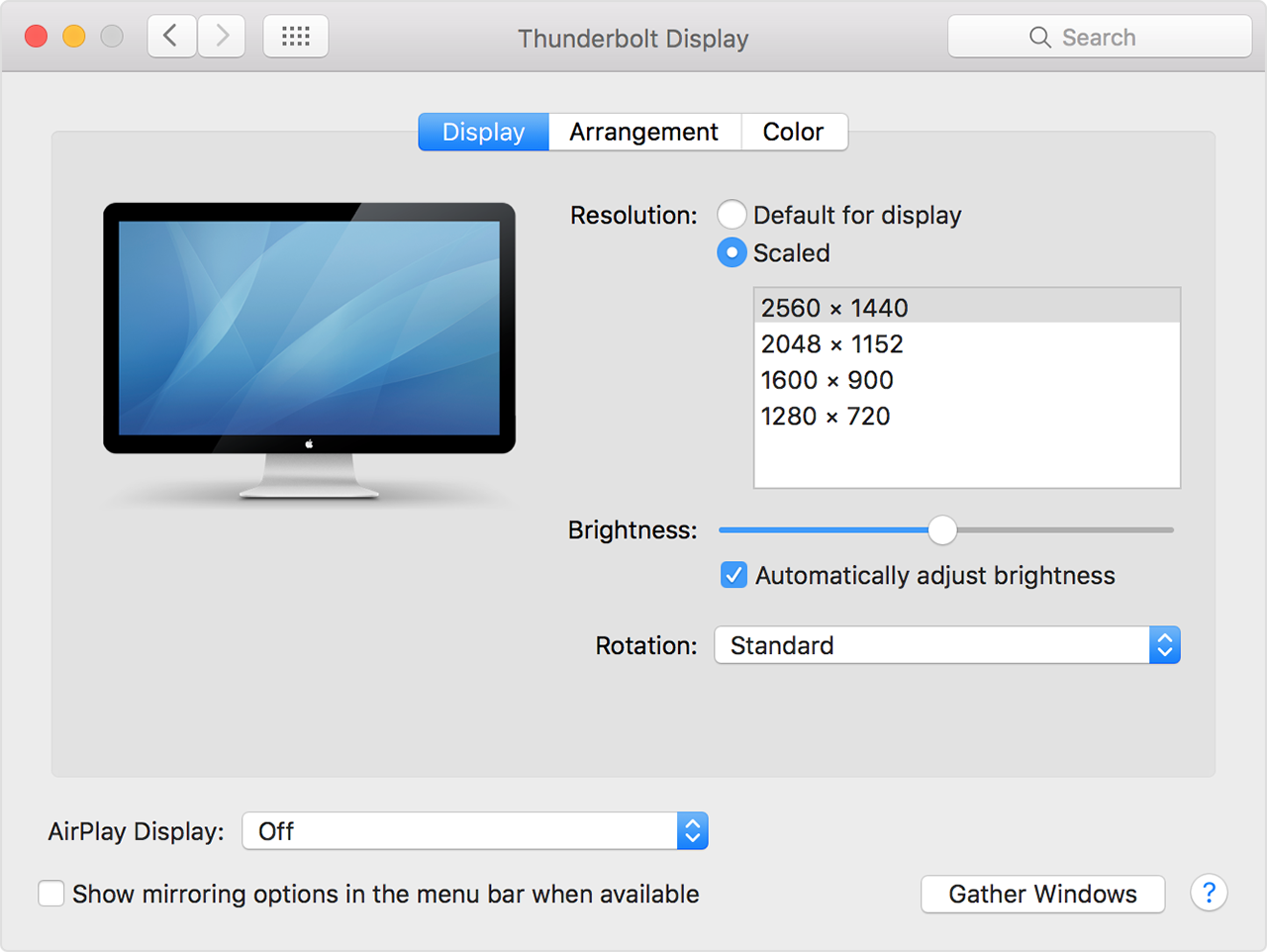
  1. From the Apple menu, choose System Preferences.
  2. Click the Displays icon.
  3. Click Default for display. If you see more than one resolution listed, choose a resolution and refresh rate. If the display turns off when you change resolutions, press the escape key to undo the change.
    User uploaded file

If you can't change the resolution of your display because you can't see an image, restart your Mac in safe mode to reset the display resolution to defaults.

If starting in safe mode doesn't resolve the issue, reset your Mac's NVRAM and SMC to reset the video ports on your Mac to their defaults.

Check for third-party display software

If your display works only when your Mac is started in safe mode, and you have display-related software installed, check with the software's developer for updates, or try temporarily uninstalling it.


Get help with video issues on external displays connected to your Mac


Cheers!

1 reply
Question marked as Top-ranking reply

Feb 2, 2018 4:34 PM in response to Masterblaster107

Hello Masterblaster107,


Thanks for that info and choosing the Apple Support Communities. If I understand correctly, you are unable to use your external display with your iMac. To help with your situation, please follow these steps from this Apple resource on your situation.

Check connections

Check the connections to your Mac and external displays:

  • If you're using an Apple notebook, try connecting its power adapter.
  • Make sure the external display's power cable is securely connected and that your display is turned on.
  • If you're using a Mac Pro (Late 2013) make sure your displays are connected to the right ports.
  • If you're using a display hub, switchbox, or "KVM," try connecting your display's video cable directly to your Mac instead.
  • Disconnect the video cable where it plugs into your Mac, then plug it back in to reseat the connection.
  • If you're using a video adapter, unplug the video adapter from your Mac, then plug it back in to reseat the connection.
  • If you're using more than one video adapter to connect your display (the adapters are "chained" together), try connecting the display using only one adapter if possible. Some video adapters can't be connected together. For example, a mini DisplayPort to DVI adapter can't be connected to a DVI to HDMI adapter.
  • If your display has more than one video connection, see if using another connection on the display works. If possible, check to see if using a different display or a different adapter works.
  • Try using a different cable that you know is in working order. Check with the display's manufacturer to make sure you're using the cable they recommend.
  • Restart the Mac with the display connected.

Detect your display

If you're using an external display, sleep and wake your Mac to make it check for connected displays:

  1. Press the power button on your computer to put it to sleep, or choose Apple menu > Sleep.
  2. Wait a few moments, then press a key on your keyboard or click your mouse or trackpad to wake your Mac.

If you're using more than one display, and you can see the image on one of the displays, you can also use Displays preferences to check for connected displays.

Adjust video settings

If there's no image on your display, try adjusting your display's brightness or contrast. If there's still no image, or the image appears torn or scrambled, try selecting a different video resolution in System Preferences.

Adjust brightness

  • If you're using an Apple Display, press the increase brightness key User uploaded file on your Apple keyboard. To adjust the brightness of a secondary display, press Control-F2.
  • If you're using a display that's not made by Apple, check the documentation that came with your display to see if it includes built-in controls for adjusting its brightness or contrast.

Change your display resolution

  1. From the Apple menu, choose System Preferences.
  2. Click the Displays icon.
  3. Click Default for display. If you see more than one resolution listed, choose a resolution and refresh rate. If the display turns off when you change resolutions, press the escape key to undo the change.
    User uploaded file

If you can't change the resolution of your display because you can't see an image, restart your Mac in safe mode to reset the display resolution to defaults.

If starting in safe mode doesn't resolve the issue, reset your Mac's NVRAM and SMC to reset the video ports on your Mac to their defaults.

Check for third-party display software

If your display works only when your Mac is started in safe mode, and you have display-related software installed, check with the software's developer for updates, or try temporarily uninstalling it.


Get help with video issues on external displays connected to your Mac


Cheers!

This thread has been closed by the system or the community team. You may vote for any posts you find helpful, or search the Community for additional answers.

mac Os update - loss of use in one external monitor

Welcome to Apple Support Community
A forum where Apple customers help each other with their products. Get started with your Apple Account.