Good afternoon nymabean,
Welcome to the Apple Support Communities!
I understand you are receiving notifications for text messages on your Apple Watch when you are texting on your iPhone. There are two ways to address this:
1) Adjust Notifications for Messages app only:
- Tap the Watch app on your iPhone.
- Tap Notifications.
- Tap Messages
- In the ALERTS section, tap to disable "Show Alerts"
Notifications on your Apple Watch
2) If you set your Apple Watch to "Do Not Disturb" that will eliminate all alerts and save battery life. To do this, on your Apple Watch, swipe up on the watch face. Tap the icon that looks like a moon. When enabled, the button will be blue.
Change the audio and notification settings on your Apple Watch
To keep calls and alerts (except for alarms) from sounding or lighting up the screen, turn on Do Not Disturb. When Do Not Disturb is on,  appears at the top of the screen.
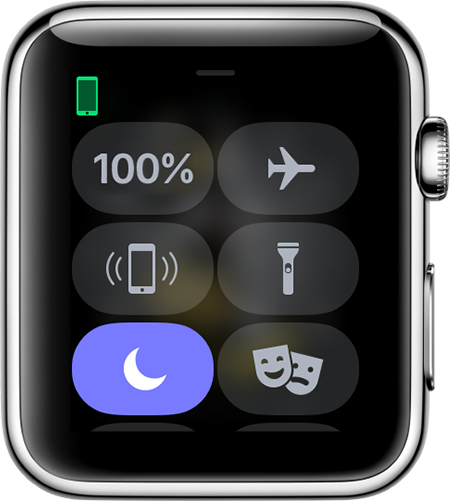
Swipe up on the watch face to open Control Center, then tap  .
.
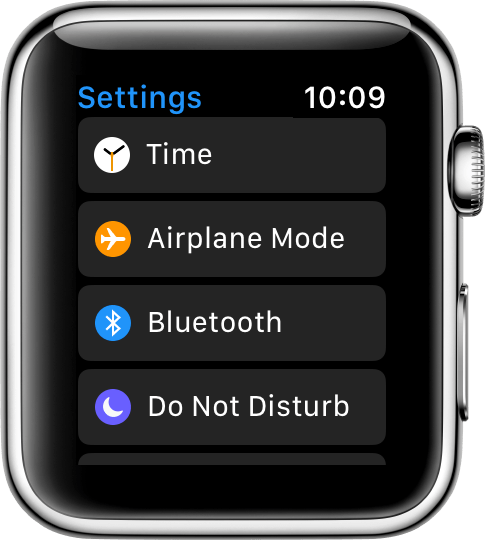
Or open Settings, tap Do Not Disturb, then turn on the setting.
Additionally, I recommend trying the steps in the Apple Recommended post from Jonathan UK in this discussion thread: https://discussions.apple.com/thread/8043369
Enjoy your day!



