Dead air on calls
I have not had this issue until today. When I answer a call or are making a call, I get dead air. On answer calls it can last from a few seconds to 1/2 minute. On calls I make, I do not hear ringing.
I have not had this issue until today. When I answer a call or are making a call, I get dead air. On answer calls it can last from a few seconds to 1/2 minute. On calls I make, I do not hear ringing.
If you can‘t hear a person on a call or voicemail or if the sound isn‘t clear on your iPhone
When you're on a call or listening to voicemail on your iPhone, you might not be able to hear a person's voice clearly. Or you might hear crackling, static, or generally poor sound quality. Learn what to do.
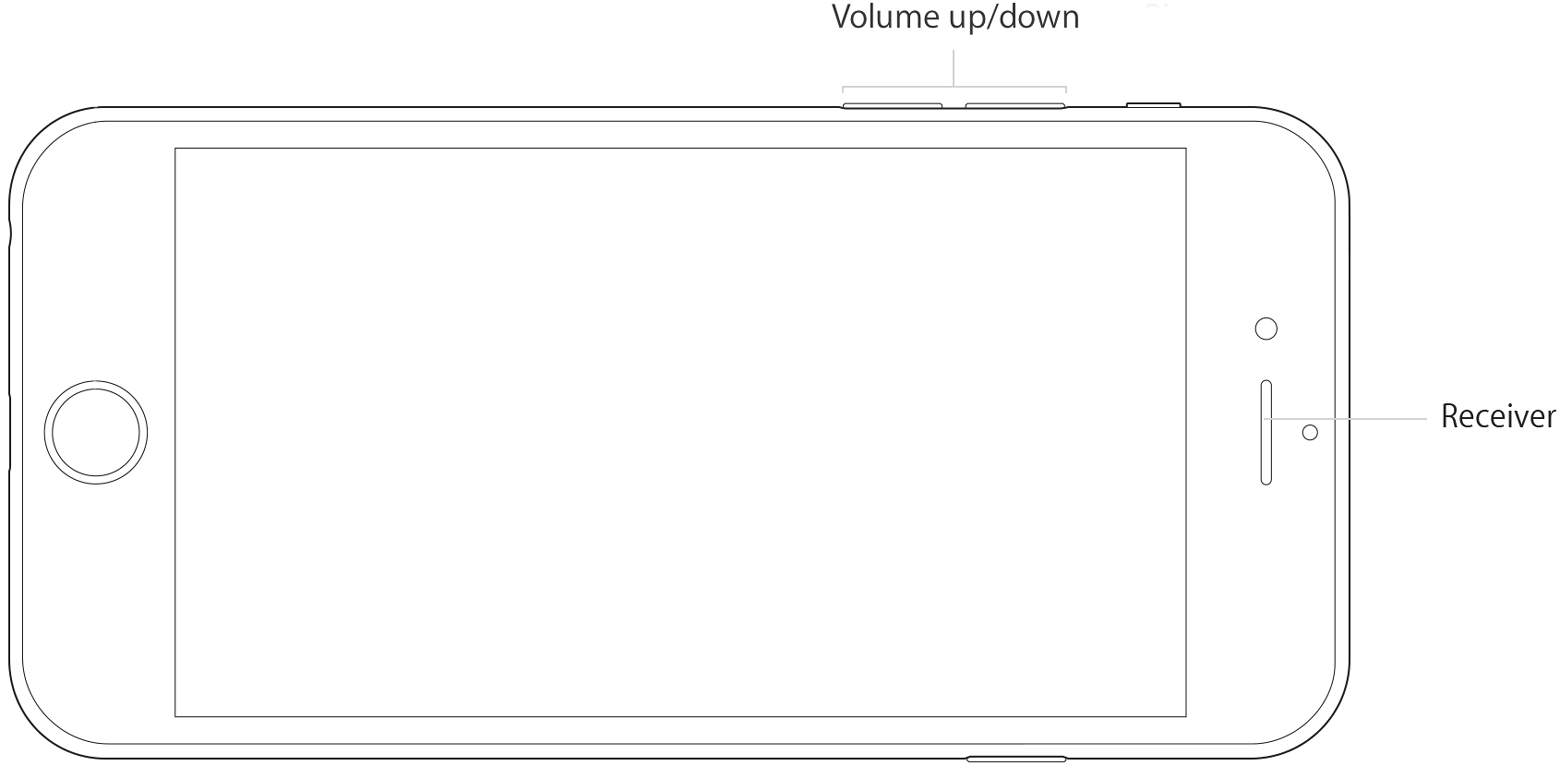
iPhone Volume and Receiver
Turn up the volume
While you're on a call, adjust the volume with the volume buttons. Make sure that you can see the volume indicator on the screen when you press the volume buttons.
Check the connections
If your iPhone is connected to a headset, you won't be able to hear through the iPhone receiver or using speakerphone. Follow these steps, testing after each.
- Make sure that you don't have anything plugged into the headphone jack or the dock connector.
- Go to Settings > Bluetooth and turn off Bluetooth.
Clear the receiver
The iPhone receiver won't work properly if it's blocked or dirty.
Follow these steps, testing after each:
- Make sure nothing is blocking the receiver, such as a case or screen protector.
If you have a new iPhone, remove the plastic film on the front and back of the device.- Check the receiver opening to see if it's blocked or dirty. If necessary, clean the receiver opening with a small, soft-bristled brush. Make sure that the brush is clean and dry.
- While you're on a call, turn on speakerphone. If you still can't hear, then your network or reception could be the issue. Try calling again later or from a different location.
Check the receiver
Follow these steps to see if the issue is with your receiver or your network:
- Open the Voice Memos app and record a short audio clip. If you don't have the Voice Memos app, learn how to restore it.
- Tap
in the upper-right corner of your screen to switch playback between the speaker and receiver.
- Tap
to play the voice memo through the receiver on your device.
- If you hear the voice memo and it sounds normal (without distortion, crackling, or static), there might be an issue with your carrier network or voicemail system. Contact your carrier for more information.
Restart and update
- Restart your iPhone and test again.
- If there's still no sound or poor sound quality, update your iPhone to the latest version of iOS.
Get more help
If you tried these steps and there's still no sound or poor sound quality from your iPhone, contact Apple Support.
Learn what to do if other people can't hear you on a call.
Dead air on calls