MacBook Pro 2011 running slow High Sierra

Dear Community,

my MacBook Pro late 2011 is running very slow and it takes forever to open word, iMail etc. even though I have most of my things saved on an external hard drive. After doing an Etre Check, do you have any suggestions on what I am supposed to do to fix that problem?

Tanks so much!


EtreCheck version: 4.3.5 (4D040)

Report generated: 2018-07-16 15:45:11

Download EtreCheck from https://etrecheck.com

Runtime: 5:59

Performance: Below Average


Problem: Computer is too slow


Major Issues:

Anything that appears on this list needs immediate attention.


No Time Machine backup- Time Machine backup not found.


Minor Issues:

These issues do not need immediate attention but they may indicate future problems.


Upgradeable hard drive- This machine’s hard drive could be replaced with an SSD. This would dramatically improve your machine’s performance.

Clean up- There are orphan files that could be removed.

Low performance- EtreCheck report took over 5 minutes to run. This is unusual.


Hardware Information:

MacBook Pro (13-inch, Late 2011)

MacBook Pro Model: MacBookPro8,1

1 2,8 GHz Intel Core i7 (i7-2640M) CPU: 2-core

4 GB RAM - Upgradeable

BANK 0/DIMM0 - 2 GB DDR3 1333 ok

BANK 1/DIMM0 - 2 GB DDR3 1333 ok

Battery: Health = Normal - Cycle count = 89


Video Information:

Intel HD Graphics 3000 - VRAM: 384 MB

Color LCD 1280 x 800


Drives:

disk0 - TOSHIBA MK7559GSXF 750.16 GB (Mechanical)

Internal SATA 3 Gigabit Serial ATA

disk0s1 - EFI (MS-DOS FAT32) [EFI] 210 MB

disk0s2 [Core Storage Container] 749.30 GB

disk1 - Macintosh HD (Journaled HFS+) 748.93 GB

disk0s3 - Recovery HD [Recovery] 650 MB


Mounted Volumes:

disk1 - Macintosh HD 748.93 GB (683.00 GB free)

Journaled HFS+

Mount point: /


Network:

Interface en0: Ethernet

Interface en4: iPhone

Interface fw0: FireWire

Interface en1: Wi-Fi

802.11 a/b/g/n

One IPv4 address

2 IPv6 addresses

Interface en3: Bluetooth PAN

Interface bridge0: Thunderbolt Bridge


System Software:

macOS High Sierra 10.13.5 (17F77)

Time since boot: Less than an hour

System Load: 1.90 (1 min ago) 1.94 (5 min ago) 1.77 (15 min ago)


Security:

SystemStatus
GatekeeperMac App Store and identified developers
System Integrity ProtectionEnabled


System Launch Agents:

[Not Loaded]8 Apple tasks
[Loaded]172 Apple tasks
[Running]113 Apple tasks
[Other]One Apple task


System Launch Daemons:

[Not Loaded]37 Apple tasks
[Loaded]186 Apple tasks
[Running]111 Apple tasks
[Other]One Apple task


Launch Agents:

[Loaded]com.microsoft.update.agent.plist (Microsoft Corporation - installed 2018-07-12)
[Running]com.wdc.WDTrashObserver.plist (Western Digital Corporation Branded Products Group - installed 2018-06-25)
[Loaded]com.wdc.WD-Discovery.plist (Western Digital Corporation Branded Products Group - installed 2018-06-25)
[Other]com.adobe.ARMDCHelper.cc24aef4a1b90ed56a725c38014c95072f92651fb65e1bf9c8e43c37a2 3d420d.plist (Adobe Systems, Inc. - installed 2018-07-05)


Launch Daemons:

[Loaded]com.adobe.ARMDC.SMJobBlessHelper.plist (Adobe Systems, Inc. - installed 2018-07-05)
[Loaded]com.microsoft.autoupdate.helper.plist (Microsoft Corporation - installed 2018-07-12)
[Loaded]WDDiscoveryService.HelperTool.plist (? cb3c0573 - installed 2018-03-16)
[Loaded]com.apple.installer.osmessagetracing.plist (Apple - installed 2018-05-30)
[Loaded]com.adobe.ARMDC.Communicator.plist (Adobe Systems, Inc. - installed 2018-07-05)
[Loaded]com.microsoft.office.licensingV2.helper.plist (Microsoft Corporation - installed 2017-05-15)


User Launch Agents:

[Other]com.apple.CSConfigDotMacCert-***@***-SharedServices.Agent.plist (? 0 - installed 2017-06-02)
[Loaded]com.google.keystone.agent.plist (Google, Inc. - installed 2018-02-04)


User Login Items:

iTunesHelper Programm (Apple - installed 2018-07-12)

(/Applications/iTunes.app/Contents/MacOS/iTunesHelper.app)

Lima Programm (Lima Technology - installed 2017-12-14)

(/Applications/Lima.app)

WD Discovery Programm (Western Digital Corporation Branded Products Group - installed 2018-06-25)

(/Applications/WD Discovery/WD Discovery.app)


Internet Plug-ins:

QuickTime Plugin: (installed 2018-07-05)

AdobePDFViewer: (installed 2018-07-12)

AdobePDFViewerNPAPI: (installed 2018-07-12)


Safari Extensions:

Adblock Plus.safariextz - Eyeo GmbH - https://adblockplus.org/(installed 2017-06-07)


Time Machine:

Time Machine Not Configured!


Top Processes by CPU:

Process (count)Source% of CPULocation
WindowServerApple25
com.apple.WebKit.WebContent (6)Apple23
SafariApple9
com.apple.WebKit.Networking (2)Apple3
python?3/Applications/Lima.app


Top Processes by Memory:

Process (count)SourceRAM usageLocation
com.apple.WebKit.WebContent (9)Apple1015 MB
kernel_taskApple438 MB
mdworker (24)Apple305 MB
SafariApple137 MB
ecoreLima Technology74 MB


Top Processes by Network Use:

ProcessSourceInputOutputLocation
com.apple.WebKit.NetworkingApple2 MB53 KB
MailApple469 KB31 KB
ecoreLima Technology68 KB51 KB
mDNSResponderApple64 KB22 KB
apsdApple4 KB5 KB


Top Processes by Energy Use:

Process (count)SourceEnergy (0-100)Location
python?5/Applications/Lima.app
WindowServerApple3
com.apple.WebKit.WebContent (9)Apple3
coreaudiodApple2
launchdApple0


Virtual Memory Information:

Available RAM1.11 GB
Free RAM22 MB
Used RAM2.89 GB
Cached files1.09 GB
Swap Used145 MB


Software Installs (past 30 days):

NameVersionInstall Date
Kamino1.5.0(79)2018-06-25
WD Device Agent1.1.0(17)2018-06-25
MRTConfigData1.352018-06-25
Adobe Acrobat Reader DC (Continuous)18.011.200402018-07-05
Microsoft AutoUpdate4.1.180705032018-07-12
Adobe Acrobat Reader DC (18.011.20055)18.011.200552018-07-12
Gatekeeper Configuration Data1472018-07-12
iTunes12.82018-07-12
Microsoft Excel for Mac16.15.180709022018-07-13
Microsoft Word for Mac16.15.180709022018-07-13
Microsoft Outlook for Mac16.15.180709022018-07-15
Microsoft OneNote for Mac16.15.180709022018-07-15
Microsoft PowerPoint for Mac16.15.180709022018-07-15


Clean up:

~/Library/LaunchAgents/com.apple.CSConfigDotMacCert-***@***-SharedServices.Agent .plist

/System/Library/Frameworks/CoreServices.framework/Frameworks/OSServices.framewor k/Versions/A/Support/CSConfigDotMacCert

Executable not found


Diagnostics Information (past 7 days):

2018-07-15 18:32:11 iTunes.app Hang

/Applications/iTunes.app


2018-07-14 15:47:44 Lima.app Crash

/Applications/Lima.app

*** Terminating app due to uncaught exception 'NSInvalidArgumentException', reason: '-[GCDAsyncSocket setState:]: unrecognized selector sent to instance 0x6040001f5700'

abort() called

terminating with uncaught exception of type NSException


End of report

MacBook Pro, Version 10.13.5
Posted on Jul 16, 2018 7:02 AM

Reply

Similar questions

1 reply

Jul 16, 2018 1:01 PM in response to alinafromdarm

After waiting for my mid-2012 MacBook Pro to update for two days and nights, it's finally on the latest macOS — 10.13 High Sierra!

As a tech enthusiast, I was super excited about High Sierra and its new features. However, the excitement has been gradually overcome by the issues I encountered — mainly, that it runs slowly or even freezes up during and after installation.

Having immersed myself into countless Apple communities and forums, I found that I wasn't alone. Because of our collective experience, I figured it would be a good idea to write an article listing common macOS High Sierra slowdown issues together with relevant solutions.

My goal is simple: to save you time by helping you solve problems! Some of the issues below are what I personally suffered, while some come from stories of other fellow Mac users. I hope you find them helpful.


Important Tips

If you have decided to update to High Sierra but have yet to do so, here are a few things (based on order of priority) I highly recommend you check out in advance so you can avoid potential problems.

  1. Check your Mac model - Not all Macs, especially old ones, are able to upgrade. Apple has a clear list of which Mac models are supported. You can view the specifics here.
  2. Clean up your Mac - Per Apple, High Sierra requires at least 14.3GB of storage space to perform the upgrade. The more free space you have, the better. Plus, it'll take you less time to back up. How to clean? There are lots of manual things you can do, but I recommend using CleanMyMac 3 to remove system junk and Gemini 2 to find large duplicates. That's the most effective solution I've found.
  3. Backup your data - It's always good practice to backup your Mac once a while — or like they say, make a backup of your backups! Apple also recommends us to do that for major macOS upgrades, just in case. Time Machine is the go-to tool but you can also use an advanced backup app like Get Backup Pro which has several key features Time Machine doesn't offer, such as bootable backups, the ability to select which files to backup, lossless compression, etc.
  4. Update to 10.12.6 FIRST - This helps avoid an issue where your Mac keeps hanging in the "about a minute remaining" window. I found out the hard way. If your Mac is currently running an older Sierra version other than 10.12.6, you can't successfully install High Sierra. You can learn more details from Issue 3 below.
  5. Choose the right time to update - Do NOT install High Sierra at work. You never how long it's going to take. Instead, I think it's best that you set a time to do this on a weekend. The installation process alone will take about two hours to complete (ideally). Plus, it takes more time to clean and back up your Mac -- and deal with those unexpected issues like the ones I encountered.

All done? Great! Now here are the list of issues and fixes you may reference in case problems show up.

Note: it's very unlikely that you'll encounter all of the issues below, so feel free to navigate through the Table of Contents to jump to the issue that is exactly the same or similar to your situation.


During macOS High Sierra Installation

Issue 1: Downloading Process is Slow

Possible cause: Your Internet connection is weak.

How to fix: Restart your Internet router, or move your Mac machine to a better location with a stronger signal.

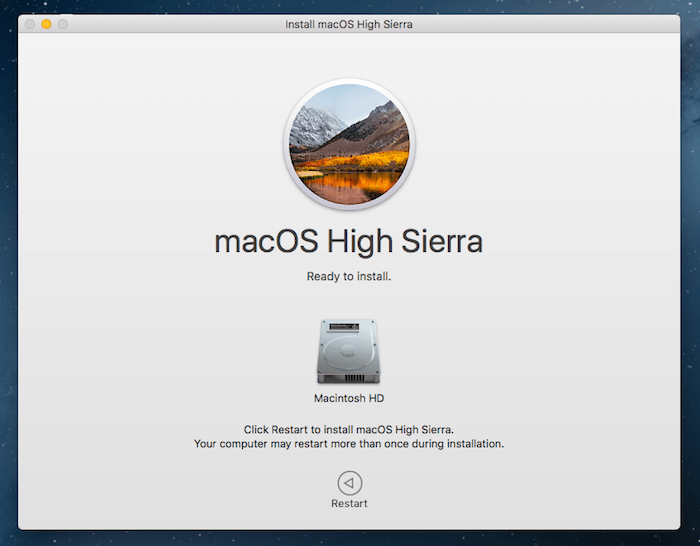
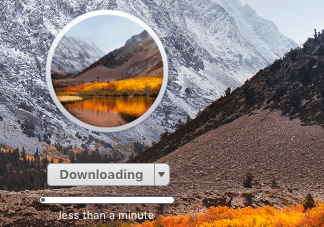
For me, it only took a few minutes for the download to complete before the installation window popped up. Here are two screenshots I took:

User uploaded file

User uploaded file

Issue 2: Not Enough Disk Space to Install

Possible cause: The startup disk on the Mac that High Sierra will be installed on lacks storage space. The latest macOS requires at least 14.3GB free disk space.

How to fix: Free up storage as much as you can. Check the partition for large files, deleting or transferring them elsewhere (especially photos and videos which tend to take much more space than other types of files). Also, unused applications could stack up. It's good practice to uninstall them as well. The quickest way is to use CleanMyMac to deep-clean your hard drive (see review), and Gemini to find and remove duplicates or similar files (see review).

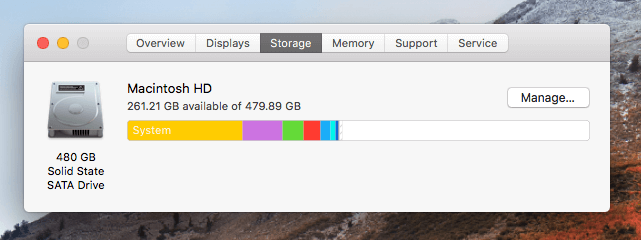
For me, I didn't encounter this error because my installation "Macintosh HD" has 261.21 GB available of 479.89 GB — 54% free!

User uploaded file

Issue 3: Freezes or Stuck at A Minute Remaining

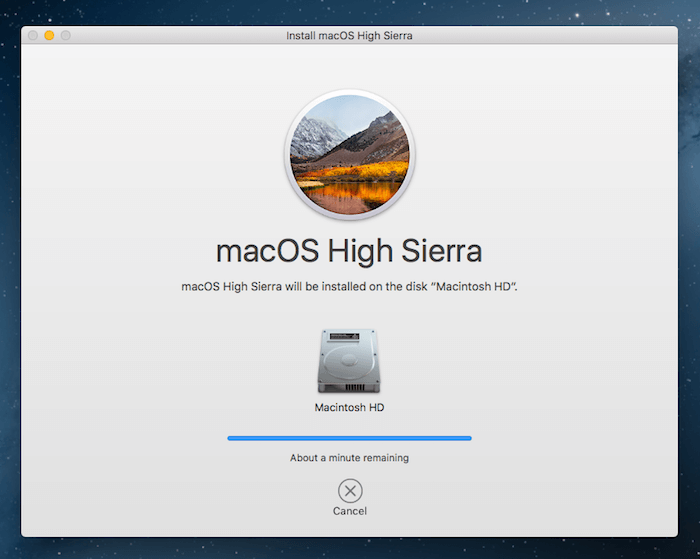
More details: The installation stops while the progress bar shows it's almost finished. It says "About a minute remaining" (could be "several minutes left" in your case).

User uploaded file

Possible cause: Your Mac is running macOS Sierra 10.12.5 or an older version.

How to fix: Take a few minutes to update your Mac to 10.12.6 first, then re-install 10.13 High Sierra.

I was really annoyed by this "About a minute remaining" issue — though it said only a minute left, a few hours later the situation was the same. I canceled it, thinking my Internet had been disconnected, and re-tried. But I was disappointed to see my Mac hang up again with the same error: Stuck at one minute left.

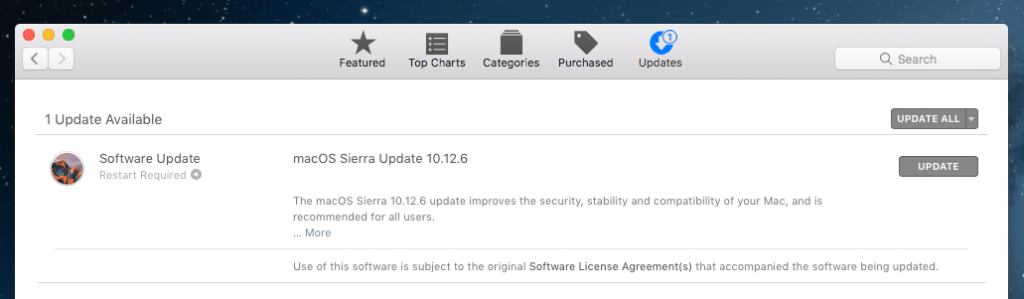
So, I opened Mac App Store and saw that there was an update request (as you see from the screenshot below, thankfully I still have it). I clicked the "UPDATE" button. In about ten minutes, Sierra 10.12.6 was installed. I then proceeded to install High Sierra. The "one minute remaining" issue never reappeared.

User uploaded file

Issue 4: Mac Running Hot

Possible cause: You're multi-tasking while High Sierra has yet to finish installing.

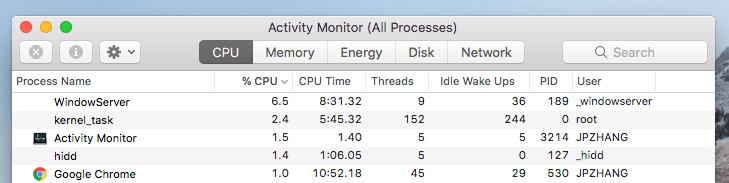
How to fix: Open Activity Monitor and find resource-hogging processes. You can access Activity Monitor by going to Applications > Utilities, or do a quick Spotlight search. Close those applications or processes (highlight them and click "X" button) that are over-consuming your CPU and memory. Also, read this Mac overheating article I wrote earlier for other fixes.

User uploaded file

While I installed High Sierra, my mid-2012 MacBook Pro did run hot a little bit, but not to a point that it needed attention. I found that once I quit a few commonly used apps like Google Chrome and Mail, the fan immediately stopped running loud. I had to switch to my PC for work stuff during those two days, which wasn't a problem for me, fortunately. 🙂

After macOS High Sierra is Installed

Issue 5: Running Slow on Startup

Possible causes:

  • Your Mac has too many login items (apps or services that automatically open up when a Mac boots up).
  • The startup disk on your Mac has limited available storage space.
  • The Mac is equipped with an HDD (hard disk drive) rather than an SSD (solid state drive). In case you wondered the speed difference, I replaced my MacBook hard drive with a new SSD and the performance difference was like night and day. Initially, my Mac took at least thirty seconds to start up, but after the SSD upgrade, it only took ten seconds or so.

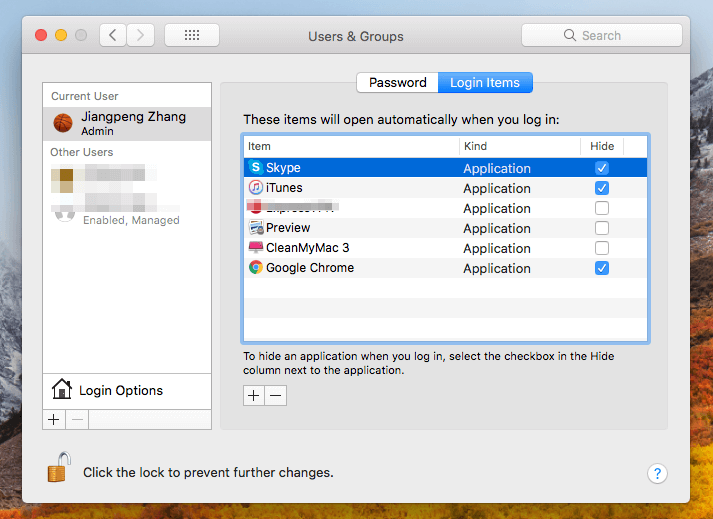
How to fix: First, click the Apple logo on the top-left and select System Preferences > Users & Groups > Login Items. There you'll see all the items that open automatically when you log in. Highlight those unneeded items and click the "-" icon to disable them.

User uploaded file

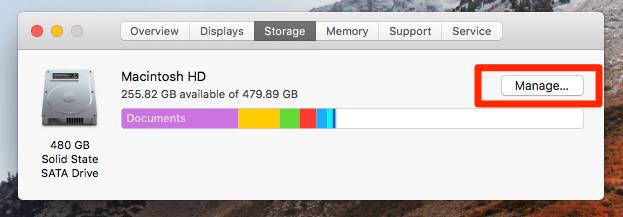
Then, check whether or not the startup disk is full by going to About This Mac > Storage. You'll see a colorful bar like this showing you the usage of your hard drive (or flash storage).

User uploaded file

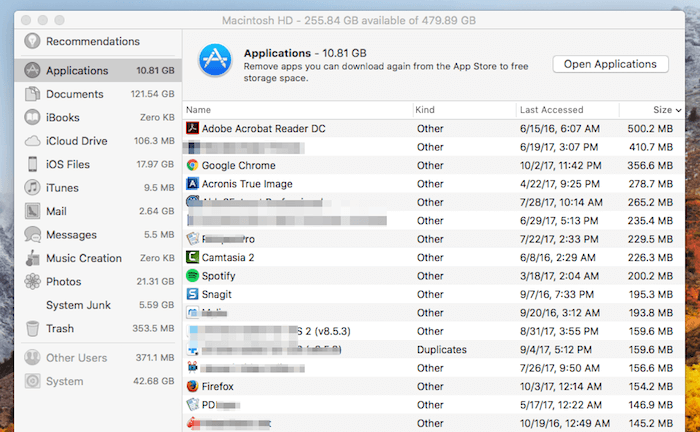
Clicking on the "Manage" button gives you a detailed overview of what types of files are taking up the most storage — which is often a direct hint as to where you should get started cleaning up your Mac.

User uploaded file

For me, I didn't notice much speed lag after updating to High Sierra, probably because my Mac had an SSD already (its default Hitachi HDD died last year) and it only takes ten seconds or so to fully boot up. Seriously, Macs with SSDs are much faster than those with HDDs.

Issue 6: Mac Cursor Freezes

Possible cause: You enlarged the cursor size.

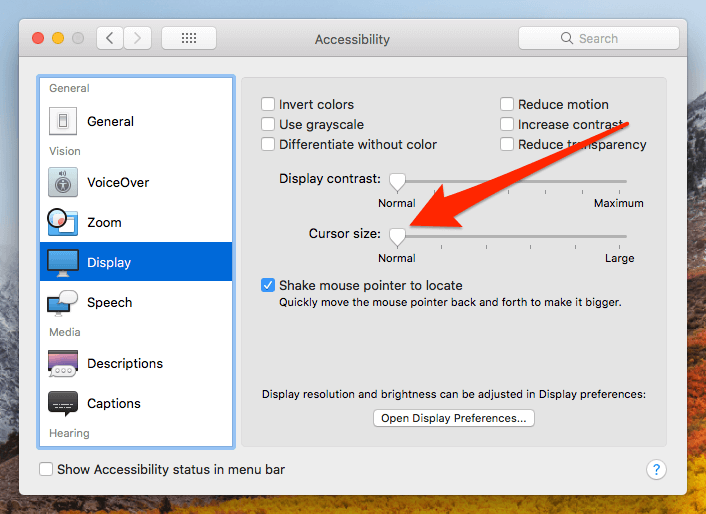
How to fix: Adjust the cursor to normal size. Go to System Preferences > Accessibility > Display. Under "Cursor size", make sure it points to "Normal".

User uploaded file

Issue 7: App Crashes or Can't Be Opened upon Start

Possible cause: The app is outdated or incompatible with High Sierra.

How to fix: Check the app developer's official site or Mac App Store to see if there's a newer version. If yes, update to the newer version and re-launch the app.

Note: if the Photos app fails to launch by showing this error "An unexpected error has occurred. Please quit and restart the application", you may need to repair the Photos library. This article has more information on that.

Issue 8: Safari, Chrome, or Firefox Slow

Possible causes:

  • The version of your web browser is outdated.
  • You've installed too many extensions or plugins.
  • Your computer is infected with Adware and your web browsers are being redirected to suspicious websites with intrusive flash ads.

How to fix:

First, run Bitdefender Antivirus for Mac to check if your machine has been infected with malicious software or Adware.

Then, check if your web browser is up to date. Take Firefox for instance — click on “About Firefox” and Mozilla will auto-check whether Firefox is up to date. Same with Chrome and Safari.

User uploaded file

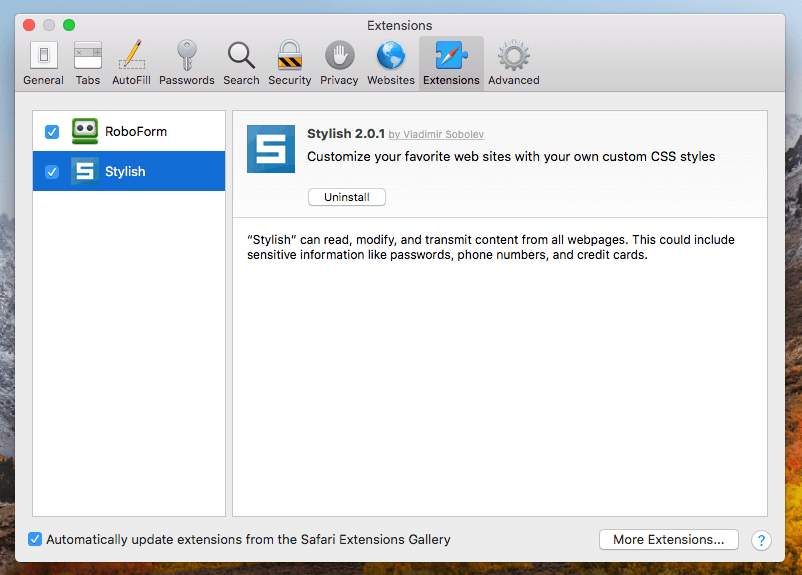
Also, remove unnecessary third-party extensions. (833) 506-1666 For example, on Safari, go to Preferences > Extensions. Here you'll see the plugins you've installed. Uninstall or disable those you don't need. In general, the fewer extensions enabled, the smoother your browsing experience would be.

User uploaded file

How to Improve Mac Performance with High Sierra

  • Declutter your Mac desktop. Many of us are used to saving everything on the desktop, but that's never a good idea. A cluttered desktop can seriously slow down a Mac. Additionally, it's bad for organization. How do you solve that? Start by manually creating folders and moving files into them.
  • Reset NVRAM and SMC. 1-833-506-1666 If your Mac is not booting correctly after updating to High Sierra, you can perform a simple NVRAM or SMC resetting. This Apple guide, as well as this one, has detailed step-by-step instructions. Make sure you've backed up your Mac before doing this.
  • Check Activity Monitor more often. It's normal that when you're running certain third-party apps, your Mac could slow down or even freeze. Activity Monitor is the best way to pinpoint those problems. For those apps that have compatibility issues running with the latest macOS, check the developer's site to see if there's an update, or turn to alternative apps.

This thread has been closed by the system or the community team. You may vote for any posts you find helpful, or search the Community for additional answers.

MacBook Pro 2011 running slow High Sierra

Welcome to Apple Support Community
A forum where Apple customers help each other with their products. Get started with your Apple Account.