Black screen on iPad Mini 2 after iOS 12 Upgrade

Hi,


My iPad Mini 2 was working beautifully on iOS 11.etc but it automatically updated to iOS 12 during the night.


The problem I have now, is it starts up fine but as soon as I click the standby button or close the cover on my iPad to lock it, the screen goes black and never comes back.


The only way way to get the iPad to come back is through a hard reboot.


This is totally ***** as I have hard rebooted my iPad 5 times already this morning and it was totally fine before the update.


The battery is is full and this happens on power and disconnected from power as well.


Please help.


Thanks

Grant

Posted on Sep 20, 2018 12:58 AM

Reply
Question marked as Top-ranking reply

Posted on Sep 20, 2018 7:23 PM

Hi ​Editwhiz,

Thanks for reaching out in Apple Support Communities. I understand that after installing iOS 12 you're unable to wake your iPad after locking the screen. I can see why you'd reach out for assistance with this; I'd like to help. Based on the behavior you're describing, I'd recommend that you first create a backup: How to back up your iPhone, iPad, and iPod touch


Then use these steps to reinstall the iOS software to your iPad; this process will erase the software currently installed and replace it with a fresh copy. Be sure to closely follow step four during this process in order to prevent data loss:
  1. Make sure that you're using the latest version of iTunes.
  2. If iTunes is already open, close it. Connect your device to your computer and open iTunes. If you don't have a computer, borrow one from a friend or go to an Apple Retail Store or Apple Authorized Service Provider for help.
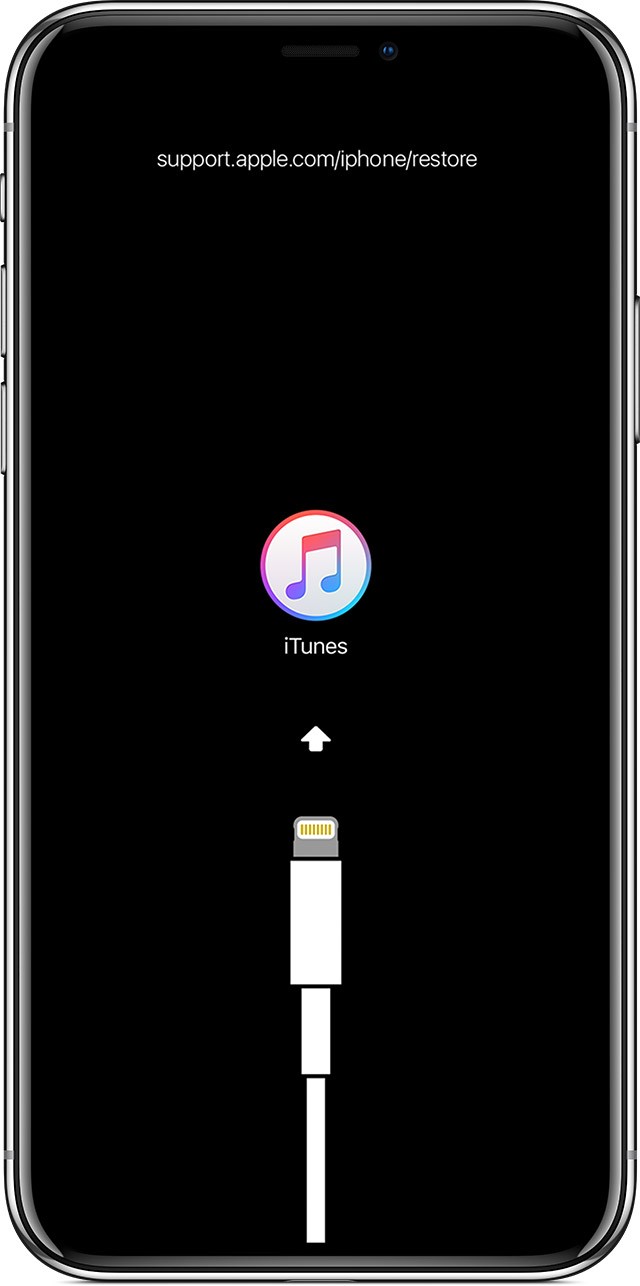
  3. While your device is connected, force restart it with these steps, but don't release the buttons when you see the Apple logo, wait until the connect to iTunes screen appears:
    • On iPhone 8 and later: Press and quickly release the Volume Up button. Press and quickly release the Volume Down button. Then, press and hold the Side button until you see the connect to iTunes screen.
    • On an iPhone 7 or iPhone 7 Plus: Press and hold the Side and Volume Down buttons at the same time. Keep holding them until you see connect to iTunes screen.
    • On an iPhone 6s and earlier, iPad, or iPod touch: Press and hold both the Home and the Top (or Side) buttons at the same time. Keep holding them until you see the connect to iTunes screen.
      User uploaded file
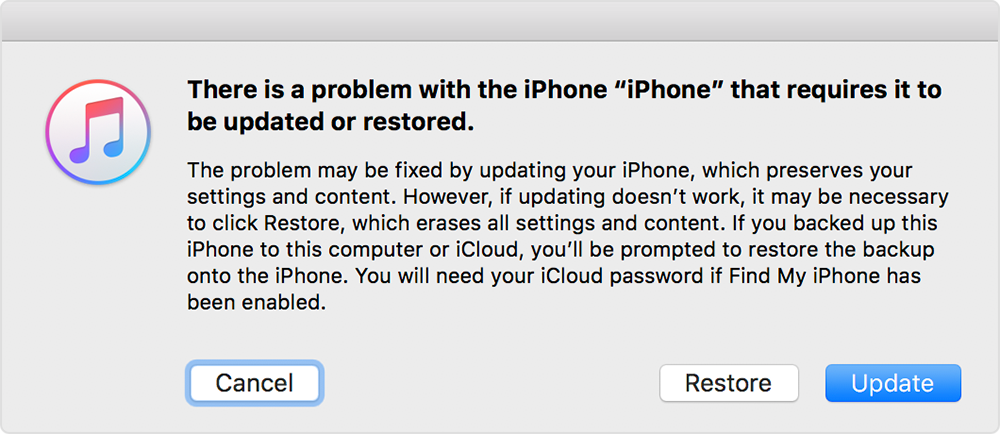
  4. When you see the option to Restore or Update, choose Update. iTunes will try to reinstall iOS without erasing your data. Wait while iTunes downloads the software for your device. If the download takes more than 15 minutes and your device exits the connect to iTunes screen, let the download finish, then repeat step 3.
    User uploaded file
  5. After the Update or Restore completes, set up your device.
If you can't update or restore your iPhone, iPad, or iPod touch

Let me know what you find.


Best Regards.
85 replies

This thread has been closed by the system or the community team. You may vote for any posts you find helpful, or search the Community for additional answers.

Black screen on iPad Mini 2 after iOS 12 Upgrade

Welcome to Apple Support Community
A forum where Apple customers help each other with their products. Get started with your Apple Account.