blurred image moves on login screen

MBP 13" 2016 Sierra 10.12.6 - intermittently a grey login screen appears with a blurred smudge that moves every few seconds to different parts of the screen. Entering login password opens up computer to desktop as usual. Hacked? Virus? User uploaded fileScanned with Norton and shows no infections. User uploaded file

Posted on Sep 29, 2018 2:06 AM

Reply

Similar questions

6 replies

Sep 30, 2018 7:13 PM in response to cthammer

Try booting into the Safe Mode to see if you see the same thing.


Safe Mode - About


Safe Mode Startup – El Capitan. also Sierra


If it works in the Safe Mode, try running this program when booted normally and then copy and paste the output in a reply. The program was created by Etresoft, a frequent contributor. Please use copy and paste as screen shots can be hard to read. Click “Share Report” button in the toolbar, select “Copy to Clipboard” and then paste into a reply. This will show what is running on your computer. No personal information is shown.

Etrecheck – System Information

Oct 1, 2018 12:53 AM in response to cthammer

I do tech support for a living. Here are the steps you need to take. If you need help call Apple at 800-275-2273 between 8am - 11pm (may vary on holidays) or go to getsupport.apple.com and follow the prompts to setup a call.


1. Do a backup (unless you don't need to back it up)

2. Make sure you know your Mac's login password and your Apple ID & password.

3. Wait until the issue happens again and note the date and time of the issue (HH:MM:SS if possible)

4. Reset SMC. Look up article HT201295 on apple's website for help. Test the issue afterward. If it's gone, keep an eye on it and notate the date and time if happens again then contact Apple (see instructions above)

5. If it still happens after resetting SMC contact Apple (see instructions above)

Sep 30, 2018 3:58 PM in response to jeremy_v

Thank you Jeremy_v, I do not have a dynamic background but have opted to change to one of the Apple backgrounds and screen savers since I did have a picture of mine as the background. I also tried MacOS recovery but the gray sceen that comes up is not the same as the one with moving image, and did not show any moving image as when the issue occurs. Will see if the change of background affects this issue. Cheers, Chris

Sep 30, 2018 10:00 AM in response to cthammer

Hi cthammer,

Thank you for posting in the Apple Support Communities. From your post, I see you had a concern about a moving image on your login screen. Offhand, this does not appear to be any type of suspicious behavior, but there are a few things that could be happening.

Typically, your login screen will reflect your chosen desktop photo; do you have a dynamic or moving desktop photo by any chance? You can check this by using the steps in this Mac Basics: Desktop resource:

Change your background

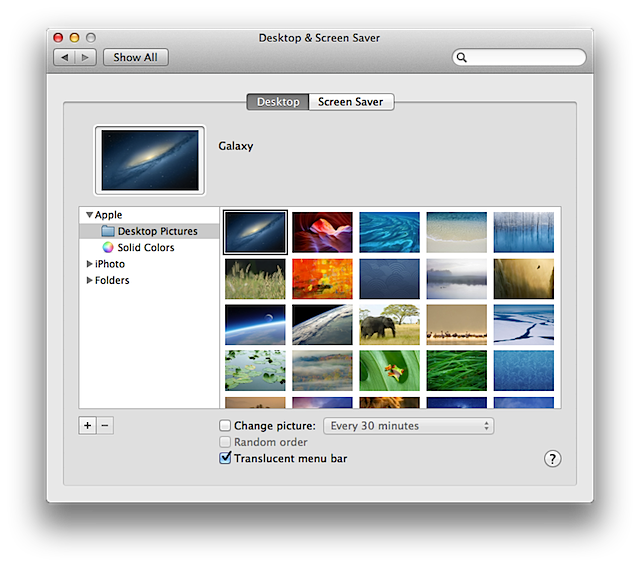
You can change the picture that's displayed on your Mac's desktop. You can choose one of the desktop pictures that comes with your Mac, a solid color, or one of your own pictures.

User uploaded file

  1. Click the Launchpad icon in the Dock, and then click System Preferences. If you're using Mac OS X v10.6 or later, click the System Preferences icon in the Dock.
  2. Click Desktop & Screen Saver, and then click Desktop.
  3. To select the kind of desktop picture you want to use, do one of the following:
    • To use an image that come with your Mac, select a folder under the Apple section.
    • To use a solid color, select "Solid Colors" under the Apple section.
    • To use your own picture, select the Picture folder under "Folders," if the picture you want is stored in your Pictures folder. If your image is in another folder, click the Add button (+), then find and select the folder that your picture is in. Then, click Choose.
  4. Select the picture you want in the box on the right.


If everything checks out with your desktop photo, it might be a good step to try booting into macOS Recovery next. This will give you a similar-colored grey background and you can see if the same behavior occurs there. You'll find the steps here, in the article About macOS Recovery .

How to use macOS Recovery

Hold down Command-R or one of the other macOS Recovery key combinations on your keyboard immediately after pressing the power button to turn on your Mac, or immediately after your Mac begins to restart. Continue holding until you see the Apple logo or a spinning globe.


After you test to see if the same blur appears, and the macOS Utilities screen loads, you can back to normal by clicking the Apple menu () > Restart.

I hope these steps help to determine where the blur is coming from.

Take care.

This thread has been closed by the system or the community team. You may vote for any posts you find helpful, or search the Community for additional answers.

blurred image moves on login screen

Welcome to Apple Support Community
A forum where Apple customers help each other with their products. Get started with your Apple Account.