Sound stops working and need to restart to fix

Hey there,


So I have a 2017 13" MacBook Pro and for the most part am a big fan. My one issue (which has been recurring since I purchased the computer in February 2018) is that, seemingly at random, the sound will stop playing from my computer. Doesn't matter if its through headphones, external displays, or the actual computer. I can be listening to music for an hour, close my MacBook while I step away for ~15 minutes, come back and plug everything back in, and the sound will have stopped working. The only solutions I've found are:


  1. Restart the laptop. this works 100% of the time, but is a pain in the ***.
  2. Unplug and the plug in the usb-c power cord a few times. This works about 50% of the time, but I have no idea why this would affect it


Does anyone else have this problem, and if so have you been able to find a more permanent solution?

MacBook Pro TouchBar and Touch ID, Mac OS X (10.3.x)

Posted on Nov 2, 2018 1:01 PM

Reply

Similar questions

1 reply

Nov 4, 2018 6:06 AM in response to Hsizvshs

Hello, Hsizvshs!

Thanks for using Apple Support Communities, it's great to have you here. I see from your post that you're having some issues with sound output on your MacBook Pro. I can definitely give you a hand here.

Whenever I see issues like this, I recommend following the steps in the support article Get help if the internal speakers on your Mac don't make sound . There are quite a few resources on that page that could help resolve this issue for you. One of the first things that article recommends is to get your MacBook fully up to date, which you can do by following these steps:

How to get updates for earlier macOS versions

If you're using an earlier macOS, such as macOS High Sierra, Sierra, El Capitan, or earlier,* follow these steps to keep it up to date:

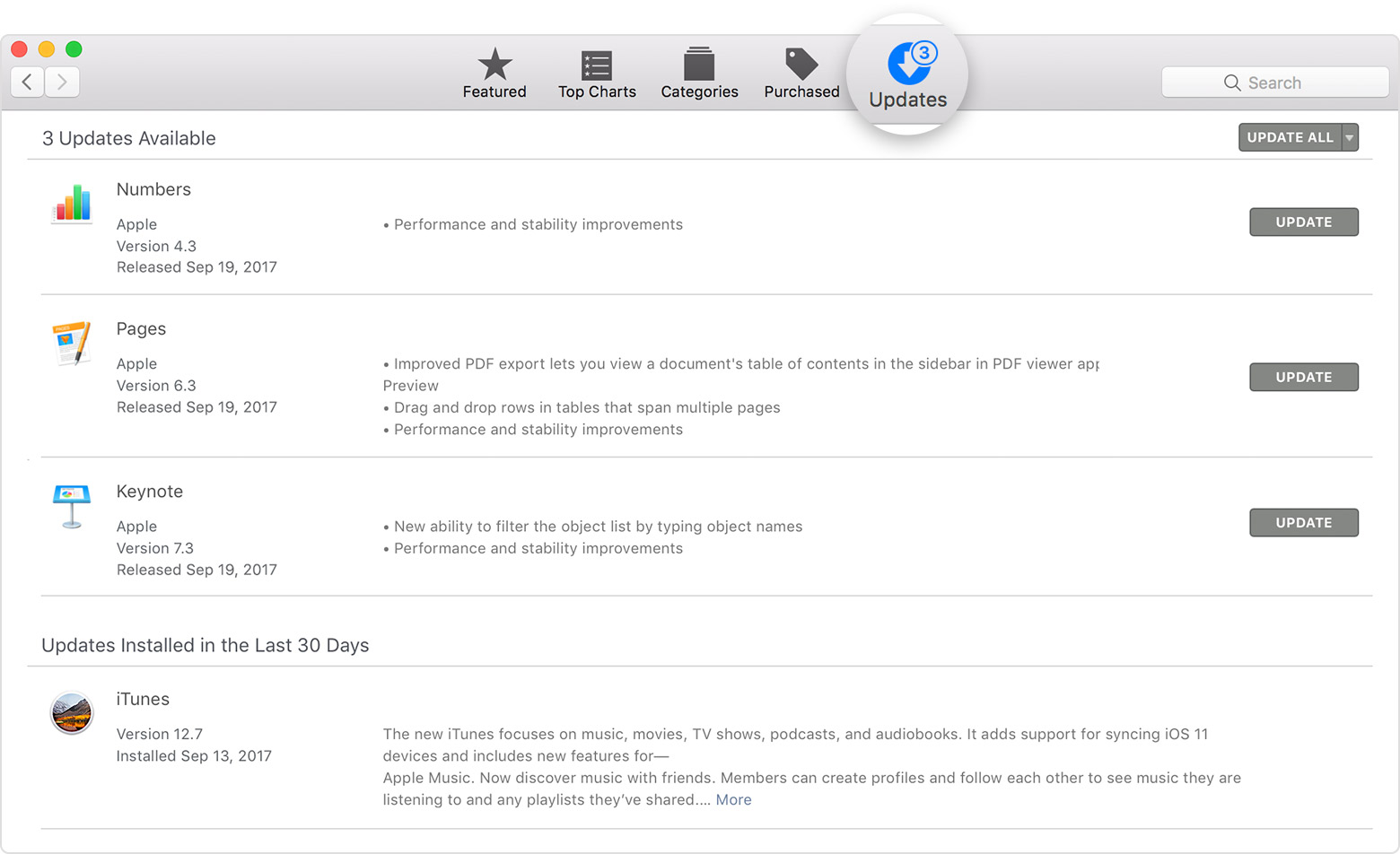
  1. Open the App Store app on your Mac.
  2. Click Updates in the App Store toolbar.User uploaded file
  3. Use the Update buttons to download and install any updates listed.
  4. When the App Store shows no more updates, your version of macOS and all of its apps are up to date. That includes Safari, iTunes, iBooks, Messages, Mail, Calendar, Photos, and FaceTime. Later versions are available by upgrading your macOS.

To automatically download updates in the future, choose Apple menu () > System Preferences, click App Store, then select ”Download newly available updates in the background.” Your Mac will notify you when updates are ready to install.

Those steps are for older version of macOS. If you're on Mojave, you can follow the steps laid out in this article: How to update the software on your Mac

I hope that this information is helpful.

​Have a great day!

This thread has been closed by the system or the community team. You may vote for any posts you find helpful, or search the Community for additional answers.

Sound stops working and need to restart to fix

Welcome to Apple Support Community
A forum where Apple customers help each other with their products. Get started with your Apple Account.