iPhone disabled, "connect to iTunes" happened so i came to apple for support and i followed all of the steps but my phone screen went black yet lit, instead of the iTunes logo screen popping up. However i was able to proceed with the steps because my

iPhone disabled, "connect to iTunes" happened so i came to apple for support and i followed all of the steps but my phone screen went black yet lit, instead of the iTunes logo screen popping up. However i was able to proceed with the steps because my computer and iTunes did have the exact same pop up question asking to restore or update the phone. i clicked restore but when the screen said it would be downloading software and to wait around 15 minutes plus, my screen stayed lit yet black and i sat and waited by the phone and compute for more then 155 minutes but the iPhone would just restart up after being lit black for a while and go back to original disabled connect to iTunes. i even looked up videos on youtube nut i didnt find anything about a black screen while doing all of the steps. the phone is an iPhone 6 plus. it is not damaged. its my husbands old phone we saved for our son but his friend changed his passcode without my sons knowledge and my son didn't know about too many attempts causing his phone to disable. trying to do this but its not working for some reason. is there suppose to be something on the computer screen showing iTunes is downloading the software or just the phone as i saw in the youtube videos. my phone stays all black but lit. not iTunes image as seen in these steps with images. i am wondering why this is happening and how i can move forward in some way to restore the phone.

iPhone 6 Plus, iOS 11.4.1, unsure the iOS

Posted on Nov 25, 2018 12:46 AM

Reply
Question marked as Top-ranking reply

Posted on Nov 26, 2018 2:05 PM

Hi AJF4l,

Welcome to the Apple Support Communities. From your post, it looks like you've been trying to restore your iPhone but it still shows the "Connect to iTunes" logo on your display; is that right?

If the download in iTunes takes more than 15 minutes, as in this case, your device will exit recovery mode and you'd need to put it back into recovery mode once the software finishes downloading. The best way to keep track of the iOS software download in iTunes is to look for a "circle with a downward arrow" icon in the top right of the app. If you click that, you'll see how much time is remaining for the download. The full steps you'll need to complete this process can be found in this article, titled If you can't update or restore your iPhone, iPad, or iPod touch . The steps below will walk you through it start-to-finish, including the steps you'll need to take when the device exits recovery mode after 15 minutes:

Put your device in recovery mode and set it up again

  1. Make sure that you're using the latest version of iTunes.
  2. If iTunes is already open, close it. Connect your device to your computer and open iTunes. If you don't have a computer, borrow one from a friend or go to an Apple Retail Store or Apple Authorized Service Provider for help.
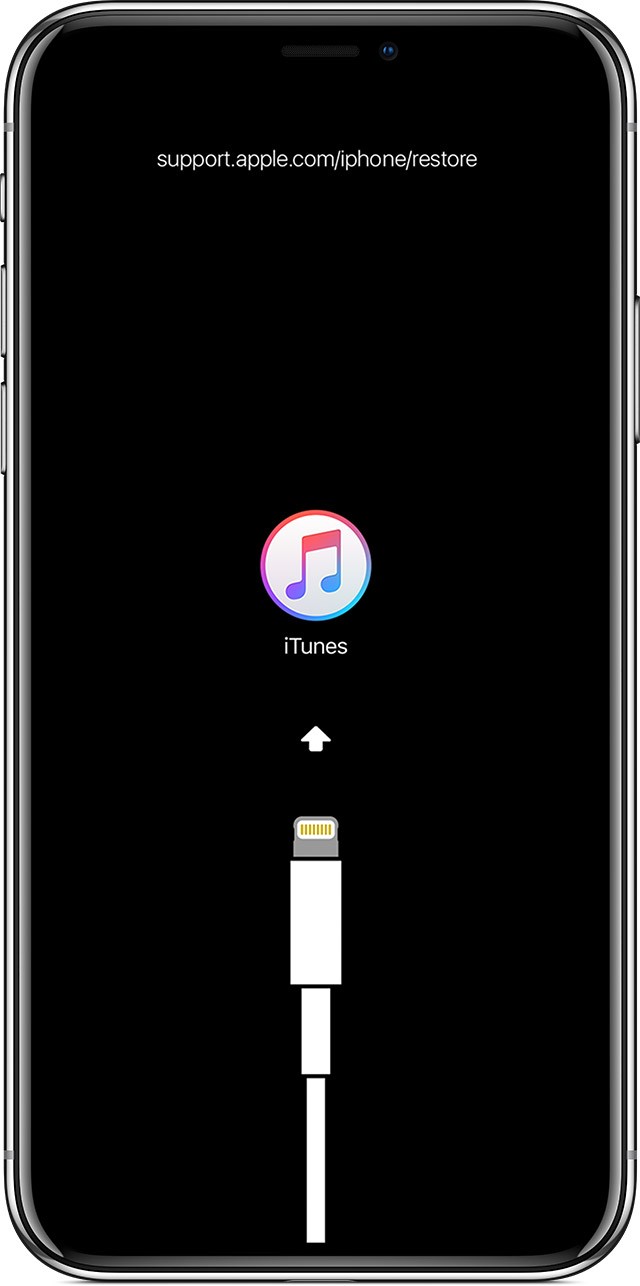
  3. While your device is connected, force restart it with these steps, but don't release the buttons when you see the Apple logo, wait until the connect to iTunes screen appears:
    • On an iPad Pro 11-inch or iPad Pro 12.9-inch: Press and quickly release the Volume Up button. Press and quickly release the Volume Down button. Press and hold the Top button until your device begins to restart. Continue holding the Top button until your device goes into Recovery Mode.
    • On iPhone 8 and later: Press and quickly release the Volume Up button. Press and quickly release the Volume Down button. Then, press and hold the Side button until you see the connect to iTunes screen.
    • On an iPhone 7 or iPhone 7 Plus: Press and hold the Side and Volume Down buttons at the same time. Keep holding them until you see connect to iTunes screen.
    • On an iPhone 6s and earlier, iPad, or iPod touch: Press and hold both the Home and the Top (or Side) buttons at the same time. Keep holding them until you see the connect to iTunes screen.
      User uploaded file
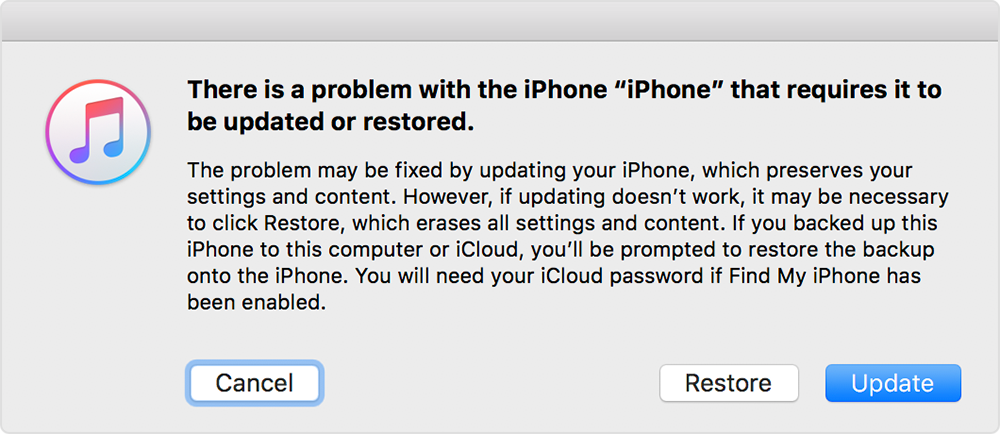
  4. When you see the option to Restore or Update, choose Update. iTunes will try to reinstall iOS without erasing your data. Wait while iTunes downloads the software for your device. If the download takes more than 15 minutes and your device exits the connect to iTunes screen, let the download finish, then repeat step 3.
    User uploaded file
  5. After the Update or Restore completes, set up your device.


I hope this information helps to get the iPhone up and running.

Have a great night.

Similar questions

1 reply
Question marked as Top-ranking reply

Nov 26, 2018 2:05 PM in response to AJF4l

Hi AJF4l,

Welcome to the Apple Support Communities. From your post, it looks like you've been trying to restore your iPhone but it still shows the "Connect to iTunes" logo on your display; is that right?

If the download in iTunes takes more than 15 minutes, as in this case, your device will exit recovery mode and you'd need to put it back into recovery mode once the software finishes downloading. The best way to keep track of the iOS software download in iTunes is to look for a "circle with a downward arrow" icon in the top right of the app. If you click that, you'll see how much time is remaining for the download. The full steps you'll need to complete this process can be found in this article, titled If you can't update or restore your iPhone, iPad, or iPod touch . The steps below will walk you through it start-to-finish, including the steps you'll need to take when the device exits recovery mode after 15 minutes:

Put your device in recovery mode and set it up again

  1. Make sure that you're using the latest version of iTunes.
  2. If iTunes is already open, close it. Connect your device to your computer and open iTunes. If you don't have a computer, borrow one from a friend or go to an Apple Retail Store or Apple Authorized Service Provider for help.
  3. While your device is connected, force restart it with these steps, but don't release the buttons when you see the Apple logo, wait until the connect to iTunes screen appears:
    • On an iPad Pro 11-inch or iPad Pro 12.9-inch: Press and quickly release the Volume Up button. Press and quickly release the Volume Down button. Press and hold the Top button until your device begins to restart. Continue holding the Top button until your device goes into Recovery Mode.
    • On iPhone 8 and later: Press and quickly release the Volume Up button. Press and quickly release the Volume Down button. Then, press and hold the Side button until you see the connect to iTunes screen.
    • On an iPhone 7 or iPhone 7 Plus: Press and hold the Side and Volume Down buttons at the same time. Keep holding them until you see connect to iTunes screen.
    • On an iPhone 6s and earlier, iPad, or iPod touch: Press and hold both the Home and the Top (or Side) buttons at the same time. Keep holding them until you see the connect to iTunes screen.
      User uploaded file
  4. When you see the option to Restore or Update, choose Update. iTunes will try to reinstall iOS without erasing your data. Wait while iTunes downloads the software for your device. If the download takes more than 15 minutes and your device exits the connect to iTunes screen, let the download finish, then repeat step 3.
    User uploaded file
  5. After the Update or Restore completes, set up your device.


I hope this information helps to get the iPhone up and running.

Have a great night.

This thread has been closed by the system or the community team. You may vote for any posts you find helpful, or search the Community for additional answers.

iPhone disabled, "connect to iTunes" happened so i came to apple for support and i followed all of the steps but my phone screen went black yet lit, instead of the iTunes logo screen popping up. However i was able to proceed with the steps because my

Welcome to Apple Support Community
A forum where Apple customers help each other with their products. Get started with your Apple Account.