HP 5520 printer not working since Mojave update

Anyone else having a problem with printing on an HP 5520 series since the Mojave update? I hit print, and the printer goes through the motions but spurts out a blank sheet of paper.


Nothing on the HP website about updated drivers, I'm wondering if anyone has a fix?


Thanks
Posted on Nov 25, 2018 6:04 AM

Reply
Question marked as Top-ranking reply

Posted on Nov 29, 2018 2:10 PM

I had the same issue with both Brother DCP-6690CW and Samsung C480FW. Ran a network configuration and noticed that since updating to Mojave (when the print problems began) that the IPv6 had been disabled. Go into your printer settings (on the printer touchscreen) and into network settings and enable IPv6, turn printer off and restart and all should be OK again. Finally found this today after 2 weeks of pulling my hair out.

5 replies
Question marked as Top-ranking reply

Nov 29, 2018 2:10 PM in response to paul esposito

I had the same issue with both Brother DCP-6690CW and Samsung C480FW. Ran a network configuration and noticed that since updating to Mojave (when the print problems began) that the IPv6 had been disabled. Go into your printer settings (on the printer touchscreen) and into network settings and enable IPv6, turn printer off and restart and all should be OK again. Finally found this today after 2 weeks of pulling my hair out.

Nov 27, 2018 2:33 AM in response to paul esposito

Hi paul esposito,

Thank you for contacting Apple Support Communities. Based on what you stated, it seems like you are trying to print but you only get a blank page. There are a couple things you can try that may be able to help. I would recommend you use this article to help troubleshoot the issue.


Reset the printing system

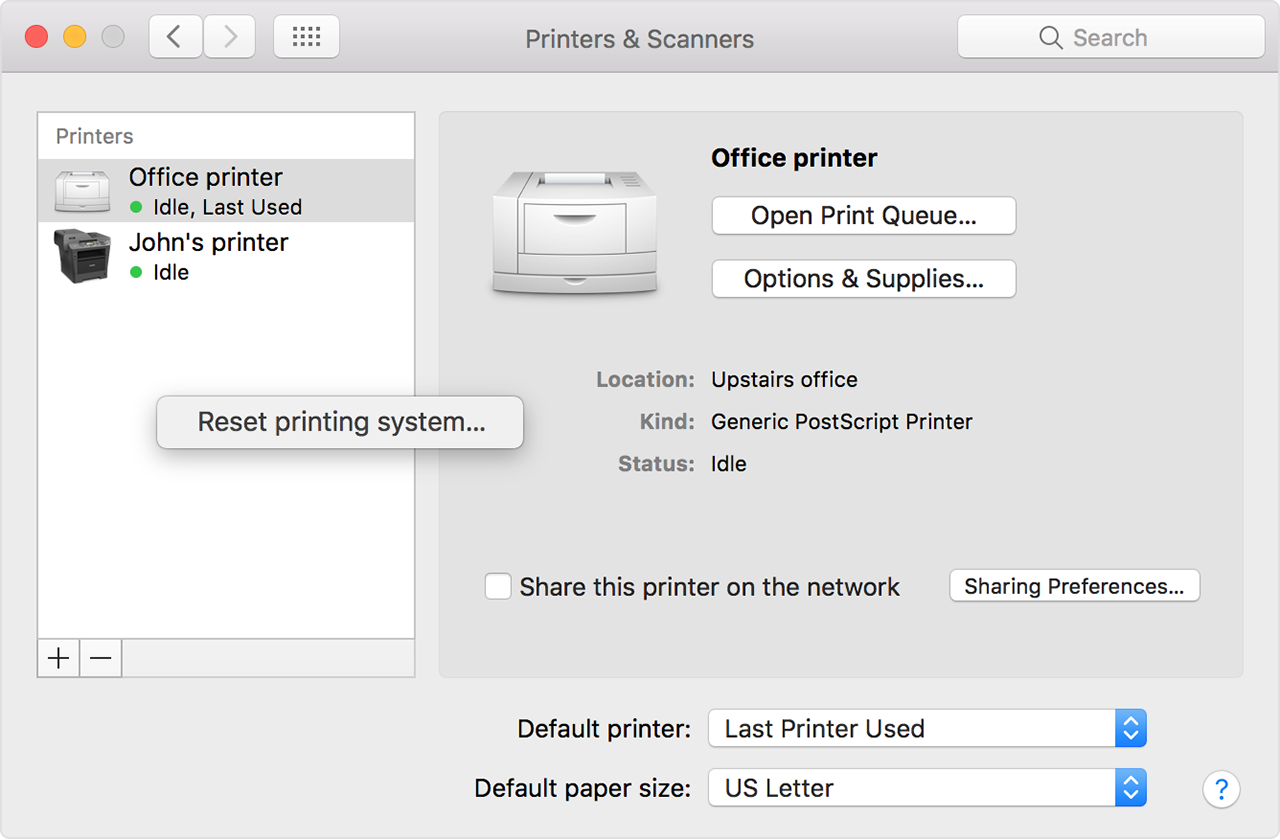
If the issue continues, reset the printing system on your Mac. This removes all printers and scanners—including their print jobs and settings—from Printers & Scanners preferences.

  1. Choose Apple menu > System Preferences, then click Printers & Scanners.
  2. While holding down the Control key on your keyboard, click anywhere in the list of devices.
  3. Choose “Reset printing system” from the menu that appears:

User uploaded file

Remove printer drivers

If the issue continues on your Mac after resetting the printing system, take these final steps to remove any currently installed printer drivers. These steps don't apply to AirPrint printers.

  1. From the menu bar in the Finder, choose Go > Go to Folder. Type
    /Library/Printers/
    and click Go.
  2. The Printers folder opens. Choose Edit > Select All, which selects all items in the Printers folder.
  3. Choose File > New Folder with Selection, which puts all of the selected items into a new folder named New Folder With Items. To save storage space, you can delete this folder.

If the issue continues, contact the printer manufacturer for support.

If you can't print from your Mac or iOS device


Cheers.

This thread has been closed by the system or the community team. You may vote for any posts you find helpful, or search the Community for additional answers.

HP 5520 printer not working since Mojave update

Welcome to Apple Support Community
A forum where Apple customers help each other with their products. Get started with your Apple Account.