Hello Dannythemanofpassion ,
Welcome to Apple Discussion.
Well there many possible cause for this .
Because the fans are used to cool the internal electronic components, forcing these components to work overtime will also kick the fans into high gear. This results in the annoying whirring noise you want to get rid of.
- Running Heavy Apps :
Web browsing and document editing are simple everyday tasks that wouldn’t contribute to this problem. However, if you’re using heavy creative software such as the Adobe Creative Suite, photo, and video editing applications, or graphics-intensive games you could be sending your fans into a frenzy trying to keep up.
solution: If you must run heavier programs, take all possible steps to reduce the load on your computer.
- Only run programs you absolutely need at one time and don’t leave others idle in the background.
- Turn down frame rates or processing speeds as needed.
- Make sure you’re already taking all possible steps to optimize your Mac such as using it in a temperature controlled room rather than outside on an already hot day, etc.
If this is a regular problem and you can’t reduce the workload, you may need to consider buying more RAM to upgrade your mac .
2 Hidden Cpu Drain :
So you haven’t been using any noticeably heavy programs but suddenly the fans are acting up?
Especially if you’ve recently updated, changed some settings, or installed a new program, you could be experiencing some hidden background tasks that are eating up your CPU.
The easiest way to check if this is happening is to go to Spotlight (with a search icon) in the top right corner of your screen and type “Activity Monitor”.
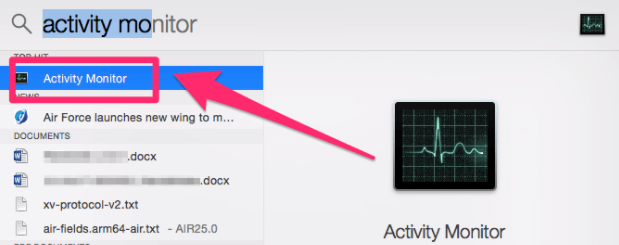
Once Activity Monitor is open, navigate to the CPU tab and look for programs that are using extremely large percentages of the available power. If you find one, then you know what your culprit is.
Keep in mind if it’s a program and not a background task (apps have recognizable names and icons, background tasks are a bit more obscure looking), then you should check #2 instead.
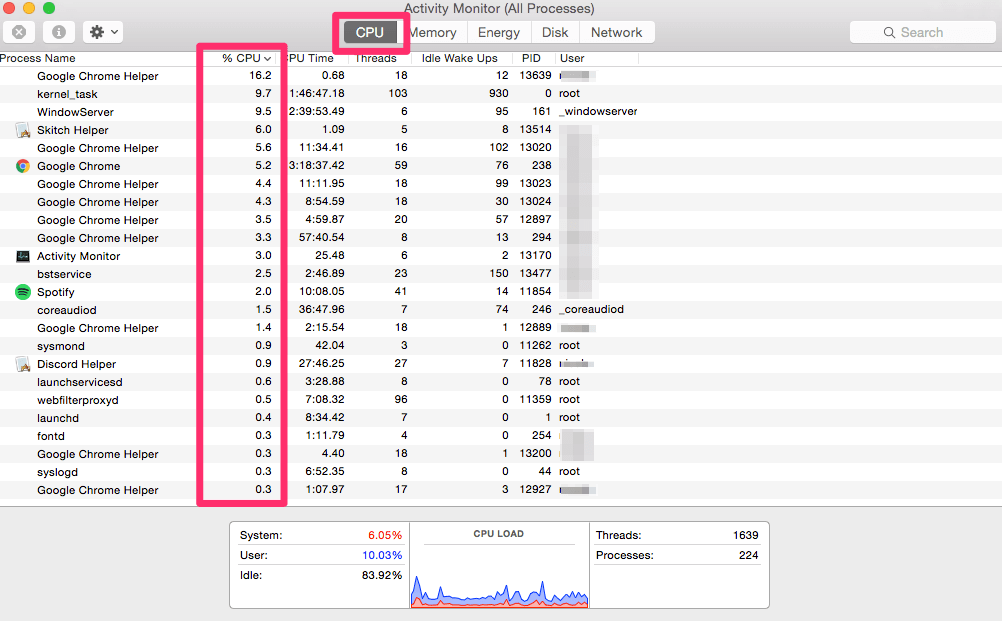
Solution : As you can see in my screenshot, I’m not currently experiencing any issues and all the usages (highlighted in red) are fairly low. But once you’ve identified tasks that are using unreasonable amounts of CPU, click on it in the Activity Monitor.
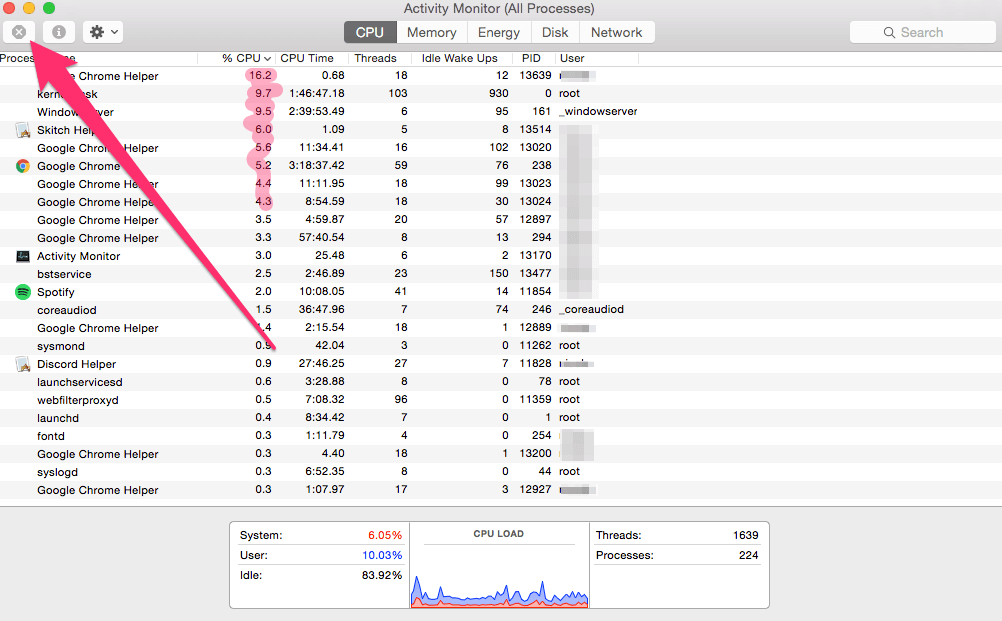
It will be highlighted in blue, and you’ll be able to click the X button in the top left corner which will quit the process. Wait a few minutes for the fans to wind down and to examine how quitting the process affects your machine.
Pro tip: make sure you’ve saved everything you’re working on before force quitting tasks from the activity monitor.
If the task re-opens later or comes back, it may be built into a specific program. In that case, you’ll need to research the program it is part of and see which setting is to blame.
Cont. ........

