Mac hard disk full is one of the most common errors faced by every macOS user. However, after following the below mentioned tips and tricks, you can easily recover from this error and make your slow running Mac to run faster.
When your Mac starts to show “startup disk full” error:-
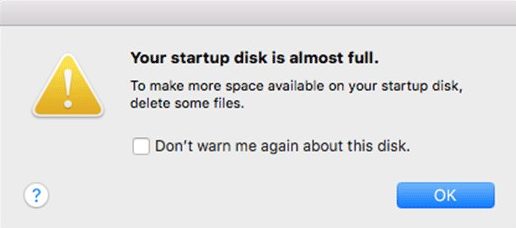
When the Mac startup disk achieves its absolute performance, this means 2 things, precisely speaking 2 consequences:
1.Either your Mac’s storage space will get to its limit very soon.
2.Or the disc will work slowly.
Majority of the Mac users do not know, actually, that their Mac computer system is converting a free startup disk space into the virtual memory, which they use for daily operations. Normally, it is recommended by the Mac experts to have a minimum 8-12% of the disk space always free in order to make the Mac OS to work appropriately. Consequently, if you don’t have enough free space, it certainly won’t turn into something terrible, but you will obviously face many unpleasant moments in the Mac performance.
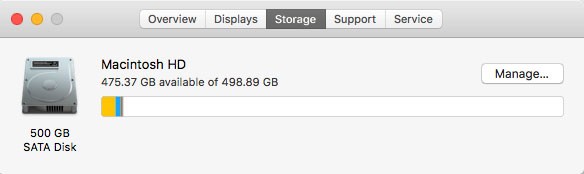
Steps to Check the Disk Space on Mac:-
1.Click onto the Apple icon
2.Now, select About This Mac
3.Finally, click on the “Storage” (or “More Information” – “Storage” on older Mac models)
Steps to Resolve the Disk Full Error Message on Mac:-
1) Clean your Mac Desktop
2) Clean up the Photo Library
3) Deleting iTunes Backups Files
4) Remove all the Localization Files
5) Remove the Trash Items
6) Delete Apps Cache
After following the above discussed steps, you will be able to resolve the “Mac Disk Full” error message and gets your work to be done properly.


