"From My Mac" album

Hey everyone,

I recently moved all my photos from my PC using a third party app called EaseUS MobiMover and after transferring almost 10,000 photos, it created some random album called "From MobiMover". I thought this is because it was a third party app but when I used iTunes, it said "From PC" and now it's super annoying to me. Here are all my issues with this.

  1. None of the photos are in the camera roll??
  2. The album isn't being deleted and when I use the third party app to delete it, I also lose the photos.
  3. I deleted all the photos from my Android device so I can't format my iPhone and use move to iOS

I don't use iCloud Photos because, again, 10,000 photos. It's almost 25GB of photos and videos.

There has to be a solution apple has released which isn't crazy public

Any help is appreciated.

Thank you,

Sachit R.

iPhone 6s, iOS 12

Posted on Feb 23, 2019 9:47 PM

Reply

Similar questions

2 replies

Feb 23, 2019 11:29 PM in response to sachitrathi5690

Transferring Photos from iPhone to PC does not require any third party App.


Neither Apple nor Apple User Community is answerable on third party Apps.


Since all your photos are still in iPhone they can be easily transferred toy your Mac / PC.

  • Connect your iPhone to Mac / PC using cable provided by Apple.

For Mac: Use native Photos App and import.

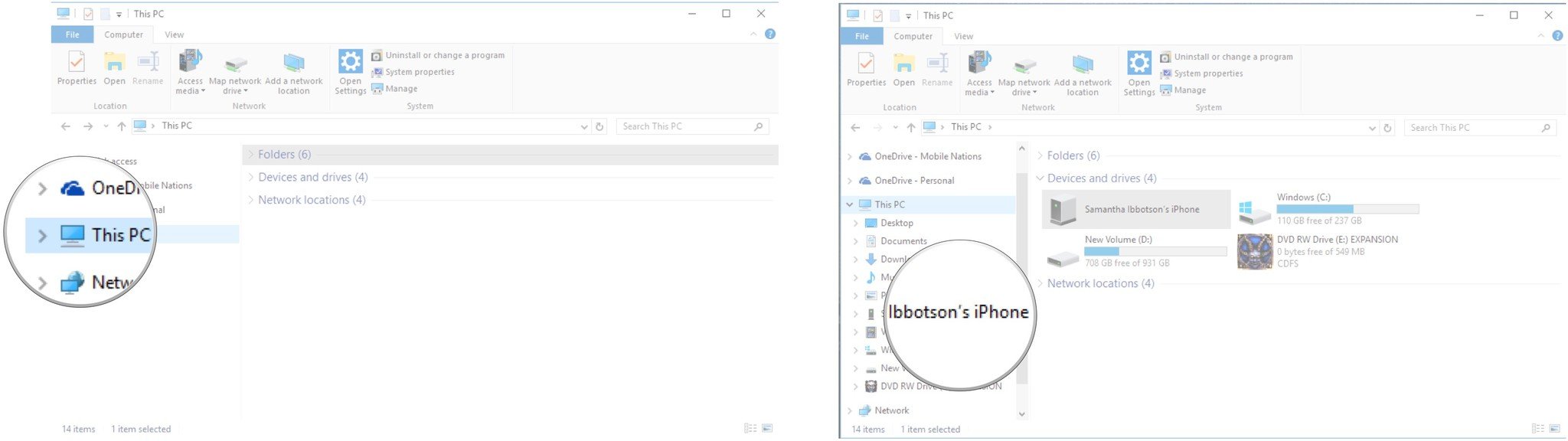
For PC: Open Windows Explorer: Go to Network: Expand and look for your iPhone: Clcik and Drag all your photos to any folder in your PC

How to transfer iPhone and iPad photos using File Explorer

Using File Explorer to transfer photos from iPhone and iPad won't take long. Install iTunes first, then follow these steps:

  1. Plug your iPhone or iPad into your PC using a suitable USB cable.
  2. Launch Windows Explorer from your desktop, Start menu, or taskbar. You can also use the Windows key + E shortcut on your keyboard.
  3. Click the arrow next to This PC in the menu on the left side of the window. The arrow looks like >.
  4. Click NAME's iPhone or NAME's iPad in the This PC sub-menu.
  5. Double-click Internal Storage.
  6. Double-click DCIM.
  7. Double-click a folder. They should all contain images.
  8. Click an image. You can hold the Ctrl key on your keyboard and click to select multiple images. You can also use the Ctrl + A shortcut on your keyboard to select all photos at once.
  9. Click Copy to — it is located near the top of the window.
  10. Click Choose location… to select a location. You can also click one of the options listed in the dropdown menu.
  11. Click a destination to save the pictures.
  12. Click Copy. Make sure you don't unplug your iPhone or iPad during the process!


Feb 23, 2019 11:30 PM in response to sachitrathi5690

In continuation of my earlier post


How to transfer iPhone and iPad photos using the Windows 10 Photos app

If you'd like import all photos from your iPhone or iPad at once, you can use the handy Photos app that comes standard with Windows 10. Here's how to do it.

  1. Plug your iPhone or iPad into your PC using a suitable USB cable.
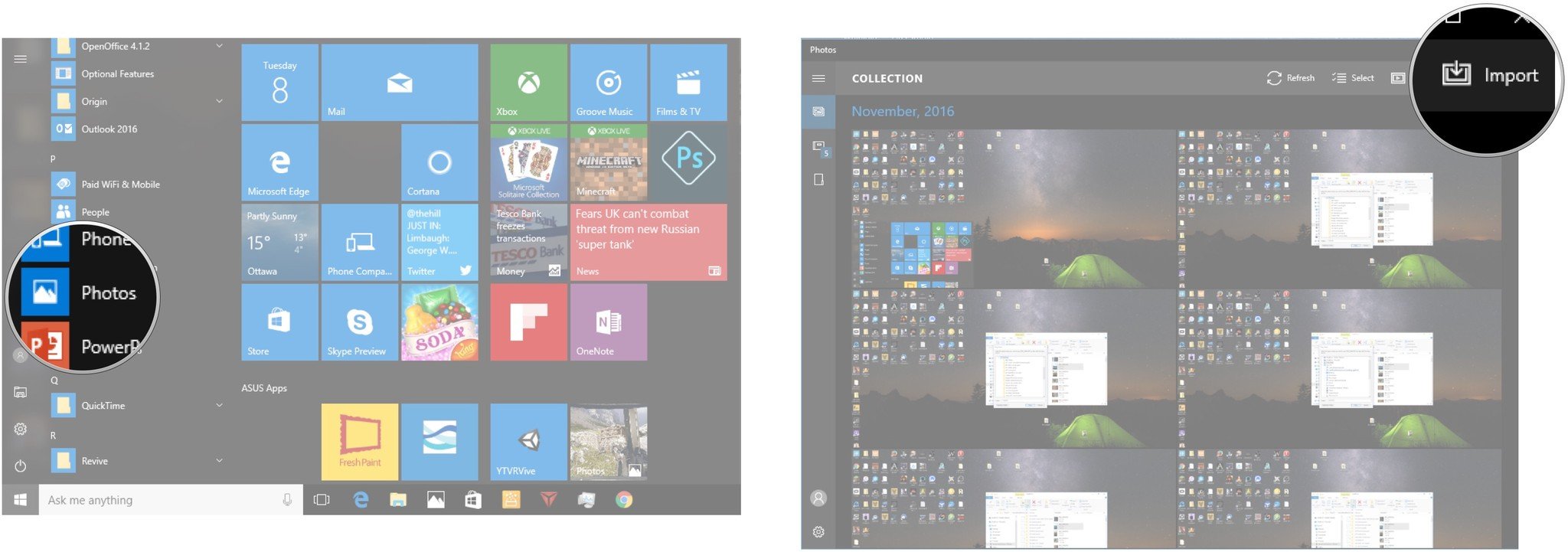
  2. Launch the Photos app from the Start menu, desktop, or taskbar.
  3. Click Import. It is located in the top-right corner of the window.
  4. Click any photos you'd like to not import; all new photos will be selected for importing by default.
  5. Click Continue. The Photos app will begin the import process. Make sure you don't unplug your iPhone or iPad during the process!


This thread has been closed by the system or the community team. You may vote for any posts you find helpful, or search the Community for additional answers.

"From My Mac" album

Welcome to Apple Support Community
A forum where Apple customers help each other with their products. Get started with your Apple Account.