You are right. Motion does "let more light through" the alpha channel than Preview and other apps. The black pixels are opaque. Where the "brush strokes" thin out, the alpha treatment is more "lenient" in Motion and more of the background is coming through. You can tighten that up considerably!

[screen capture, not an export]
To the PNG, add a Filters > Color > Levels, then across from the "Histogram" label, click on RGB to access the individual channels. Select Alpha, then drag the white tab down towards the middle (or to your liking.)
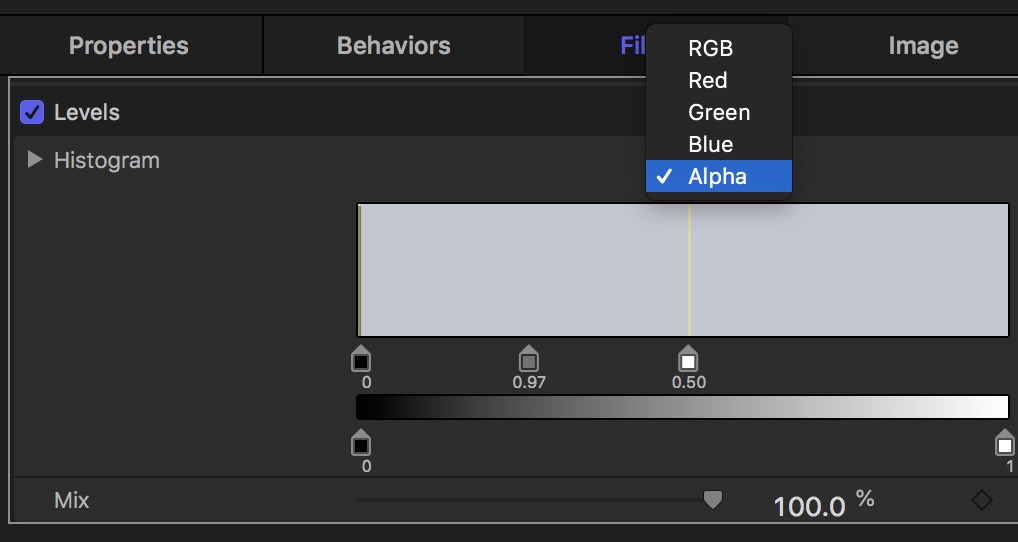
— but you might not want to do this!
While this "faded appearance" is somewhat annoying pertaining to this specific image, in general, there is a general preference for the alpha transparency to be a little more liberal [to avoid a kind of fringing along the edges of the alpha channel]. Motion changed after v.4. In the old days, color was 8-bits per channel (including alpha), and that is like *most* graphics applications. With Motion 5, Motion went to 32-bit floating point color *all the [d**n] time* with no option to go back to the older color system. This can be somewhat annoying from time to time because some of the original filters that come with Motion are still 8-bit color... :P This can lead to other issues like "banding".
BTW — Motion converts from the 32-bit floating point color to the typical RGBA formats upon export. I loaded up your PNG in Motion and exported (Save Current Frame) the image unchanged (although I set the Canvas settings to Best Quality for export). I cannot tell the difference between your original and the exported PNG from Motion even though the image in Motion had that "faded" effect you were concerned about...
It's very difficult to "have faith" in what you see when what you see is somewhat different than what you expect. Just realize that Motion treats color differently than other apps while the images are "in Motion". Motion's exports are to standard formats. In most cases, it simply won't be an issue... just something to keep in mind.

