Website Data comprises of Caches, Cookies, Local Storage and Databases.
How to remove caches, cookies, Databases and Local Storage?
Note: Shopping and notification sites
Empty shopping carts/ bags.
Log out of the account.
1. Empty Caches
Safari > Preference > Advanced
Checkmark the box beside "Show Develop menu in menu bar".
Develop menu will appear in the Safari menu bar.
Click Develop and click "Empty Caches" from the dropdown.
Do this twice.
Safari Develop menu https://support.apple.com/guide/safari/use-the-safari-develop-menu-sfri20948/mac
2. Delete Cookies
Safari > Preferences > Privacy > Cookies and Website Data...:
Click the “Manage Website Data” button.
Remove all cookies except ones from Apple, your internet service provider and banks.
Quit Safari. Relaunch Safari holding the Shift key down.
Repeat the procedure again. Restart the Mac.
https://support.apple.com/en-us/HT204098
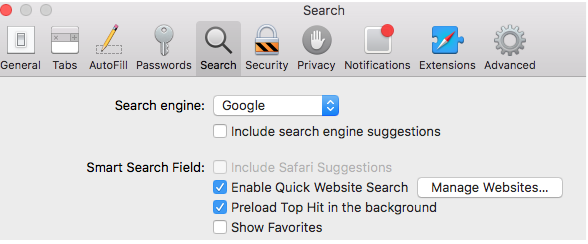
3. Safari > Preferences > Search > Smart Search Field > Enable Quick Website Search
Click the “Manage Websites “ button. Click “Remove All” button and then “Done
4. Delete Databases and Local Storage items
Remove the item from Reading List, Bookmarks, iCloud Tabs and History.
Log out of the sites if you are logged into these sites.
Backup your Mac.
Quit Safari.
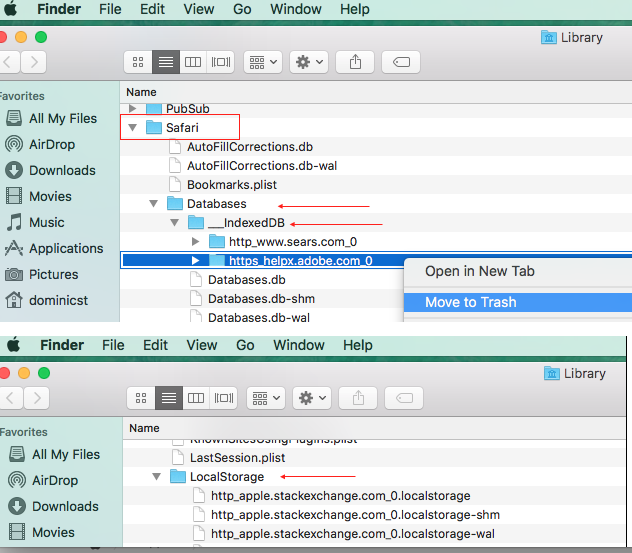
Hold the Option key on the keyboard down and click the “Go”menu in the Finder menu bar.
Choose “Library” from the dropdown.
Scroll down the list.
Click open the Safari folder.
Scroll down the list and click open the “Databases” folder.
Click open the “IndexedDB folder”.
If you find the items there, right click and choose “Move to Trash”
or select all and move to Trash.
Scroll down the list and click open the “Local Storage” folder
Right click the items you want to remove and choose “Move to Trash”.
Restart your Mac, launch Safari holding the shift key on the keyboard down and test.
iCloud syncing will restore some of this data.
You can temporarily disable iCloud syncing.
System Preferences > iCloud > Safari
It is not easy to remove cookies known as “evercookies”

