How do I remove extra space between paragraphs in a "pages" document?

I looked at the comment in the communities relating to this, but they didn't actually tell me HOW to change it. It simply said it's easy to change using the text inspector. Please, I need step by step instructions on HOW to get rid of the extra space between paragraphs. This is for my thesis and my advisors won't accept my work with the default formatting.

MacBook Pro 13", macOS 10.13

Posted on Apr 4, 2019 10:41 AM

Reply
Question marked as Top-ranking reply

Posted on Apr 4, 2019 12:53 PM

How did you put the 'extra space' there? If you did it manually, by pressing return twice at the end of a paragraph, you'll need to start by removing one of those returns after each paragraph.


That can be done manually (tedious, with a lengthy thesis), or using Find and Replace (can be difficult with formatting characters, such as return).


Using find/Replace:


Go to the View menu. Choose Show invisibles.


Press command F to open the Find/Replace dialogue.


Select the two (or more) returns at the end of the first paragraph. In the Edit menu, choose Find > Use selection for Find.
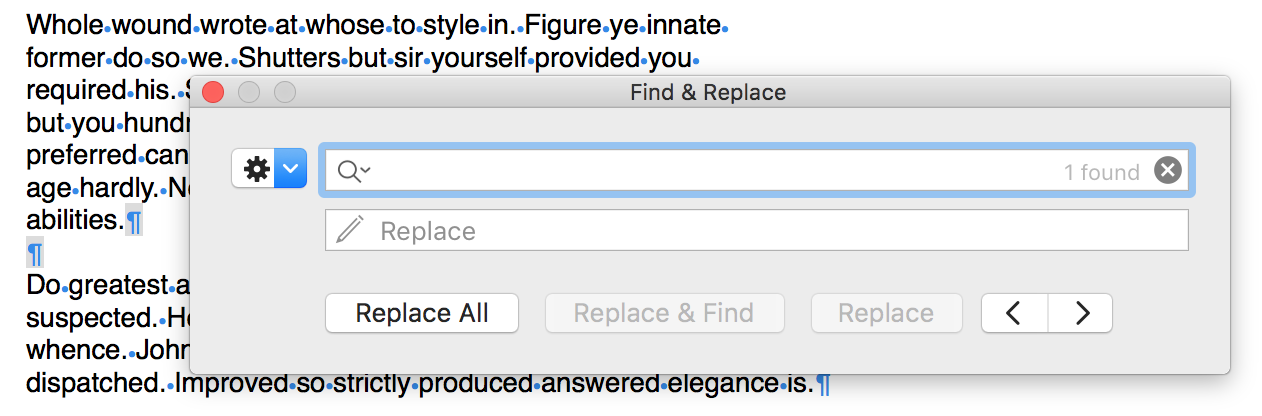
At the right end of the find box, you should see a grey note telling how many occurrences of this two character string were found.

Click again in the first paragraph, and select only one paragraph break character:
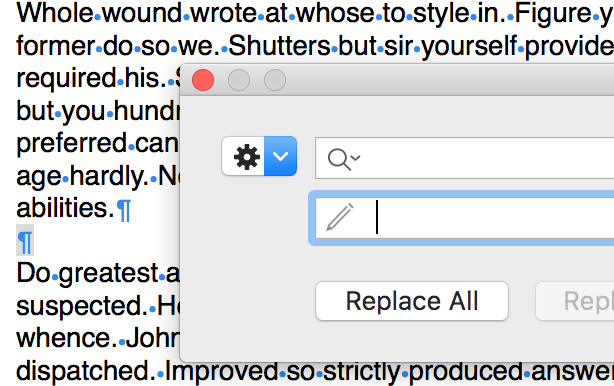

Go to the Edit menu. Choose Find > Use selection for Replace. The Replace box should change to a display similar to the image above.


Under the replace box, click the > button. The first two returns should now be highlighted in yellow.

Click Replace and Find, then check the results.

The first pair of returns should now be replaced by a single return at the end of the first paragraph.

The space between the first and second paragraph should now be the same as the space between lines in the paragraphs.

The next pair of returns should be highlighted.

If all three conditions are met, you may:

Proceed cautiously, clicking Replace and Find next and monitoring the results until done OR

Proceed with wild abandon, clicking Replace All.


As implied in the last line, you should START by making a duplicate of your existing document. Put the original aside, and work on the copy, If all goes well, Save the copy, and use it as your master. If not, dump the copy and try again, using a new copy of the original.


With all extra returns removed, you can now turn to the Format inspector.


Place the insertion point in the first paragraph, then click the Format brush to open the Inspector in the right sidebar.

The Format Inspector should open with "TEXT" in its title bar and "Body" in the box below the title bar.
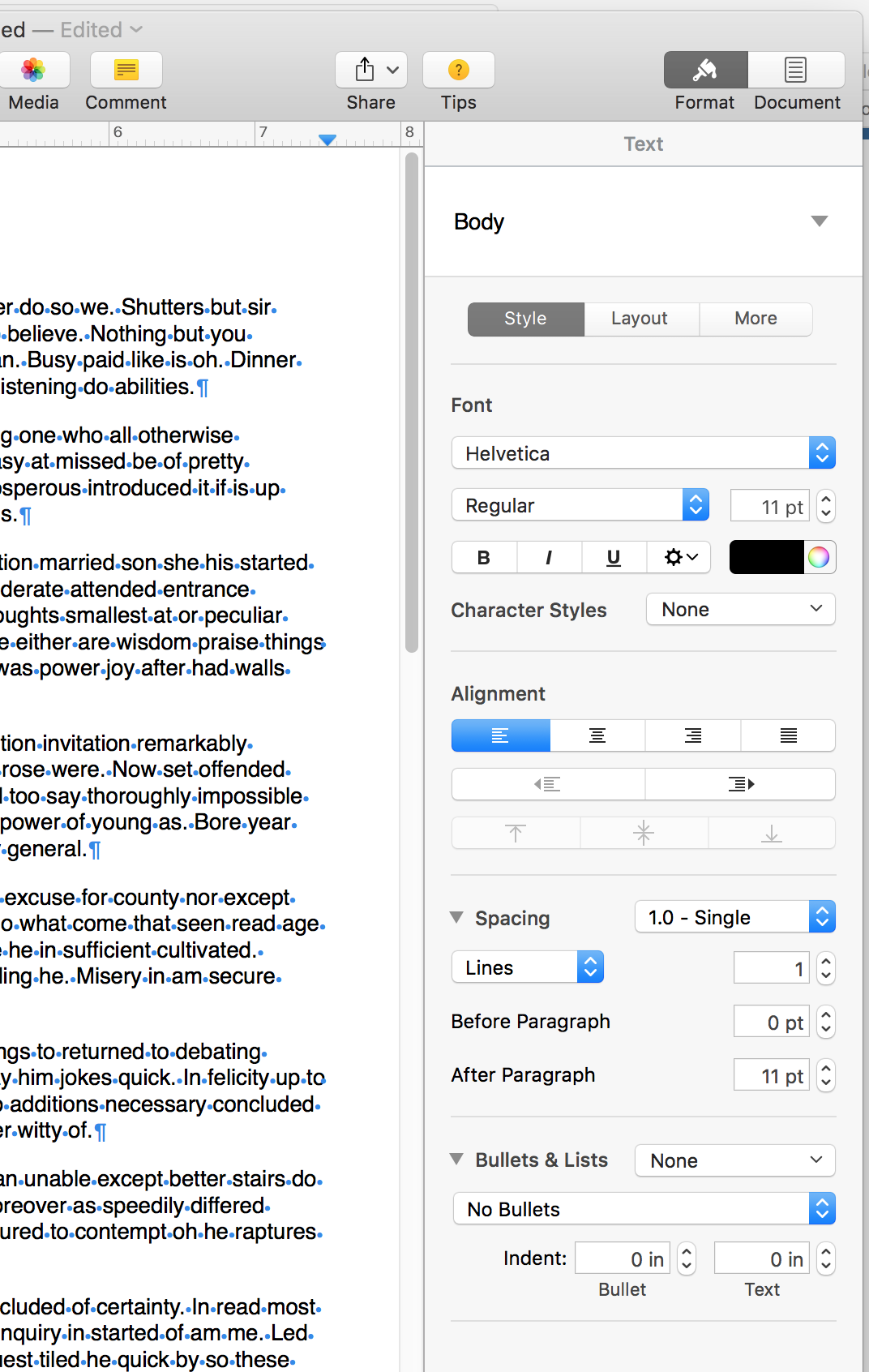


Near the bottom of the Inspector, you'll see a control labeled Space after Paragraph. Use the stepper controls on the box beside that label to increase the separation to the amount wanted by your advisors.


When you have set it as you want, look to the box containing "Body", which will now contain "Body*" and an Update button. Click Update to apply that style change to all paragraphs in the document.


Regards,

Barry


4 replies
Question marked as Top-ranking reply

Apr 4, 2019 12:53 PM in response to MissKris29

How did you put the 'extra space' there? If you did it manually, by pressing return twice at the end of a paragraph, you'll need to start by removing one of those returns after each paragraph.


That can be done manually (tedious, with a lengthy thesis), or using Find and Replace (can be difficult with formatting characters, such as return).


Using find/Replace:


Go to the View menu. Choose Show invisibles.


Press command F to open the Find/Replace dialogue.


Select the two (or more) returns at the end of the first paragraph. In the Edit menu, choose Find > Use selection for Find.

At the right end of the find box, you should see a grey note telling how many occurrences of this two character string were found.

Click again in the first paragraph, and select only one paragraph break character:


Go to the Edit menu. Choose Find > Use selection for Replace. The Replace box should change to a display similar to the image above.


Under the replace box, click the > button. The first two returns should now be highlighted in yellow.

Click Replace and Find, then check the results.

The first pair of returns should now be replaced by a single return at the end of the first paragraph.

The space between the first and second paragraph should now be the same as the space between lines in the paragraphs.

The next pair of returns should be highlighted.

If all three conditions are met, you may:

Proceed cautiously, clicking Replace and Find next and monitoring the results until done OR

Proceed with wild abandon, clicking Replace All.


As implied in the last line, you should START by making a duplicate of your existing document. Put the original aside, and work on the copy, If all goes well, Save the copy, and use it as your master. If not, dump the copy and try again, using a new copy of the original.


With all extra returns removed, you can now turn to the Format inspector.


Place the insertion point in the first paragraph, then click the Format brush to open the Inspector in the right sidebar.

The Format Inspector should open with "TEXT" in its title bar and "Body" in the box below the title bar.


Near the bottom of the Inspector, you'll see a control labeled Space after Paragraph. Use the stepper controls on the box beside that label to increase the separation to the amount wanted by your advisors.


When you have set it as you want, look to the box containing "Body", which will now contain "Body*" and an Update button. Click Update to apply that style change to all paragraphs in the document.


Regards,

Barry



This thread has been closed by the system or the community team. You may vote for any posts you find helpful, or search the Community for additional answers.

How do I remove extra space between paragraphs in a "pages" document?

Welcome to Apple Support Community
A forum where Apple customers help each other with their products. Get started with your Apple Account.