Cannot speak over WiFi calling after a few minutes

I have been using WiFi calling feature without problems for over a year now. Lately whether I make or receive a call, I will be able to start communicating with the person on the other end then after a while they won't be able to hear me. It doesn't matter if I'm navigating an automated call system (Press 1 for this option, Press 2, etc.) or actually talking to a person. I can continue to hear the person ("Hello? Are you still there?") but they cannot hear me.


I don't know if it's my network setup since I haven't been able to test this out on other networks where WiFi calling would be enabled.


Just curious if others have had the same experience.

iPhone 7 Plus, iOS 12

Posted on Apr 26, 2019 2:47 PM

Reply
Question marked as Top-ranking reply

Posted on Apr 27, 2019 2:24 PM

Hi Warblade,


Thanks for reaching out in Apple Support Communities. I understand that recently when you're on a call and Wi-Fi calling is enabled after an intermittent amount of time you'll no longer be able to be heard, but you can hear the person on the line. I know it's important to rely on your iPhone for calls; I'd like to help. First, I'd recommend doing as you mentioned and testing for the issue while you're connected with a different Wi-Fi network. I'd also suggest testing to see if the behavior occurs when you're using only a cellular connection. Next, use the steps below to test your microphones and get more help if necessary:


"With your iOS device, you might experience one of these issues when you make a call, use FaceTime or Siri, or play recorded audio:

    • People can't hear you during a phone or FaceTime call.
    • You sound unclear to others during a phone or FaceTime call.
    • Siri says, "I didn't get that" or doesn't hear your request or hears only part of it.
    • When playing back recorded audio, the sound you hear is unclear, or you don’t hear sound. 
    • You're unable to change audio sources during a call.

Test the microphones on your device

To find out if there’s an issue with the microphone on your device—and not your cellular connection or the app that you're using—test each microphone. Microphone location can vary by device. You can use your product's technical specifications to find the microphones.

When you test your microphones, make sure that your iOS device isn't connected to a wired or wireless headset.

iPhone

There is more than one microphone on your iPhone.
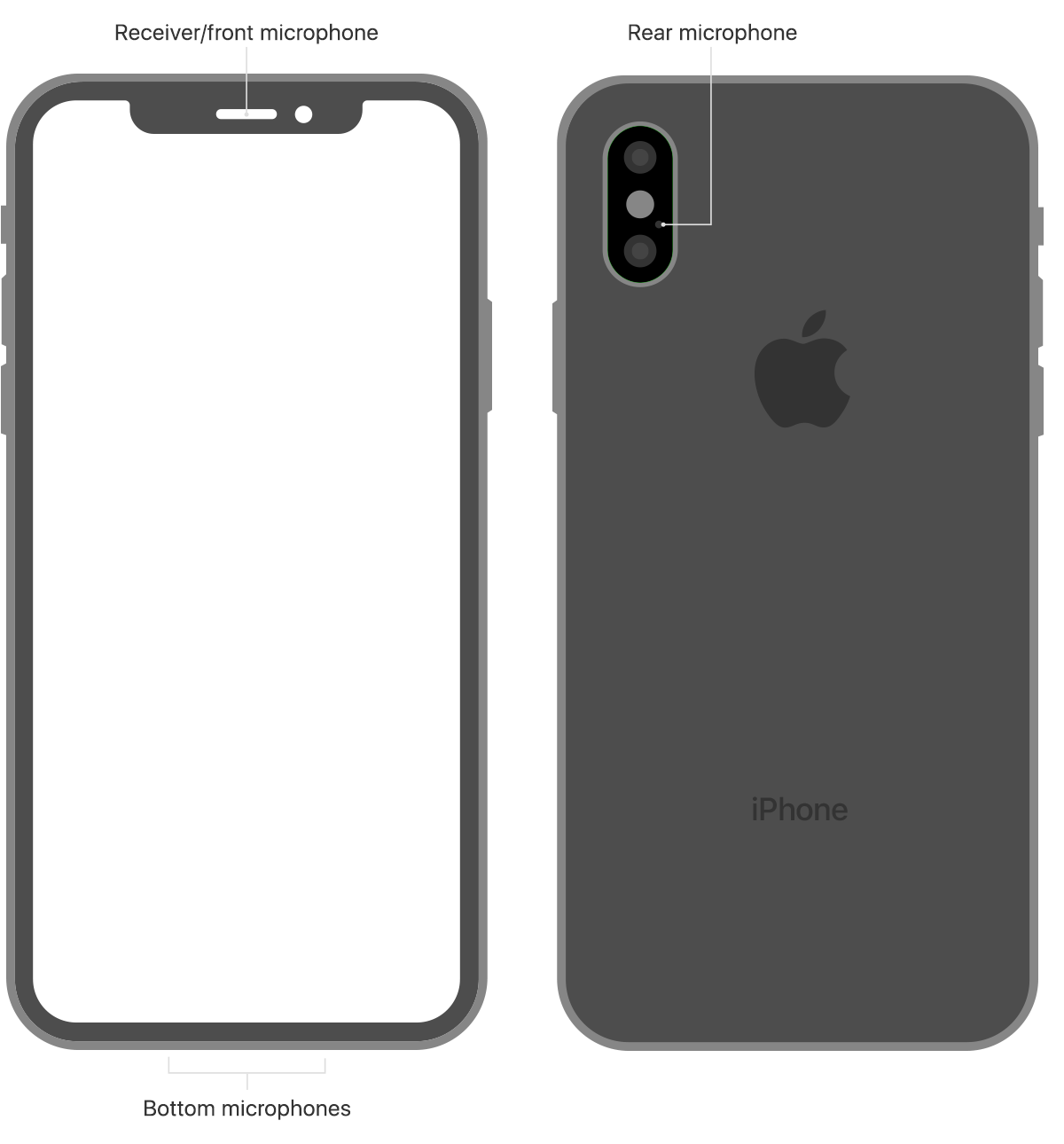
To test the primary microphone on the bottom of your iPhone, open Voice Memos and tap the record icon. Then speak into the microphone and tap the play icon to play back the recording. You should be able to hear your voice clearly.

To test the front microphone, open the Camera app and record a video using the front camera. To test the rear microphone, open the Camera app and record a video using the back camera. When you play back the video you should hear your voice clearly.

If your voice sounds faint when you’re on a phone call, make sure that your rear microphone isn’t blocked or covered.

If Siri can't hear you, make sure that the receiver and front microphone on top of your iPhone aren't covered or dirty.


Get help

If you still have issues after testing the microphone on your device, try these steps:

    1. Unplug any accessories and disconnect any Bluetooth headsets.
    2. Avoid blocking the microphone with your fingers or case while holding the device or recording video.
    3. Remove screen protectors, films, or cases that cover the microphone or iPhone receiver.
    4. Clear any debris from the microphones or iPhone receiver.
    5. Restart your device.
    6. Make sure you have the latest version of iOS.

If you've tried these steps and people still can't hear you on phone or FaceTime calls or Siri doesn’t hear your requests, contact Apple Support."


If the microphones on your iPhone, iPad, and iPod touch aren't working


Best Regards.


1 reply
Question marked as Top-ranking reply

Apr 27, 2019 2:24 PM in response to Warblade

Hi Warblade,


Thanks for reaching out in Apple Support Communities. I understand that recently when you're on a call and Wi-Fi calling is enabled after an intermittent amount of time you'll no longer be able to be heard, but you can hear the person on the line. I know it's important to rely on your iPhone for calls; I'd like to help. First, I'd recommend doing as you mentioned and testing for the issue while you're connected with a different Wi-Fi network. I'd also suggest testing to see if the behavior occurs when you're using only a cellular connection. Next, use the steps below to test your microphones and get more help if necessary:


"With your iOS device, you might experience one of these issues when you make a call, use FaceTime or Siri, or play recorded audio:

    • People can't hear you during a phone or FaceTime call.
    • You sound unclear to others during a phone or FaceTime call.
    • Siri says, "I didn't get that" or doesn't hear your request or hears only part of it.
    • When playing back recorded audio, the sound you hear is unclear, or you don’t hear sound. 
    • You're unable to change audio sources during a call.

Test the microphones on your device

To find out if there’s an issue with the microphone on your device—and not your cellular connection or the app that you're using—test each microphone. Microphone location can vary by device. You can use your product's technical specifications to find the microphones.

When you test your microphones, make sure that your iOS device isn't connected to a wired or wireless headset.

iPhone

There is more than one microphone on your iPhone.

To test the primary microphone on the bottom of your iPhone, open Voice Memos and tap the record icon. Then speak into the microphone and tap the play icon to play back the recording. You should be able to hear your voice clearly.

To test the front microphone, open the Camera app and record a video using the front camera. To test the rear microphone, open the Camera app and record a video using the back camera. When you play back the video you should hear your voice clearly.

If your voice sounds faint when you’re on a phone call, make sure that your rear microphone isn’t blocked or covered.

If Siri can't hear you, make sure that the receiver and front microphone on top of your iPhone aren't covered or dirty.


Get help

If you still have issues after testing the microphone on your device, try these steps:

    1. Unplug any accessories and disconnect any Bluetooth headsets.
    2. Avoid blocking the microphone with your fingers or case while holding the device or recording video.
    3. Remove screen protectors, films, or cases that cover the microphone or iPhone receiver.
    4. Clear any debris from the microphones or iPhone receiver.
    5. Restart your device.
    6. Make sure you have the latest version of iOS.

If you've tried these steps and people still can't hear you on phone or FaceTime calls or Siri doesn’t hear your requests, contact Apple Support."


If the microphones on your iPhone, iPad, and iPod touch aren't working


Best Regards.


This thread has been closed by the system or the community team. You may vote for any posts you find helpful, or search the Community for additional answers.

Cannot speak over WiFi calling after a few minutes

Welcome to Apple Support Community
A forum where Apple customers help each other with their products. Get started with your Apple Account.