So far, only content selected in Safari enables a workable Quick Action to paste linked text into Apple Mail, and Google Mail (web). I do not have a resident Gmail application on my Mac, so haven't tested that. Here is a paste into Gmail (web):

Is this the formatting you expected? A dialog will appear when the URL linked text is ready to paste from the clipboard.
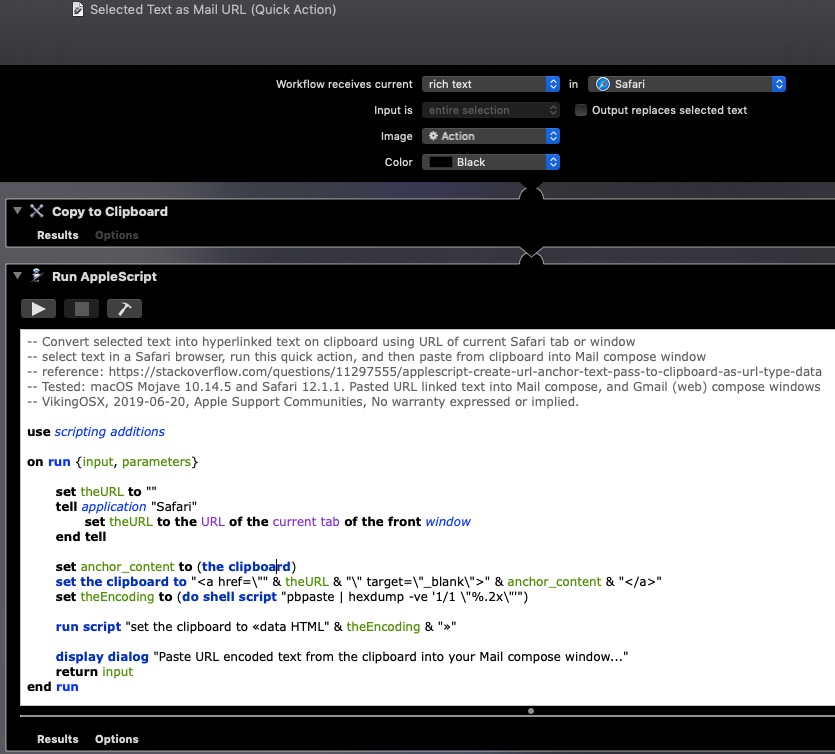
To set up the Quick Action, you do Dock : Launchpad : Other : Automator. Then:
- New Document : Quick Action : Choose
- Workflow receives current [rich text] in [Safari]. All other settings are default.
- From Utilities Library, drag and drop Copy to Clipboard action into the large workflow window
- From Utilities Library, drag and drop Run AppleScript action below the preceding action.
- Select all content in the Run AppleScript window, and backspace to remove.
- Copy/paste the following code (below) back into the Run AppleScript window. Click the hammer icon to compile.
- Save… I named my Quick Action: Selected Text as Mail URL.
code:
-- Convert selected text into hyperlinked text on clipboard using URL of current Safari tab or window
-- select text in a Safari browser, run this quick action, and then paste from clipboard into Mail compose window
-- reference: https://stackoverflow.com/questions/11297555/applescript-create-url-anchor-text-pass-to-clipboard-as-url-type-data
-- Tested: macOS Mojave 10.14.5 and Safari 12.1.1. Pasted URL linked text into Mail compose, and Gmail (web) compose windows
-- VikingOSX, 2019-06-20, Apple Support Communities, No warranty expressed or implied.

use scripting additions

on run {input, parameters}

	set theURL to ""
	tell application "Safari"
		set theURL to the URL of the current tab of the front window
	end tell

	set anchor_content to (the clipboard)
	set the clipboard to "<a href=\"" & theURL & "\" target=\"_blank\">" & anchor_content & "</a>"
	set theEncoding to (do shell script "pbpaste | hexdump -ve '1/1 \"%.2x\"'")

	run script "set the clipboard to «data HTML" & theEncoding & "»"

	display dialog "Paste URL encoded text from the clipboard into your Mail compose window..."
	return input
end run
When you select text in Safari, you can either right-click and choose Services -> Text as Mail URL, or access the Quick Action from the Safari : Services sub-menu. You can even assign an unused keyboard shortcut to this Quick Action in System Preferences : Keyboard : Shortcuts : Services by clicking on the far right entry for the Quick Action entry where it shows none. This will change to Add Shortcut, and clicked again, it will present an entry field for the keyboard shortcut. Press return. Now, after selecting text in Safari, you can just press the keyboard shortcut.
Firefox used to make getting the URL of the current page easy via AppleScript but no longer. So I didn't add support for Firefox, and I don't have Google Chrome installed. AppleScript will panic when it cannot find the installed application, so I couldn't add the Chrome code in the above either.
The finished Quick Action: