
how turn on HDR?
how turn on HDR?
iPhone 8 Plus, iOS 12
how turn on HDR?
iPhone 8 Plus, iOS 12
HDR stands for High Dynamic Range. When you useHDR, your iPhone, iPad, and iPod touch Camera automatically blends the best parts of three photos taken quickly at different exposures—one at normal exposure, then one each of the brightest and darkest parts of the scene.
Use HDR on your iPhone, iPad, and iPod touch
Want to photograph a shaded subject set against a sunny sky? Traditional cameras make you choose between a sky that’s too bright, or a subject that’s lost in the dark. With HDR, you get the best of both.
What is HDR?
HDR stands for High Dynamic Range. When you use HDR, your iPhone, iPad, and iPod touch Camera automatically blends the best parts of three photos taken quickly at different exposures—one at normal exposure, then one each of the brightest and darkest parts of the scene. The result is a single photo with better color and detail.
Underexposed
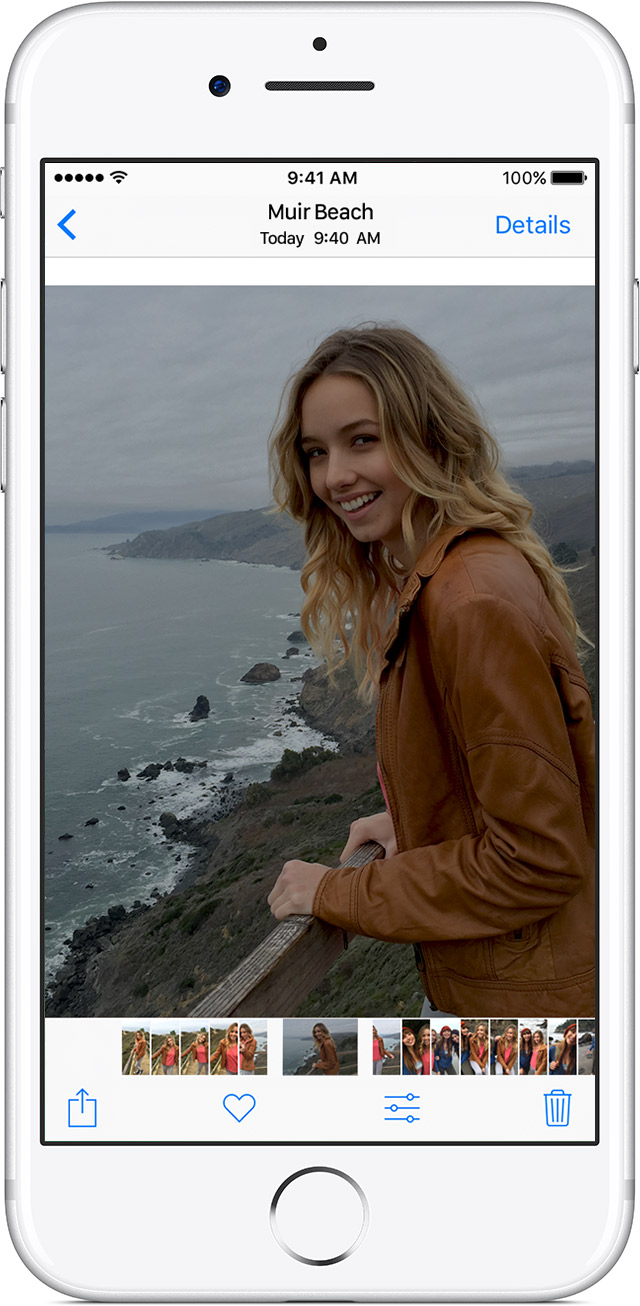
An exposure balanced for the sky makes the subject underexposed or too dark.
Overexposed
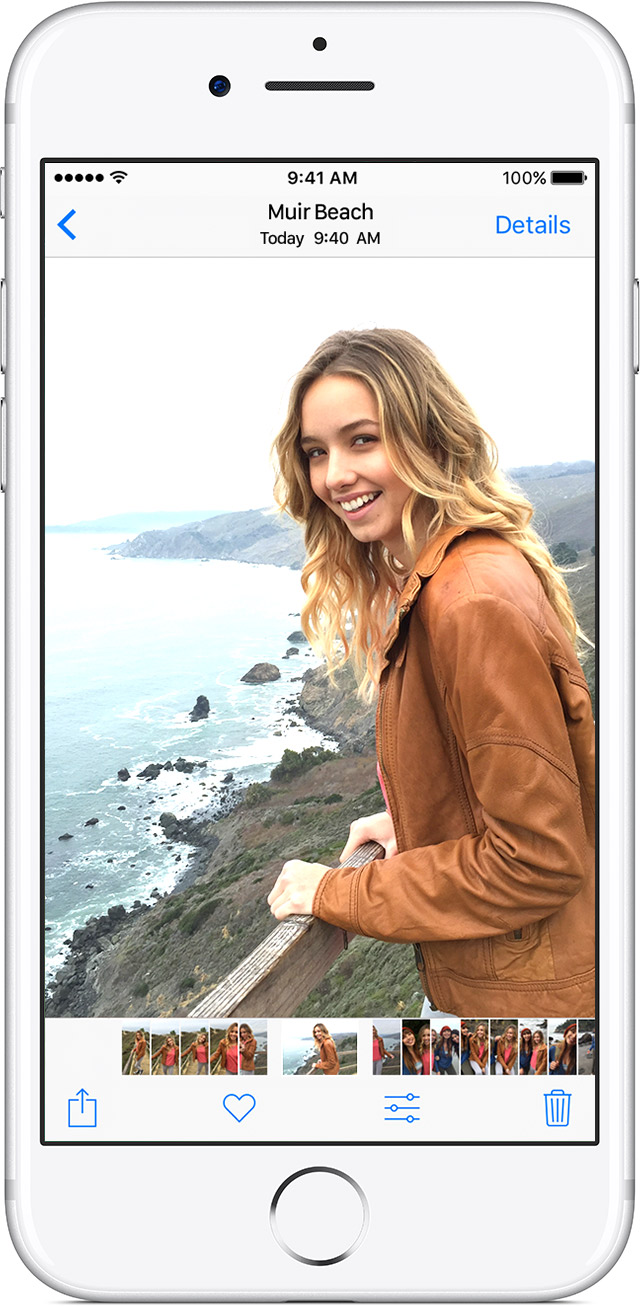
An exposure balanced for the subject results in a sky that's overexposed or too bright.
With HDR
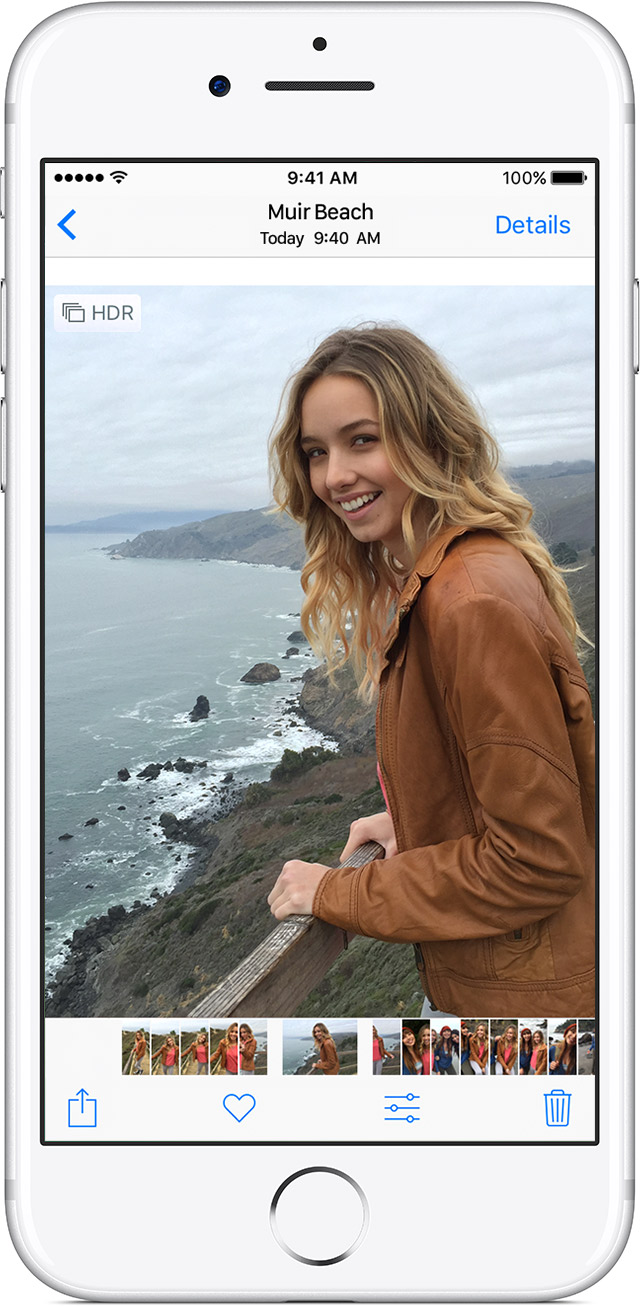
When you use HDR, you get a beautifully lit and detailed photo.

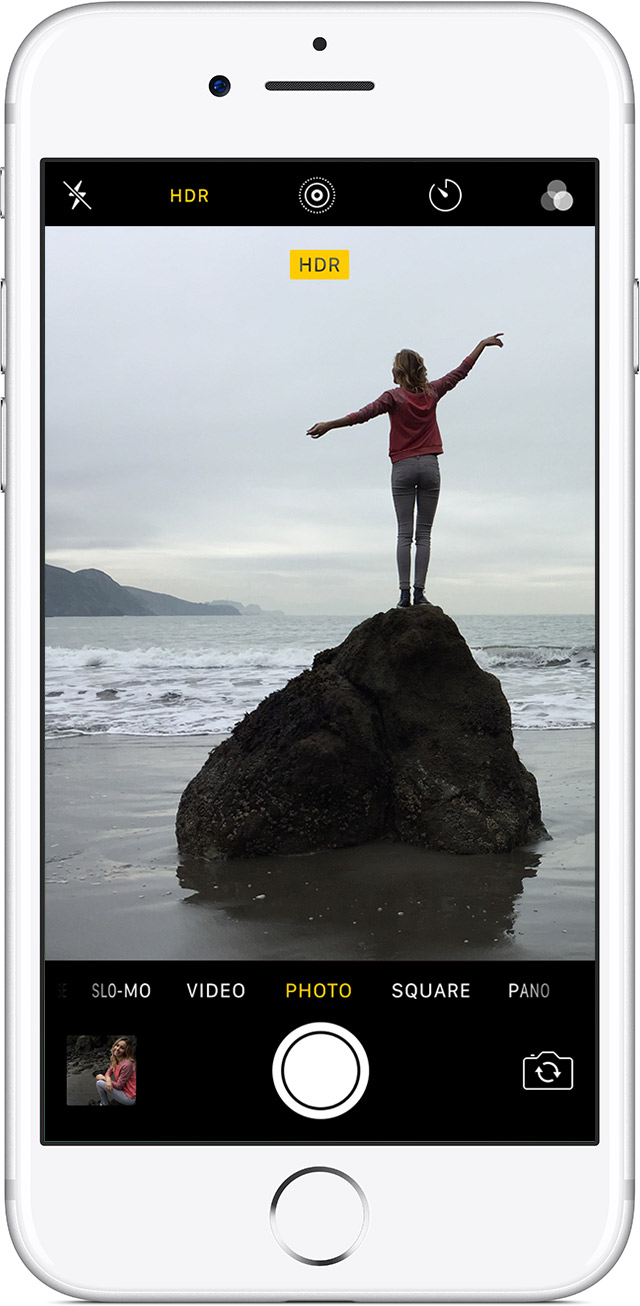
Take an HDR photo
 .
.When you take an HDR photo, your device saves two versions of the image to the Photos app. One with HDR and one without. That way you can compare the two and use the one that you like most. To save space, you can turn off this feature and keep just the HDR version in your library. Go to Settings > Camera > Keep Normal Photo and swipe to turn off.
If you set HDR to On, your device captures an HDR image every time you take a photo. If you set HDR to Auto, your device determines whether or not each photo would look better with or without HDR.
Use HDR on your iPhone, iPad, and iPod touch - Apple Support
HDR stands for High Dynamic Range. When you useHDR, your iPhone, iPad, and iPod touch Camera automatically blends the best parts of three photos taken quickly at different exposures—one at normal exposure, then one each of the brightest and darkest parts of the scene.
Use HDR on your iPhone, iPad, and iPod touch
Want to photograph a shaded subject set against a sunny sky? Traditional cameras make you choose between a sky that’s too bright, or a subject that’s lost in the dark. With HDR, you get the best of both.
What is HDR?
HDR stands for High Dynamic Range. When you use HDR, your iPhone, iPad, and iPod touch Camera automatically blends the best parts of three photos taken quickly at different exposures—one at normal exposure, then one each of the brightest and darkest parts of the scene. The result is a single photo with better color and detail.
Underexposed
An exposure balanced for the sky makes the subject underexposed or too dark.
Overexposed
An exposure balanced for the subject results in a sky that's overexposed or too bright.
With HDR
When you use HDR, you get a beautifully lit and detailed photo.
Take an HDR photo
.When you take an HDR photo, your device saves two versions of the image to the Photos app. One with HDR and one without. That way you can compare the two and use the one that you like most. To save space, you can turn off this feature and keep just the HDR version in your library. Go to Settings > Camera > Keep Normal Photo and swipe to turn off.
If you set HDR to On, your device captures an HDR image every time you take a photo. If you set HDR to Auto, your device determines whether or not each photo would look better with or without HDR.
Use HDR on your iPhone, iPad, and iPod touch - Apple Support
You don't have the HDR setting in the camera app because the iPhone 8 Plus features Auto HDR, so the photo can be HDR by default (if the lighting is good), you don't have to manually activate it. If you still want to manually activate HDR, you'll need to turn Auto HDR off by going into Settings --> Camera.
how turn on HDR?
