Of course you can do it.
Turn on your device
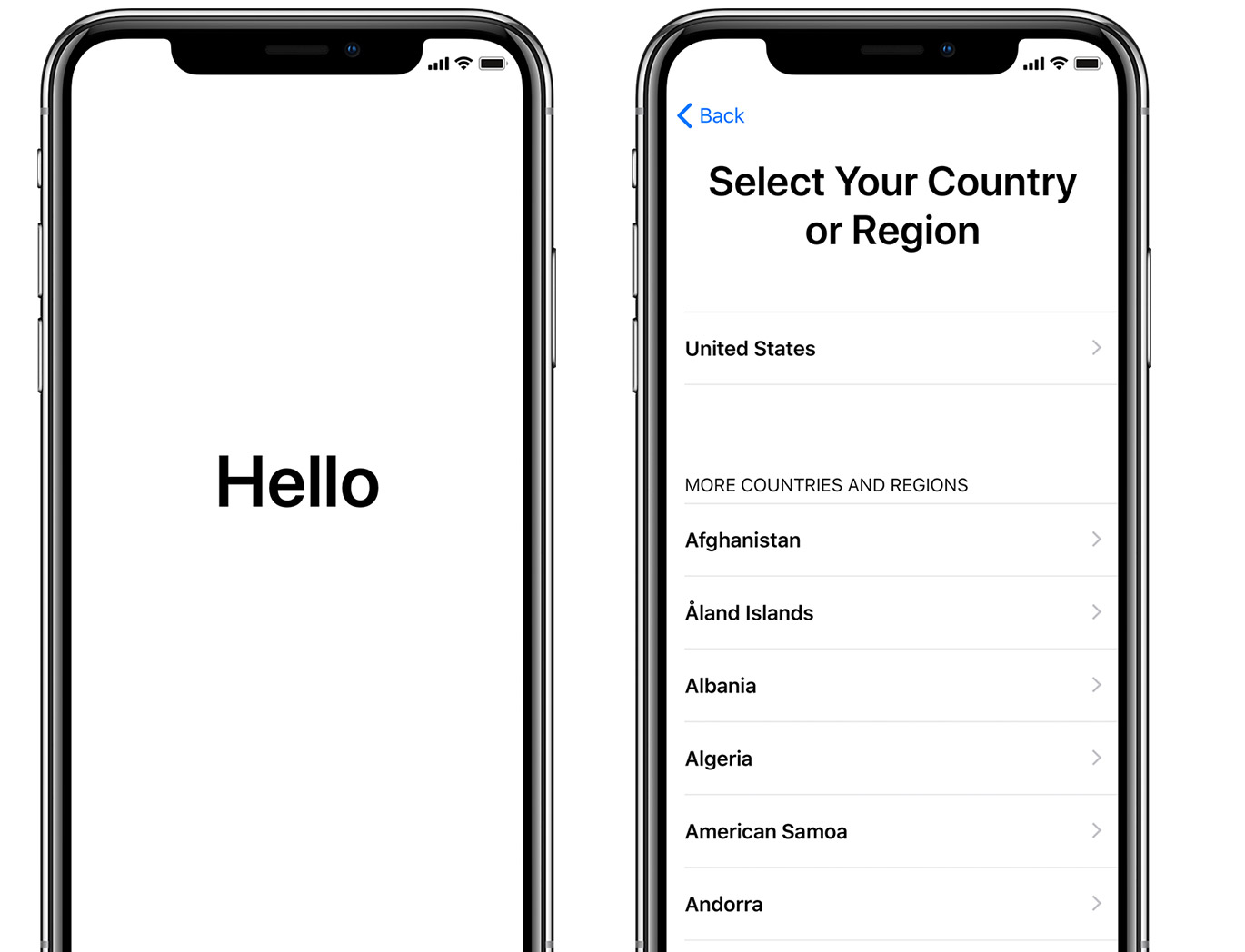
You'll see "Hello" in many languages. Follow the steps to get started. If you're blind or have low vision, you can turn on VoiceOver or Zoom from the Hello screen.
When asked, choose your language. Then tap your country or region. This affects how information looks on your device, including date, time, contacts, and more.
Get help if your device won't turn on, or if it's disabled or requires a passcode.
If you have another device on iOS 11 or later, use Quick Start
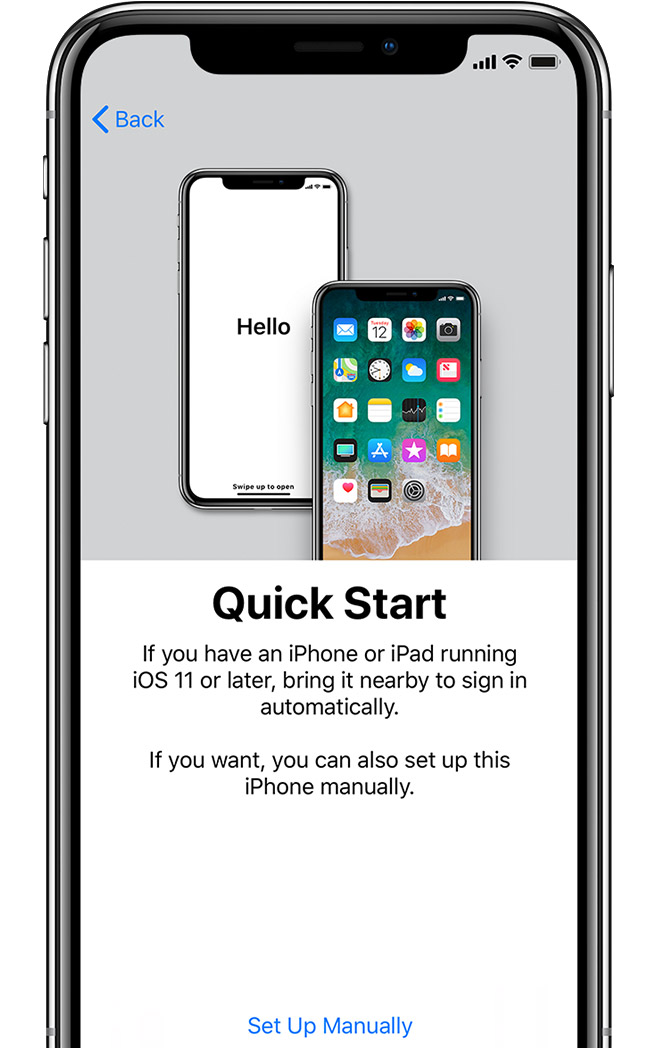
If you have another device that's running iOS 11 or later, you can use it to automatically set up your new device with Quick Start. Bring the two devices close together, and then follow the instructions.
If you don’t have another device with iOS 11 or later, tap "Set Up Manually" to continue.
 Activate your device
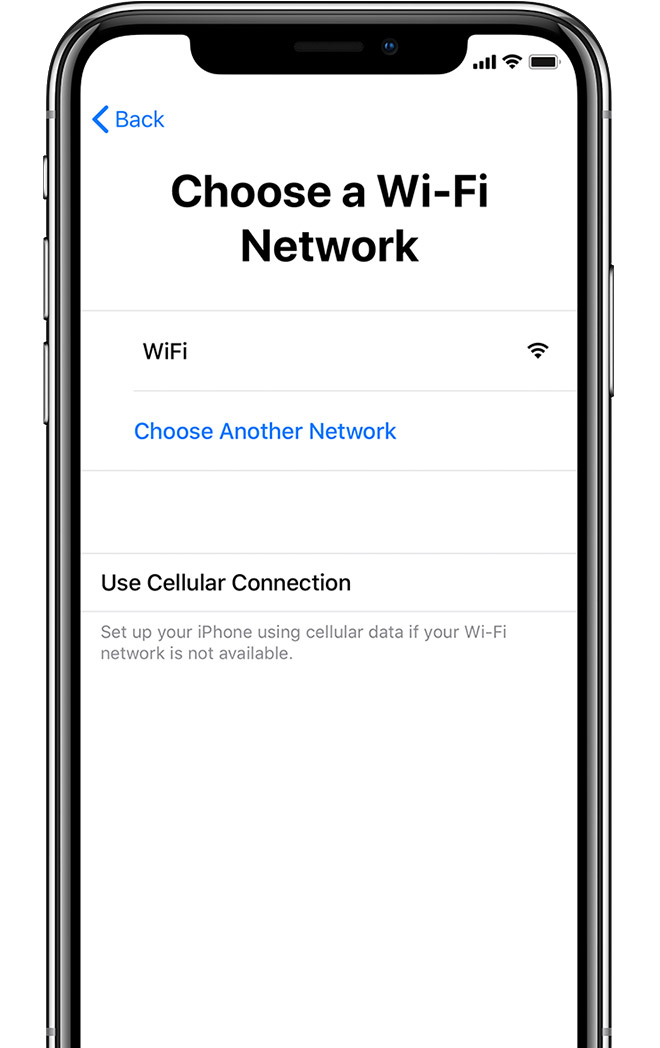
You need to connect to a Wi-Fi network, a cellular network, or iTunes to activate and continue setting up your device.
Tap the Wi-Fi network that you want to use or select a different option. If you're setting up an iPhone or iPad (Wi-Fi + Cellular), you might need to insert your SIM card first.
Get help if you can't connect to Wi-Fi or if you can't activate your iPhone.
Set up Face ID or Touch ID and create a passcode
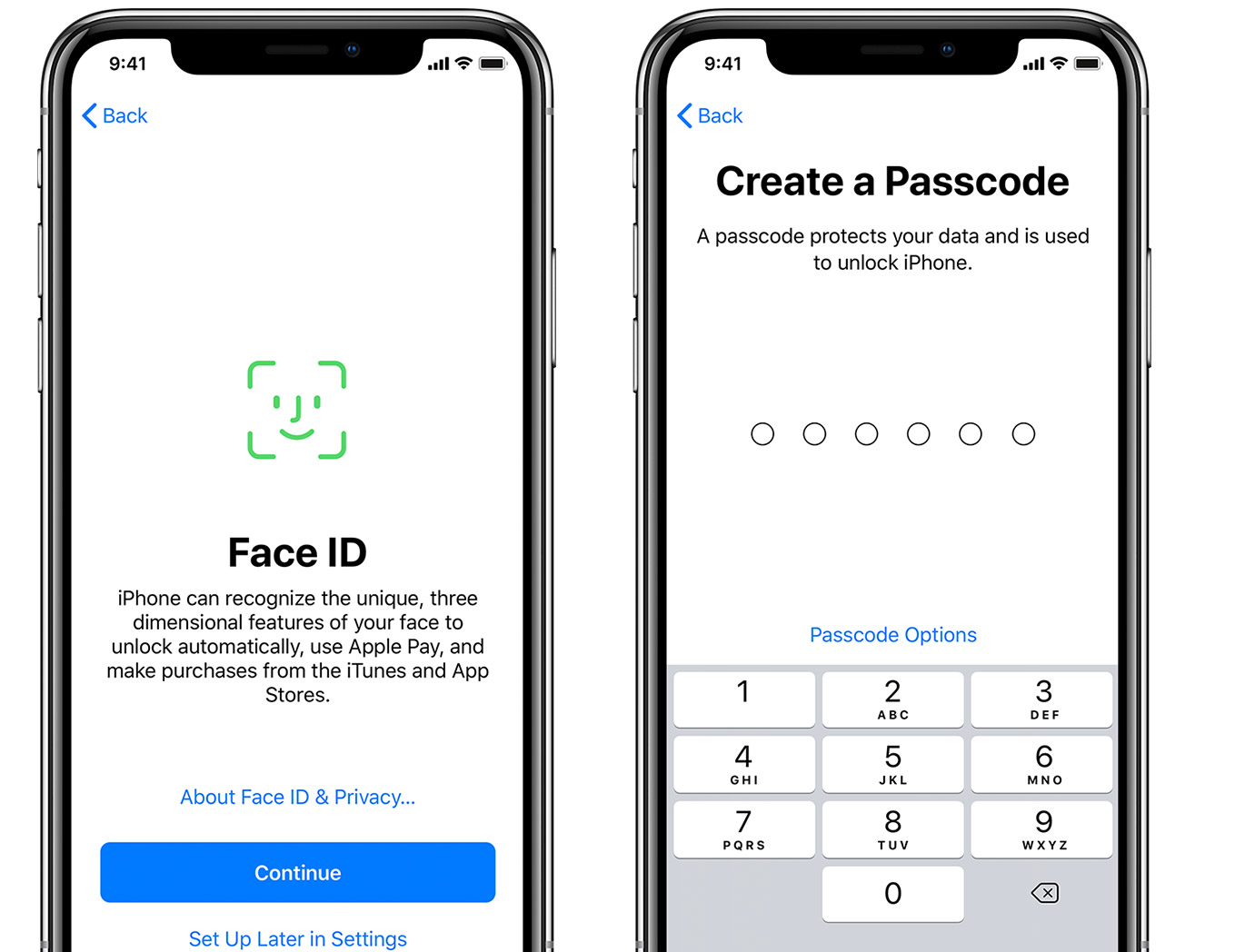
On some devices, you can set up Face ID or Touch ID. With these features, you can use face recognition or your fingerprint to unlock your device and make purchases. Tap Continue and follow the instructions, or tap "Set Up Later In Settings."
Next, set a six-digit passcode to help protect your data. You need a passcode to use features like Face ID, Touch ID, and Apple Pay. If you'd like a four-digit passcode, custom passcode, or no passcode, tap "Passcode Options."
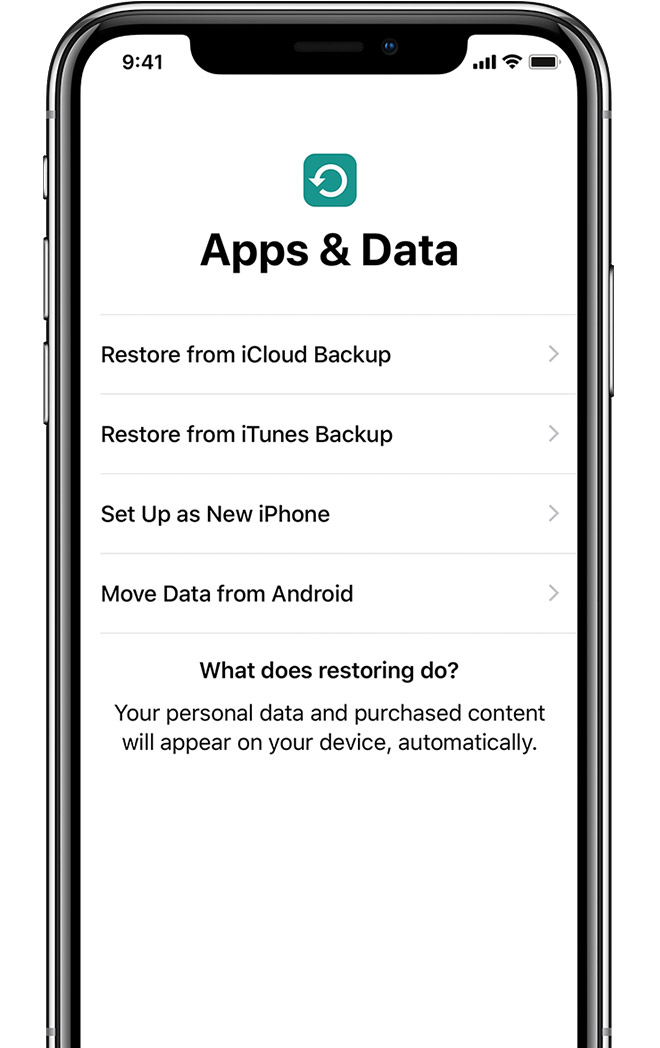
Restore or transfer your information and data
If you have an iCloud or iTunes backup, or an Android device, you can restore or transfer your data from your old device to your new device.
If you don't have a backup or another device, select Set Up as New [Device].
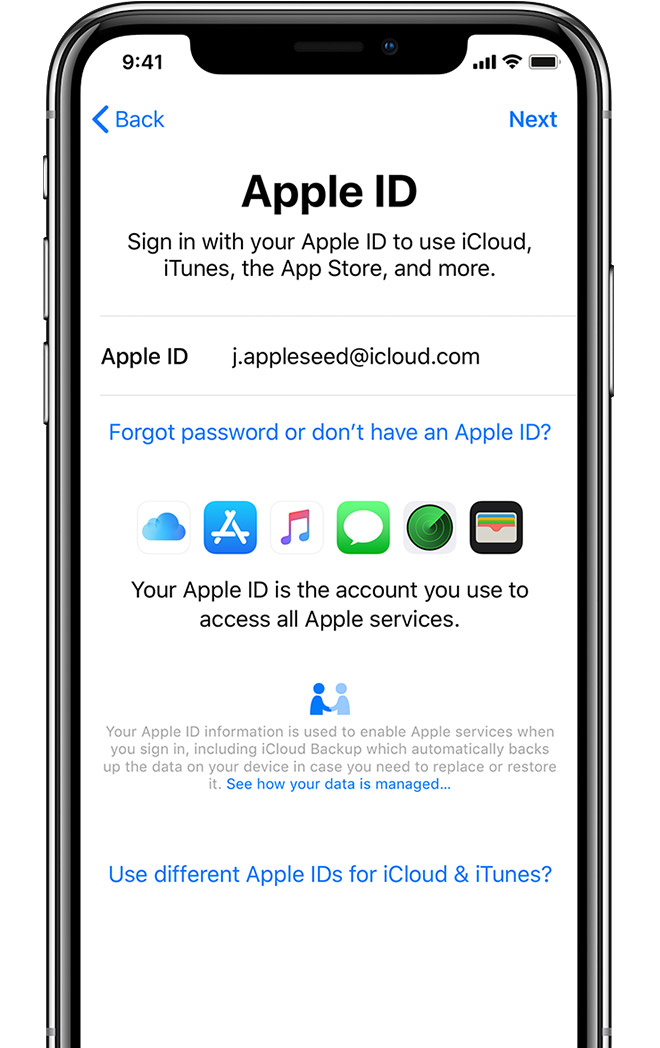
Sign in with your Apple ID
Enter your Apple ID and password, or tap "Forgot password or don't have an Apple ID?" From there, you can recover your Apple ID or password, create an Apple ID, or set it up later. If you use more than one Apple ID, tap "Use different Apple IDs for iCloud and iTunes?"
When you sign in with your Apple ID, you might be prompted for a verification code from your previous device.
Set up your iPhone, iPad, or iPod touch - Apple Support
https://support.apple.com/en-us/HT202033