How do I separate thumbnails?

How do I separate thumbnails? I need to duplicate thumbnails/add pages in a layout form in a Pages document. And the thumbnails are attached. So when I go to duplicate it duplicates all the attached thumbnails. When I "add a page" it will add just one page but it's still attached. When I try to move that one added page all the attached thumbnails move. They are NOT selected. And I do not have the option to deselect.


And how do I make sure they don't attach when I add more next time?

Posted on Aug 3, 2019 8:22 PM

Reply
9 replies

Aug 4, 2019 1:36 PM in response to amytheangel_81

Do you mean similar to these, joined by a surrounding yellow line? (colours may differ, as this screen in in Pages v5.6.2)


In a Pages word processing document, the pages are grouped in a section. Initially, the document has only one section, containing all of the pages. New pages (and their thumnails) are created automatically as they are needed to contain the main text of the document.


To delete a page, you can do either of two things:

  • Delete the content of the page.

The page will disappear, and pages below i will move up o fill he empty space

OR

  • insert a section break (Insert menu > Section break) at the end of the page you want to remove.
  • Insert a second section break at the end of the previous page,


The two section breaks isolate the page in a section of its own.


To remove a page (and it's thumbnail):

  • Select the new section by clicking its thumbnail. Press delete.

(Optional) place the insertion point at the beginning of the page in the lower section.

Press delete to remove the section break and rejoin the two sections into one.


Regards,

Barry

Aug 3, 2019 11:36 PM in response to amytheangel_81

Hi Amy,


The 'thumbnails' are small images of the page as it exists at the moment.

If you duplicate a page, both the original and the duplicate will have a thumbnail, and until you edit one of the pages, both thumbnails will, like their pages, be the same.

If you add a page, there will be a thumbnail created to match than page.

If you delete a page, its thumbnail will also disappear.

there is no user control to separate a thumbnail from its page. Your only choice is to display the thumbnails or to not display the thumbnails, and tht is an all or nothing choice.


Regards,

Barry

Aug 5, 2019 12:30 AM in response to amytheangel_81

When you say "No, it's page layout view." are you referring to the Show Layout item in the View menu? This mu item is available for both types of Pages document. Choosing it shows the outlines of the header and footer boxes, the document margins, and other objects controlling the layout of text and objects on the page.


If it's a Page Layout document, each Page is a separate section. The easiest way to check which type of document it is is to open the Document Inspector, and look for the Document Body checkbox.
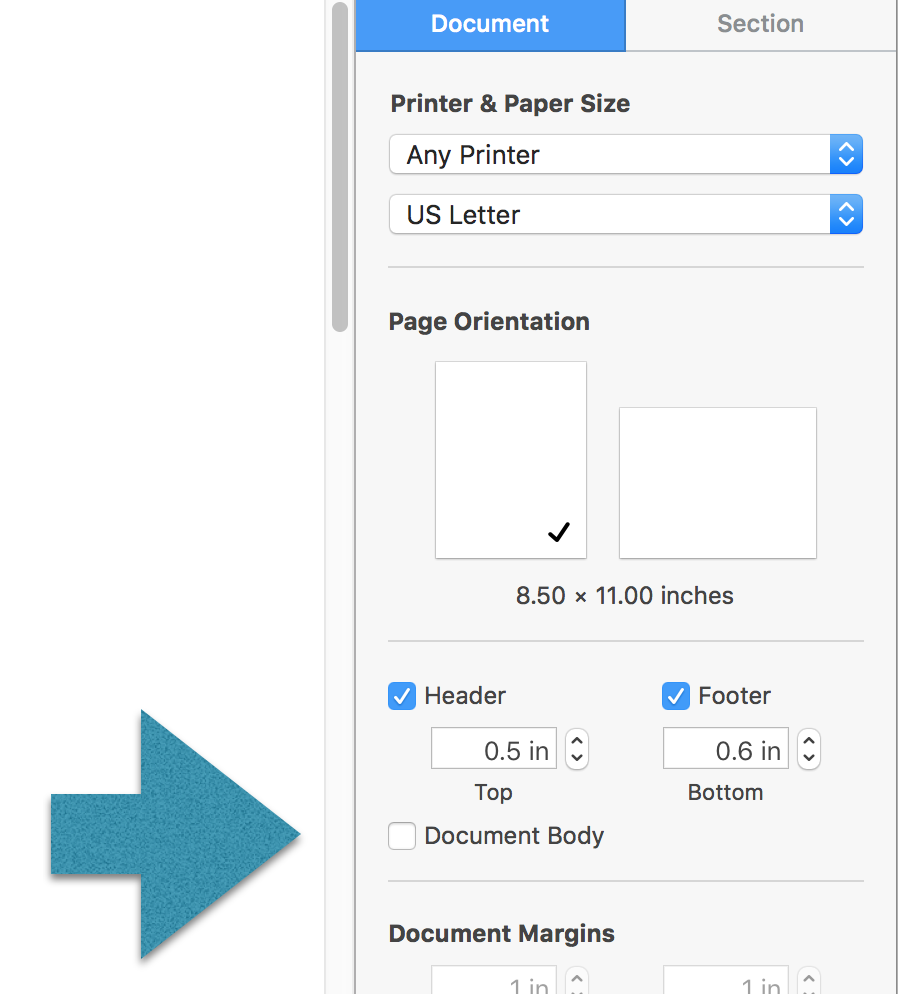
If it is unchecked, like the one above, the document is a Page Layout Document.

If the box is checked, the document has a Document Body, and is a Word Processing Document.


In a Page Layout document, you can (or could—memory says there have been discussions here regarding the absence of this feature in recent versions) rerrange the pages by dragging the thumbnails into their new positions.


I can't confirm that feature as still available, as My Pages version is 5.6.2 (The current version is 8.1)


In 5,6,2, the feature is available, as can be seen here:


Original order:


Dragging Page 1's thumbnail down changes the order:


And dragging page 3's thumbnail to the top changes it again.


Regards,

Barry

This thread has been closed by the system or the community team. You may vote for any posts you find helpful, or search the Community for additional answers.

How do I separate thumbnails?

Welcome to Apple Support Community
A forum where Apple customers help each other with their products. Get started with your Apple Account.
