iPhone 6 Error

I was charging my phone, and left it there for a bit. When I came back to it, I could not turn it on, so I charged it. The phone then showed me the Apple logo, then it immediately turned off, then showed me the apple logo again, and then turned off, and so on.


It became apparent to me that something was wrong, so I Googled for an answer and found that I can connect my phone and use the recovery mode on my phone to restore it.


When iTunes finished downloading the software update, it extracted it, and prepared the phone for recovery. However, after that, I heard my phone disconnect immediately, as if it sensed the laptop was about to do something to the phone. When I checked the app, It showed me that it was "Waiting for iPhone". I tried doing the steps required for the phone to enter recovery mode again, but to no avail. Then, I tried it again, to which the  app responded with an error code 4014.

I don't think that this is a timeout issue, because the phone stayed in recovery mode for the entire duration when I downloaded the 2+GB software update. It only disconnects right after the "Preparing iPhone for Recovery".


I even registered for a new Apple ID because I could not log in to my original Apple ID due to it having a 2 Factor Authentication.


I could not follow the instructions that are present in the Apple article regarding the error 4014 due to the fact that I am not able to turn on my phone.


Any sort of help is appreciated.

iPhone 6

Posted on Aug 13, 2019 7:43 PM

Reply
Question marked as Top-ranking reply

Posted on Aug 13, 2019 7:49 PM

If you see error 9, 4005, 4013, or 4014 when you restore your iOS device

When you try to update or restore your iPhone, iPad, or iPod touch, you might see one of these messages in iTunes.


Try to update your iOS device again

If your iOS device disconnects during the update or restore or if iTunes couldn't tell the device to restore, you might see one of these messages: 

  • The iPhone [device name] could not be restored. An unknown error occurred (9).
  • The iPhone [device name] could not be restored. An unknown error occurred (4005).
  • The iPhone [device name] could not be restored. An unknown error occurred (4013).
  • The iPhone [device name] could not be restored. An unknown error occurred (4014).

Try these steps:

  1. Install the latest version of iTunes.
  2. Force your device to restart:
    • iPad models with Face ID: Press and quickly release the Volume Up button. Press and quickly release the Volume Down button. Press and hold the Top button until the device restarts.
    • iPhone 8 or later: Press and quickly release the Volume Up button. Press and quickly release the Volume Down button. Press and hold the Side button until you see the Apple logo.
    • iPhone 7, iPhone 7 Plus, and iPod touch (7th generation): Press and hold both the Side (or Top) button and the Volume Down button for at least 10 seconds, until you see the Apple logo. 
    • iPad with Home button, iPhone 6s or earlier, and iPod touch (6th generation) or earlier: Press and hold both the Side (or Top) button and the Home button for at least 10 seconds, until you see the Apple logo.
  1. Connect your device to your computer using a USB cable. 
  2. When iTunes asks you to update or restore, click Update—not Restore—to reinstall iOS and keep your personal data.

If you still need help, try these steps

If you can update your device but it starts up in recovery mode, follow the steps above again. On step 4, choose Restore instead of Update. After the restore completes, you need to set up your device from a backup.

If you still see an error during the update:

  1. Check for updates to your Mac or PC. If you restart your computer for an update, check for updates again after you restart.
  2. Try to restore your device using another USB cable.
  3. Try to restore your device on another computer.

If you continue to see error 9, 4005, 4013, or 4014 when you try to restore your iPhone, iPad, or iPod touch, contact us.


If you see error 9, 4005, 4013, or 4014 when you restore your iOS ...


Similar questions

3 replies
Question marked as Top-ranking reply

Aug 13, 2019 7:49 PM in response to moen48

If you see error 9, 4005, 4013, or 4014 when you restore your iOS device

When you try to update or restore your iPhone, iPad, or iPod touch, you might see one of these messages in iTunes.


Try to update your iOS device again

If your iOS device disconnects during the update or restore or if iTunes couldn't tell the device to restore, you might see one of these messages: 

  • The iPhone [device name] could not be restored. An unknown error occurred (9).
  • The iPhone [device name] could not be restored. An unknown error occurred (4005).
  • The iPhone [device name] could not be restored. An unknown error occurred (4013).
  • The iPhone [device name] could not be restored. An unknown error occurred (4014).

Try these steps:

  1. Install the latest version of iTunes.
  2. Force your device to restart:
    • iPad models with Face ID: Press and quickly release the Volume Up button. Press and quickly release the Volume Down button. Press and hold the Top button until the device restarts.
    • iPhone 8 or later: Press and quickly release the Volume Up button. Press and quickly release the Volume Down button. Press and hold the Side button until you see the Apple logo.
    • iPhone 7, iPhone 7 Plus, and iPod touch (7th generation): Press and hold both the Side (or Top) button and the Volume Down button for at least 10 seconds, until you see the Apple logo. 
    • iPad with Home button, iPhone 6s or earlier, and iPod touch (6th generation) or earlier: Press and hold both the Side (or Top) button and the Home button for at least 10 seconds, until you see the Apple logo.
  1. Connect your device to your computer using a USB cable. 
  2. When iTunes asks you to update or restore, click Update—not Restore—to reinstall iOS and keep your personal data.

If you still need help, try these steps

If you can update your device but it starts up in recovery mode, follow the steps above again. On step 4, choose Restore instead of Update. After the restore completes, you need to set up your device from a backup.

If you still see an error during the update:

  1. Check for updates to your Mac or PC. If you restart your computer for an update, check for updates again after you restart.
  2. Try to restore your device using another USB cable.
  3. Try to restore your device on another computer.

If you continue to see error 9, 4005, 4013, or 4014 when you try to restore your iPhone, iPad, or iPod touch, contact us.


If you see error 9, 4005, 4013, or 4014 when you restore your iOS ...


Aug 13, 2019 7:50 PM in response to moen48

Identify counterfeit or uncertified Lightning connector accessories

Apple recommends using only accessories that Apple has certified and that come with the "Made for Apple" badge. Learn about the issues that counterfeit or uncertified Lightning accessories can cause and how to identify these accessories.


If you use a counterfeit or uncertified Lightning accessory, you could see these issues:

  • Your iOS device could become damaged
  • The cable might be easily damaged
  • The connector end might fall off, get very hot, or might not fit properly into your device
  • You might not be able to sync or charge your device

Only Apple makes the USB-C to Lightning Cable. There are no "Made for Apple" USB-C to Lightning cables.

Compare packaging and writing on the cable

To identify counterfeit or uncertified cables and accessories, look carefully at the accessory's packaging and at the accessory itself. Certified third-party accessories have the MFi badge on their packaging:


Some accessories might have a previous version of the MFi badge:


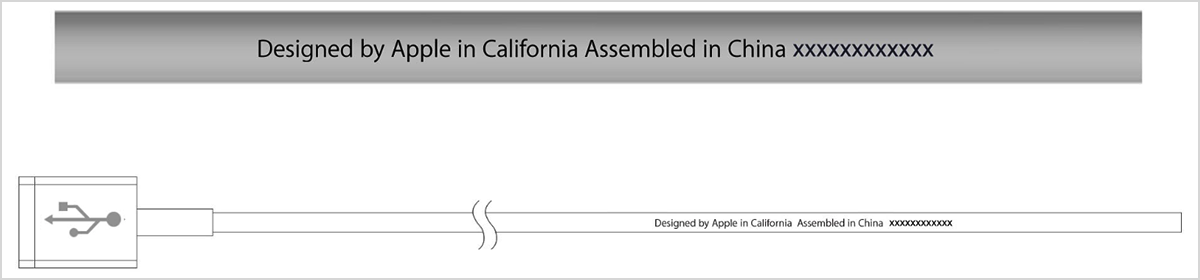
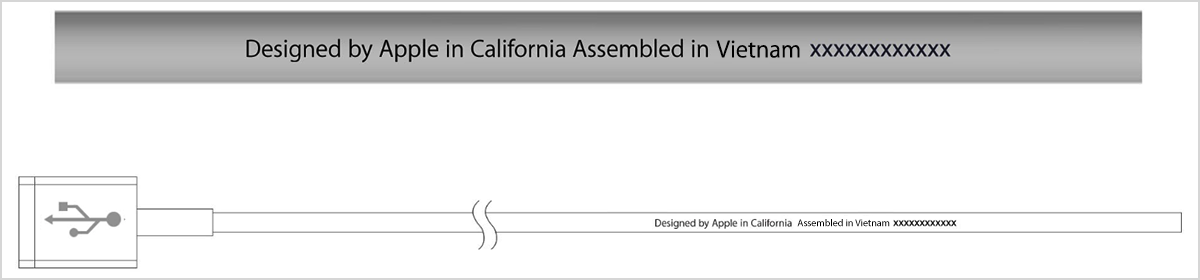
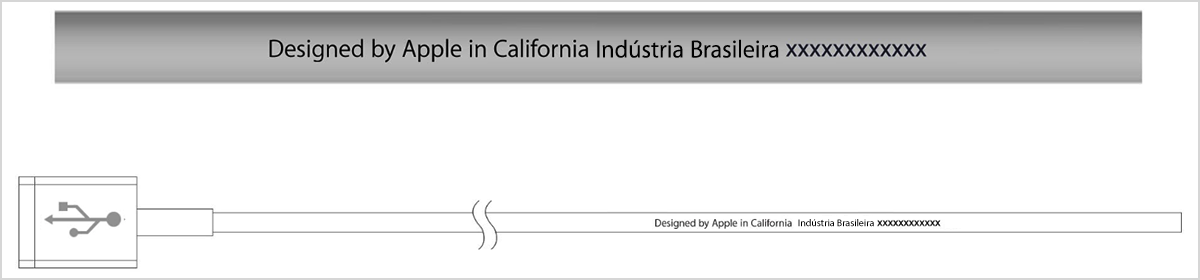
An Apple Lightning to USB cable has "Designed by Apple in California" and either "Assembled in China," "Assembled in Vietnam," or "Indústria Brasileira" on the cable about seven inches from the USB connector. You'll see a 12-digit serial number at the end of this text.

A certified, third-party Lightning to USB cable usually has company branding on the Lightning-connector end.


Identify counterfeit or uncertified Lightning connector accessories ...


This thread has been closed by the system or the community team. You may vote for any posts you find helpful, or search the Community for additional answers.

iPhone 6 Error

Welcome to Apple Support Community
A forum where Apple customers help each other with their products. Get started with your Apple Account.