Hi swf627 and everyone,
I think this feature is a new feature in iOS 13 called 'Link Preview'. This feature helps in opening a link with a quick long touch to preview it and you can decide if you want to visit it or not. But it turns out that this feature is not helpful for everyone, so Apple has included an option of 'Hide Link Previews'.
So so this is the way to do it on iPhone and iPad,
For iPhone 📱
Search for something on Safari and open an image in Google images or open any web site with a link that directs you to another link.
Hold the link and let the preview pop up.
In the preview options, choose the last option that is 'Hide Previews'. That will turn the pop up into a link and it will do so for every other link.
Unfortunately, there is no setting yet in iOS 13.3 that can completely disable the link preview or change sensitivity of the touch, but we may see it it future updates.
For iPad
Search for something on safari and open an image on Google images or a link on a website that directs you to another link.
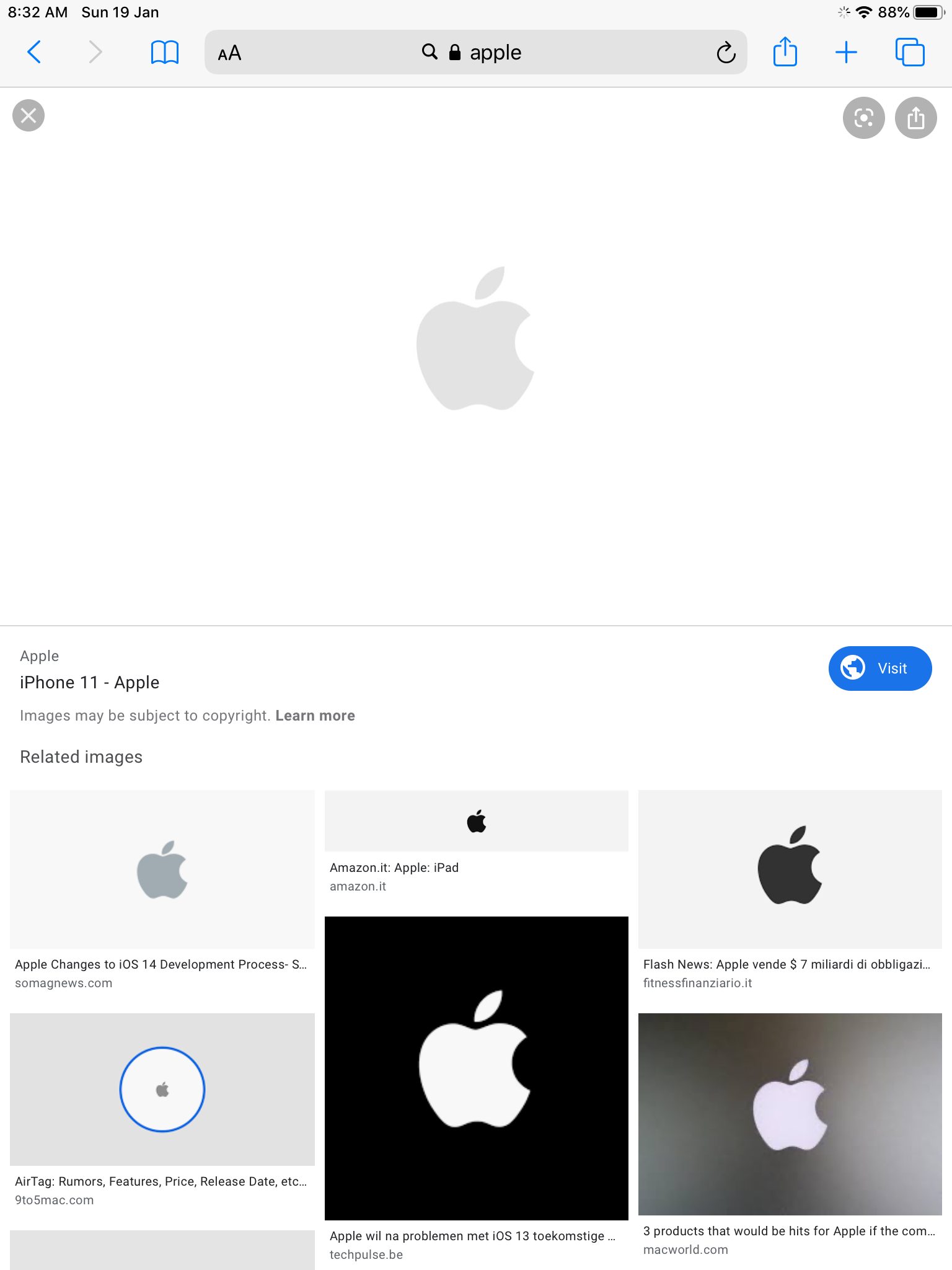
Now hold the link to open the preview
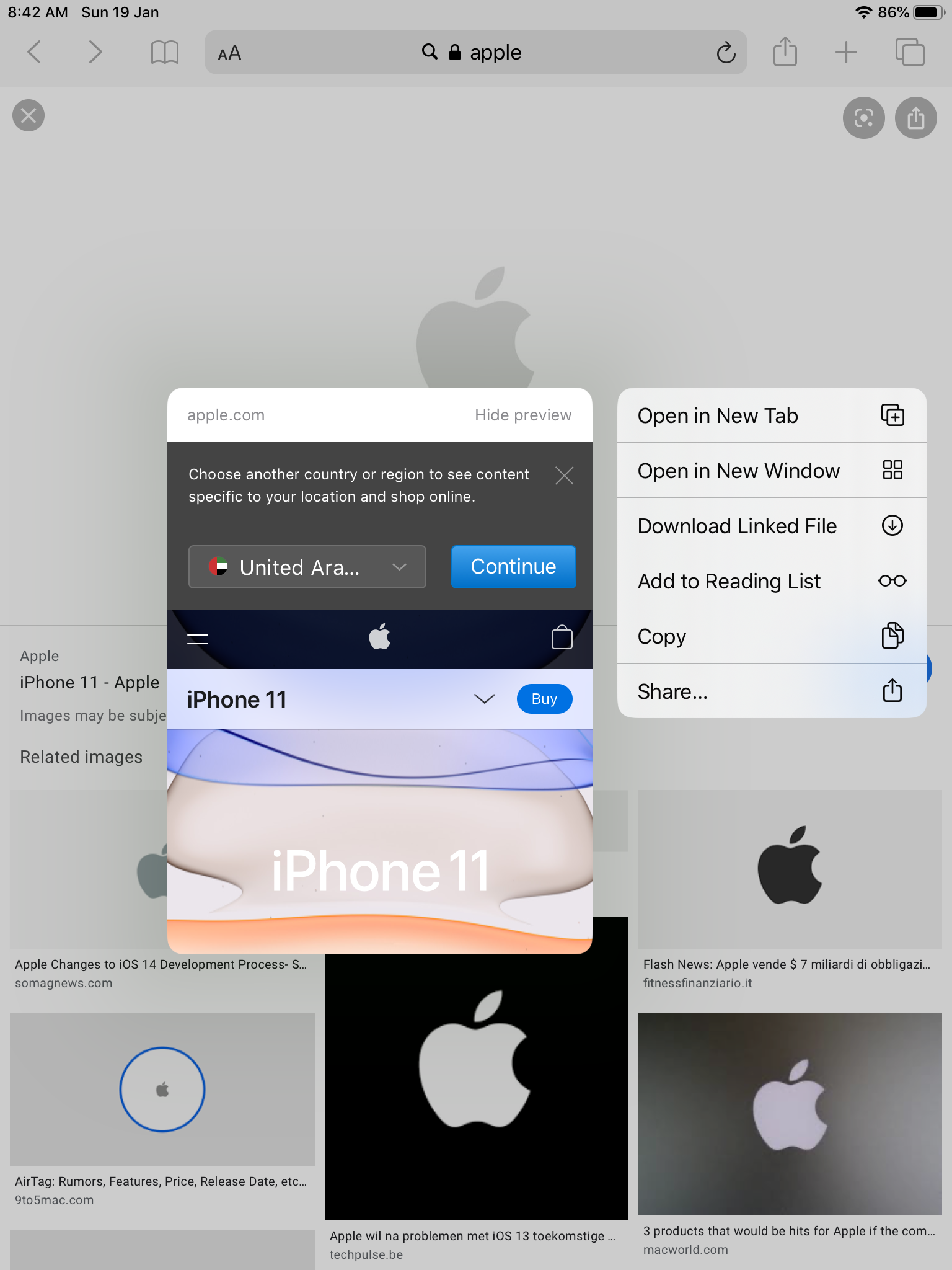 Now click the 'Hide Preview' button of the top right corner of the preview which will turn it into a link and the previews will be hidden for all the other links as well.
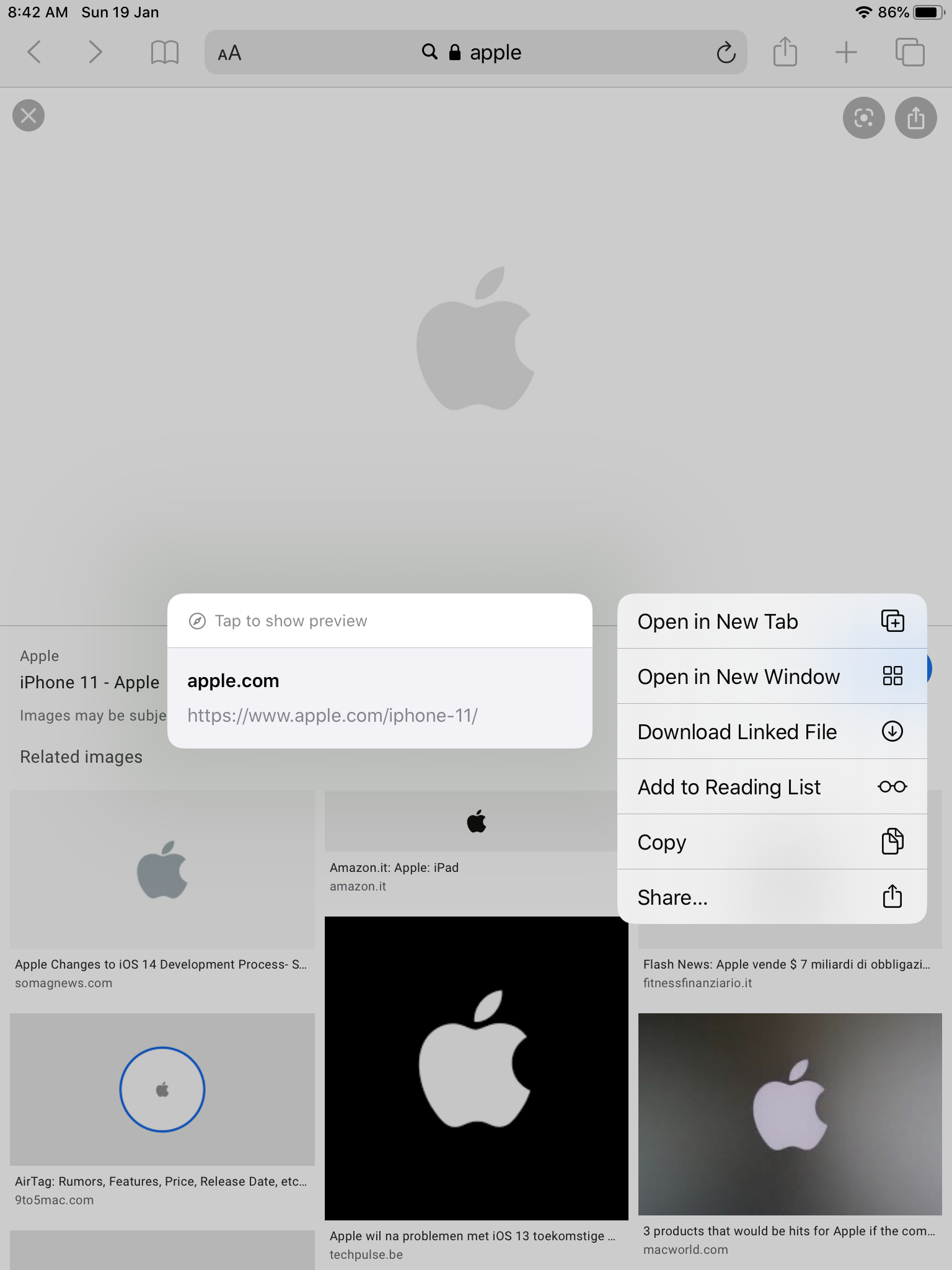
How to undo it?
Since this is not a permanent hiding feature, it can easily be undoable.
To undo it on iPhone 📱, the option of 'Show Preview' will be in the same position of the 'Hide Preview' button. So click on it and there you go! Now you can view previews for each link you wish to do so.
To undo it on iPad, the option of 'Tap to show preview' will be displayed on the top left corner of the preview.
And that is how you can Disable and Enable previews in iOS 13 iPhone and iPad.
Always ready to help,
Arnav