Catalina Driver for Canon LBP 2900

Catalina Driver for Canon LBP 2900, Have upgraded to Catalina OS, Now Printer Driver is not supporting. Required Suitable Driver for my Canon LBP2900B Printer Driver for Printer Support for my Mac Mini, So Please Help

Posted on Oct 11, 2019 11:47 AM

Reply
Question marked as Top-ranking reply

Posted on Jan 1, 2020 6:27 AM

Fortunately that is possible.The main problem you must be facing is the 'captmoncnab3 is damaged and must be moved the bin'

this can be bypassed by following steps

1) Remove old printers in system preferences ->printers and scanners

2) Download CAPT Printer Driver & Utilities for Mac V10.0.0

3) Install it

4) Then download the patch

5) Unzip the file and replace the captmoncnab3 file with captmoncnab3(patched) file in the zip by going to finder path /Library/Printers/Canon/CUPSCAPT2/Bidi/captmoncnab3

6) Then replace the CnAC28B9.DAT file in finder path with CnAC28B9.DAT(patched) in finder path /Library/Printers/Canon/CUPSCAPT2/cnaccm

7) Connect to your Canon LBP 2900/2900b & Go to System preferences -> Printers and Scanners and add the printer using Canon LBP3000 CAPT (UK) driver software

8) Now when you try printing you see the dialog box 'captmoncnab3 is damaged and must be moved the bin' so copy the pathname of the patched file captmoncnab3 that we replaced in step 5 and go to terminal

9) After opening terminal window copy this command xattr -cr /The pathname that you copied (be careful of the two "/" after you copy) example : xattr -cr /Library/Printers/Canon/CUPSCAPT2/Bidi/captmoncnab3

10) Restart your system

11) Try printing a file and it will work

Please comment

46 replies
Question marked as Top-ranking reply

Jan 1, 2020 6:27 AM in response to art.design79

Fortunately that is possible.The main problem you must be facing is the 'captmoncnab3 is damaged and must be moved the bin'

this can be bypassed by following steps

1) Remove old printers in system preferences ->printers and scanners

2) Download CAPT Printer Driver & Utilities for Mac V10.0.0

3) Install it

4) Then download the patch

5) Unzip the file and replace the captmoncnab3 file with captmoncnab3(patched) file in the zip by going to finder path /Library/Printers/Canon/CUPSCAPT2/Bidi/captmoncnab3

6) Then replace the CnAC28B9.DAT file in finder path with CnAC28B9.DAT(patched) in finder path /Library/Printers/Canon/CUPSCAPT2/cnaccm

7) Connect to your Canon LBP 2900/2900b & Go to System preferences -> Printers and Scanners and add the printer using Canon LBP3000 CAPT (UK) driver software

8) Now when you try printing you see the dialog box 'captmoncnab3 is damaged and must be moved the bin' so copy the pathname of the patched file captmoncnab3 that we replaced in step 5 and go to terminal

9) After opening terminal window copy this command xattr -cr /The pathname that you copied (be careful of the two "/" after you copy) example : xattr -cr /Library/Printers/Canon/CUPSCAPT2/Bidi/captmoncnab3

10) Restart your system

11) Try printing a file and it will work

Please comment

Oct 21, 2019 4:06 AM in response to chetan3557

chetan3557 wrote:

So i just throw the printer away... This is shocking.... Apple please do something and make it work with a patch or something

You have the following options:

  • Revert to an earlier macOS version where your printer still worked

from you Time Machine or clone backup. Never apply any updates/upgrades

ever again.

  • But a new printer that supports OS agnostic printing, i.e. WiFi/Airprint or Postscript
  • Complain to Canon for their lack of 64 bit support. Unlikely that they will since it

they want to sell new printers and not support old ones.

Dec 4, 2019 7:25 AM in response to art.design79

You can use this guide. I tried and it's helping me to solve:

1/ First at all, you must TURN OFF SIP (google for this)

You will use the driver for Canon LBP3000

2/ Download this file: https://www.fshare.vn/file/TGIZ6K5MG5ZE. Run it, install.

3/ Download this file and unzip: https://www.fshare.vn/file/BSOUYZRKCO36?token=1573114484

4/ Open FINDER, press Command + Shift + G and type: /Library/Printers/Canon/CUPSCAPT2/Bidi/

Copy 2 file that unzip in step 3. Type your password

5/ Again, open FINDER, press Command + Shift + G and type: /Library/Printers/Canon/CUPSCAPT2/cnaccm

Copy 2 file that unzip in step 3. Type your password

RESTART your macbook

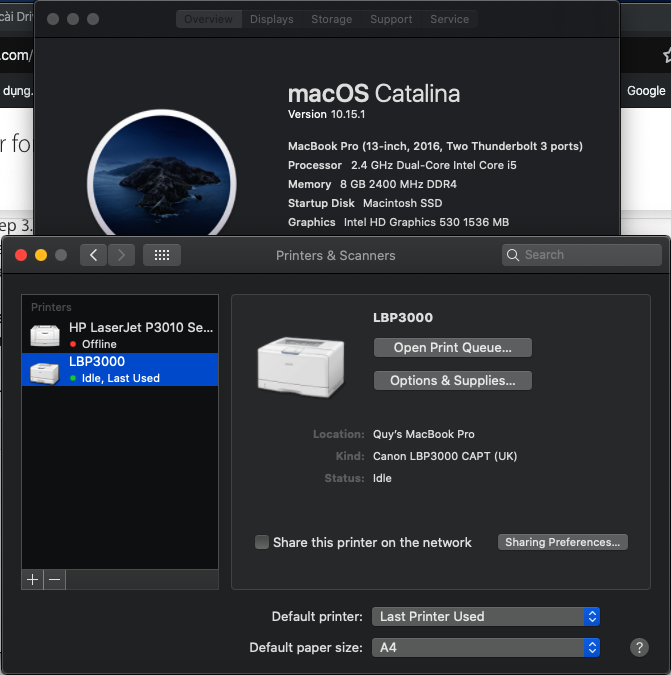
6/ Add printer: Open System Preferences, chose Printer & Scanners. At Printer & Scanners click +. You will see Canon LBP2900, you chose driver Canon LBP3000 CAPT (UK) and click Add.

Everything done. Try to print (It show Canon LBP3000)

Sometime you will get trouble, try again all step. I hope it will help.

Nov 20, 2019 7:28 AM in response to art.design79

Download and install the driver for LBP3000 "CAPT Printer Driver & Utilities for Mac V10.0.1 [macOS 10.13/10.14/10.15" from here https://www.canon.com.au/laser-printers/laser-shot-lbp3000/support


Within the binary files

/Library/Printers/Canon/CUPSCAPT2/Bidi/captmoncnab3

and

/Library/Printers/Canon/CUPSCAPT2/cnaccm/CnAC28B9.DAT

replace all occurrences of "LBP3000" with "LBP2900". You can use the free iHex software available on the App Store to do that. Don't use a Text Editor. In iHex, use the search and replace all, do not forget to select the text for the search fields.


reboot Mac


Download Gatekeeper Helper.dmg:

https://drive.google.com/open?id=1Syls0VNvXS5ckNtKJ43-jdH8oapOAwXV

or

https://rutracker.org/forum/viewtopic.php?t=5764352


1) Mount Gatekeeper Helper.dmg;

2) Copy the script file to the user folder. (In the Finder panel on the left is the folder with your user name)

To do this, just drag it there with the mouse.

You need to remove the attributes assigned to the file when writing to the file system disk and make the script executable on the system.

Open the Terminal, copy and paste the command into it:

The code:

xattr -c ~/gtkhelper; chmod +x ~/gtkhelper

3) To run the script, execute in the terminal;

The code:

~/gtkhelper

4) Script Items:

1 - Turn off the SIP

2 - Turn on the SIP

3 - Turn off the SIP for a single application

4 - Self-sign application

5 - Exit

5) Choose the fourth item

6) Drag captmoncnab3 file (edited) to the terminal and press Enter

7) Close everything and restart the computer

8) Connect the LBP2900 to the USB Port and in the System Preferences add a Driver for it specifying the Canon LBP3000 Driver.


Enjoy


Nov 27, 2019 9:17 AM in response to vladislavkarpyuk

К сожалению, идей нет. Если все пункты из инструкции выше сделаны, то подсказать больше не смогу. Единственное, у меня установлена последняя версия Xcode, возможно в ней есть недостающие компоненты. Если вы читали форум на рутрекере (страница загрузки скрипта) то там есть информация, что в каталине есть изменения и часть старых команд в терминале не работает, у меня таких проблем не было, всё заработало сразу, никаких дополнительных инструментов кроме Xcode нет.

Dec 6, 2019 8:47 AM in response to vladislavkarpyuk

Вам нужно скачать и установить xcode developer tools.

Для этого в терминале запускайте команду xcode-select --install


После установки опять в терминале:

~/gtkhelper

Выбирайте пункт 3 и перетаскивайте файл captmoncnab3 в терминал. Жмёте Enter, потом спросит пароль, вводите и опять Enter.

Всё закрыть и перезагрузить.

Дальше устанавливайте драйвер принтера через Системные настройки-Принтеры и сканеры

This thread has been closed by the system or the community team. You may vote for any posts you find helpful, or search the Community for additional answers.

Catalina Driver for Canon LBP 2900

Welcome to Apple Support Community
A forum where Apple customers help each other with their products. Get started with your Apple Account.

