Go to 'About this Mac', and click on System Report, click on Power to see your battery health.
Then read this. It will give you an idea as to your MacBook Pro's expected battery life and an idea as to whether it needs to be replaced: https://support.apple.com/en-gb/HT201585
The battery status menu
Your primary resource for viewing battery status is the battery status menu. It shows you how much charge your battery has and whether it's currently charging. This menu is at the right side of the menu bar:
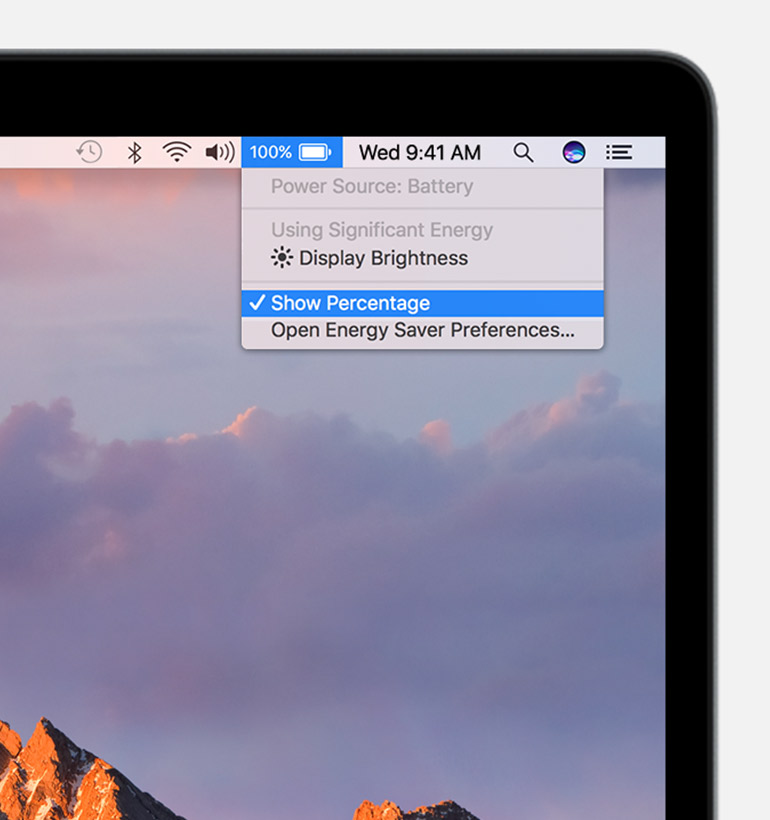
The battery status menu also tells you if your display or any apps are using significant energy. Click Display Brightness if it's listed under Using Significant Energy, and your display dims to 75% brightness. Also consider closing any apps that are listed to save battery power.
To see the health of your battery, hold the Option key and click the battery icon in the menu bar to reveal the battery status menu. You'll see one of the following status indicators:
- Normal: The battery is functioning normally.
- Replace Soon: The battery is functioning normally but holds less charge than it did when it was new. You should monitor the health of the battery by checking the battery status menu periodically.
- Replace Now: The battery is functioning normally but holds significantly less charge than it did when it was new. You can safely continue using your computer, but if its lowered charging capacity is affecting your experience, you should take it to an Apple Store or Apple-authorized service provider.
- Service Battery: The battery isn’t functioning normally. You can safely use your Mac when it's connected to an appropriate power adapter, but you should take it to an Apple Store or Apple-authorized service provider as soon as possible.

