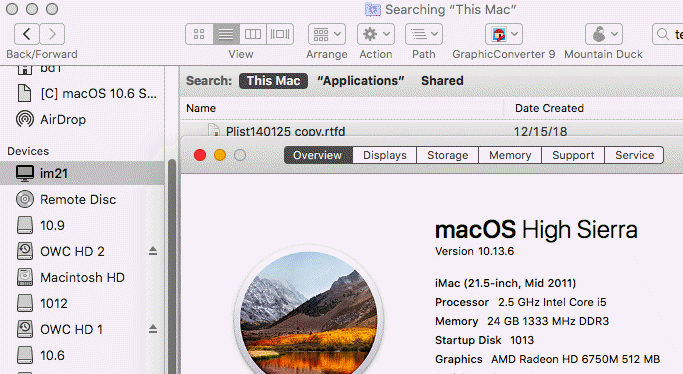
Shared shows on my 10.13.6 installs.
How to rebuild the Spotlight index on your Mac
If searching your Mac doesn’t return expected results, rebuilding the Spotlight index might help.
- Choose Apple menu () > System Preferences, then click Spotlight.
- Click the Privacy tab.
- Drag the folder or disk that you want to index again to the list of locations that Spotlight is prevented from searching. Or click the Add (+) button and select the folder or disk to add.
- To add an item to the Privacy tab, you must have ownership permissions for that item. To learn about permissions, choose Help from the Finder menu bar, then search for “permissions.”
- From the same list of locations, select the folder or disk that you just added. Then click the Remove (–) button to remove it from the list.
- Quit System Preferences. Spotlight will reindex the contents of the folder or disk.
Manually Rebuilding Spotlight via Terminal
If the aforementioned Spotlight control panel approach doesn’t spur a reindexation of the drive, you may need to initiate it manually through the command line. Open Terminal and use the following command string to do so:
sudo mdutil -E /
This basically asks for temporary super user status, which is why Terminal may ask you for your password (it may not if you’ve used a sudo command recently or are already logged in as a super user or root. The command asks the unix tool mdutil to reindex the spotlight database for everything on the computer, including external drives, mounted disk images, etc. To re-index only for a specific drive, use the /Volumes path. For example, for an external drive named “MiniMe,” the command would look like this:
sudo mdutil -i on /
Rebuilding a drive index can take a long time, so be prepared to wait whether you do it through the System Preference panel or the command line.


