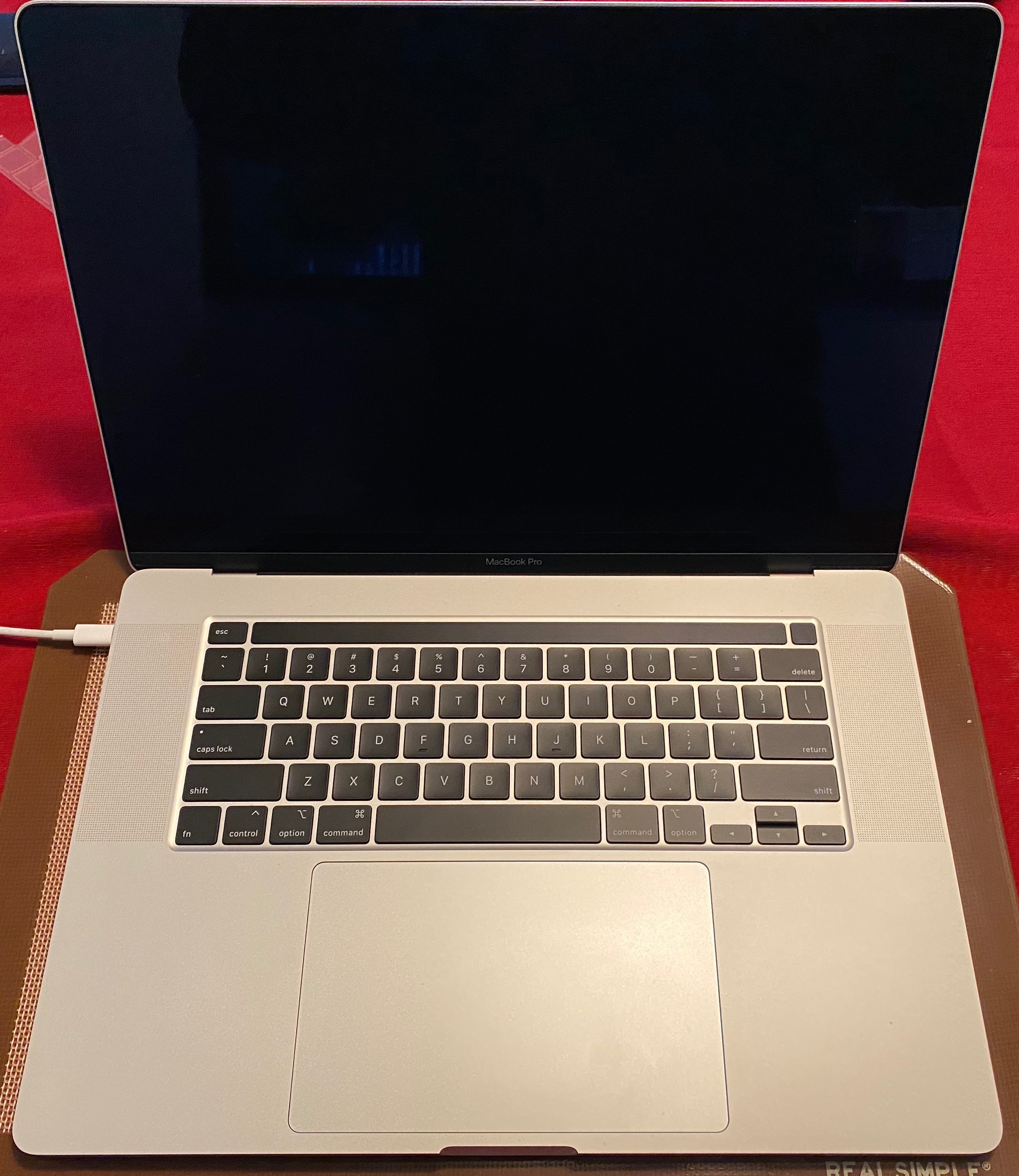
MacBook Pro 16 2019 10.15.4 WiFi Issues / Dropping Connection -- Help!

When I purchased this MacBook Pro, right out of the box I was experiencing dropped WiFi connections. Now I thought this was a simple bug and could be fixed by restarting/resetting SMC or PRAM reset, however, that wasn't the case. I'm still experiencing dropped WiFi connections even after doing those resets AND updating to 10.15.4.


Not sure why this keeps happening. Am I the only one?

MacBook Pro 16", macOS 10.15

Posted on Mar 28, 2020 1:57 PM

Reply
Question marked as Top-ranking reply

Posted on Jul 1, 2020 5:43 PM

Maybe your new MacBook Pro is generating some amazing USB 3 interfrence from its peripherals:


Why do I have difficulty with Wi-Fi or Bluetooth devices when USB 3 devices are attached to my computer?

Some USB 3 devices can generate radio frequency interference that can cause Wi-Fi and Bluetooth devices operating in the 2.4GHz band to have issues communicating with your computer. Here are some tips to avoid this issue:

• If your USB device has a cable long enough that you can move the device, place it away from your Mac—and make sure not to place it behind your Mac, or near the hinge of its display. The antennas for Wi-Fi and Bluetooth are located there, and USB 3 devices placed there might interfere with your wireless connections.

• If you're using adapters or dongles on a Mac computer with Thunderbolt 3 (USB-C) ports, plug them into the front port on the left side of your Mac, or into the ports on the right side (if your computer has them). These ports are the farthest away from the antennas, making interference less likely.

• To avoid interference on the 2.4GHz band using Wi-Fi, try using the 5GHz band instead. You can change this on your wireless base station. Bluetooth always uses 2.4GHz, so this alternative isn't available for Bluetooth.


--from an older Apple article, now retired.


Similar questions

143 replies
Question marked as Top-ranking reply

Jul 1, 2020 5:43 PM in response to TheArio

Maybe your new MacBook Pro is generating some amazing USB 3 interfrence from its peripherals:


Why do I have difficulty with Wi-Fi or Bluetooth devices when USB 3 devices are attached to my computer?

Some USB 3 devices can generate radio frequency interference that can cause Wi-Fi and Bluetooth devices operating in the 2.4GHz band to have issues communicating with your computer. Here are some tips to avoid this issue:

• If your USB device has a cable long enough that you can move the device, place it away from your Mac—and make sure not to place it behind your Mac, or near the hinge of its display. The antennas for Wi-Fi and Bluetooth are located there, and USB 3 devices placed there might interfere with your wireless connections.

• If you're using adapters or dongles on a Mac computer with Thunderbolt 3 (USB-C) ports, plug them into the front port on the left side of your Mac, or into the ports on the right side (if your computer has them). These ports are the farthest away from the antennas, making interference less likely.

• To avoid interference on the 2.4GHz band using Wi-Fi, try using the 5GHz band instead. You can change this on your wireless base station. Bluetooth always uses 2.4GHz, so this alternative isn't available for Bluetooth.


--from an older Apple article, now retired.


Aug 8, 2020 7:44 AM in response to steve4321abcd

Why do I have difficulty with Wi-Fi or Bluetooth devices when USB 3 devices are attached to my computer?

Some USB 3 devices can generate radio frequency interference that can cause Wi-Fi and Bluetooth devices operating in the 2.4GHz band to have issues communicating with your computer. Here are some tips to avoid this issue:

• If your USB device has a cable long enough that you can move the device, place it away from your Mac—and make sure not to place it behind your Mac, or near the hinge of its display. The antennas for Wi-Fi and Bluetooth are located there, and USB 3 devices placed there might interfere with your wireless connections.

• If you're using adapters or dongles on a Mac computer with Thunderbolt 3 (USB-C) ports, plug them into the front port on the left side of your Mac, or into the ports on the right side (if your computer has them). These ports are the farthest away from the antennas, making interference less likely.

• To avoid interference on the 2.4GHz band using Wi-Fi, try using the 5GHz band instead. You can change this on your wireless base station. Bluetooth always uses 2.4GHz, so this alternative isn't available for Bluetooth.

from:

About USB on Mac computers - Apple Support

Resolve Wi-Fi and Bluetooth issues caused by wireless interference

https://support.apple.com/en-us/HT201542


NB> Bluetooth use the same frequency band as 2.4 GHz Wi-Fi, it just does frequency hopping to try to improve performance.

Intel discovered and reported that poorly-shielded USB-3 devices interfere with 2.4GHz Wi-Fi in 2012.

Aug 29, 2020 1:33 AM in response to Johnnyboy8

A week ago I said: "Just replying in case anyone else finds it useful. I was able to switch my wifi router from using 2.4GHz to 5GHz and the problem went away entirely. "


What is critical is that the 2.4 GHz network is turned off. Simply switching to another frequency range (e.g. 5 GHz is not enough).


Apparently 2.4 GHz is the same frequency used by bluetooth.


With what Johnnyboy8 says about unlock with the iwatch (presumably via bluetooth), I wonder if that means it's a bluetooth problem?


Anyway, I hope this is fixed soon.

Nov 6, 2020 2:42 PM in response to ppro182

Why do I have difficulty with Wi-Fi or Bluetooth devices when USB 3 devices are attached to my computer?

Some USB 3 devices can generate radio frequency interference that can cause Wi-Fi and Bluetooth devices operating in the 2.4GHz band to have issues communicating with your computer. Here are some tips to avoid this issue:

• If your USB device has a cable long enough that you can move the device, place it away from your Mac—and make sure not to place it behind your Mac, or near the hinge of its display. The antennas for Wi-Fi and Bluetooth are located there, and USB 3 devices placed there might interfere with your wireless connections.

• If you're using adapters or dongles on a Mac computer with Thunderbolt 3 (USB-C) ports, plug them into the front port on the left side of your Mac, or into the ports on the right side (if your computer has them). These ports are the farthest away from the antennas, making interference less likely.

• To avoid interference on the 2.4GHz band using Wi-Fi, try using the 5GHz band instead. You can change this on your wireless base station. Bluetooth always uses 2.4GHz, so this alternative isn't available for Bluetooth.

from:

About USB on Mac computers - Apple Support

Resolve Wi-Fi and Bluetooth issues caused by wireless interference

https://support.apple.com/en-us/HT201542


also, any of these items may be involved:


• LG-display recall -- to address Wi-Fi interference so severe, it knocks the Router off the air if too near the Router.

https://9to5mac.com/2017/02/03/lg-fixes-wifi-interference-problems-with-ultrafin e-usb-c-5k-display-new-units-unaffected/


Nov 6, 2020 6:26 PM in response to Outback1966

Some users have been willing to post their wi-Fi snapshots here, and I and others have helped analyze them. In the vast majority of cases, their "network neighborhood" was overwhelmed with other traffic. In some cases they had a Router that was too old or too feeble to support the connections they desired.


There were a very, very small number of users whose computers had disconnected or broken antenna leads (only in much older MacBook Pro models with antennas in the screen-surround).


Users typically found NOTHING wrong with Apple Hardware or Software.


Hold down the Option key and click on the Wi-Fi Icon on the MenuBar. post the snapshot. looks like this older one:


Also, how many Networks do you see?

Mar 30, 2020 2:08 PM in response to iTimC21

Hi there, iTimC21!


Thanks for reaching out to the Apple Support Communities! It sounds like you are having an issue with maintaining a connection to your Wi-Fi and I’m happy to help out! First, since you are able to connect, I would take a look at this article to Resolve Wi-Fi and Bluetooth issues caused by wireless interference to be sure there is nothing interfering with the connection.


If there is no interference, I recommend taking a look at this article with steps to follow to Use safe mode to isolate issues with your Mac. This will perform checks and stop certain software from starting up automatically. Once you are in safe mode, test to see if you have the same issue.


Also, check out this article with steps for How to test an issue in another user account on your Mac to create a new user and test the issue in the new account to see if the issue is user specific or system wide. 


Let me know the results and have a great day!

Jul 6, 2020 2:28 PM in response to iTimC21

Hi,


For a month I own the MBP 16" now and am experiencing more and more (at least so it seems) issues with my WiFi connection getting dropped the way it is described here.


Whilst looking for clues I was amazed that so many people seem to have issues with the latest MBP's WiFi connections not being stable.


In another thread, dating from 2018 (also on this forum), discussing this very same issue there seems to be one tip that stands out (a lot of people confirm that following that advise immediately solved their problem) and which I don't see mentioned in this thread.


This tip is to disable the setting "Use your Watch to unlock apps and your Mac" which can be found in Settings --> Security & Privacy --> General

I did have this setting enabled (which allowed me to unlock the MacBook automatically) but have decided to disable it (at least for a while) to see whether it helps.


Wanted to share it with you over here as well ... maybe it helps.

Jul 8, 2020 1:44 PM in response to JeeHoo

Just a small update: it has now been 2 days since I disabled this "Use your Watch to unlock apps and your Mac" on my MBP 16" and I haven't experienced a single connection-drop since.


For me it looks like this indeed solved the issue (randomly dropping connection whilst all other i-devices, connected to the same router, have no problem at all). I will keep this setting deselected for another couple of days to see what happens. After that I will enable it again to check whether this results in the problem popping up again.


KR.

Nov 6, 2020 8:12 PM in response to Grant Bennet-Alder

Ha. You're right. It's considered cutting edge here in Australia :(


I was slightly inaccurate before (in Apple's favour); the router can indeed have both frequencies on at once, but if the 2.4 is on, the Macbook Pro throws a fit. After hours of fiddling the TL;DR was turning off the router's 2.4GHz was the only thing that got the MacBook Pro to work (it just has the unpleasant side effect of meaning every other devise is limited to that frequency, and then humans in the house have to stand next to the router in order to get internet).

Nov 7, 2020 7:28 AM in response to Outback1966

your new snapshot shows similar signal strength and noise, so similar signal-to-noise. You are now connecting (still on channel 48) now creating a 40 MHz channel and using three spatial streams. Still using a modulation technique that uses 256 patterns (combinations of phases and amplitudes) to obtain a transmit speed of 486 M bits/sec.


Try using this for something easier than a speed test for a few minutes, and see what happens to transmit speed.


If the HP Printer in the network list is yours, it is currently set up to be its own base station, competing with everything on your network. It SHOULD be set up to connect to your Router, and it can then service all your devices through the Router rather than direct.


If any of the phones listed in the list of network as if they were a Router, it should have its Personal Hotspot turned off unless actively being used. The two shown separately at the top are merely letting you know they could be made available, and are not currently competing with Routers.

Dec 9, 2020 5:38 PM in response to sam209

On the left, the raw signal level (RSSI) is only -74, where within 12 feet line-of-sight it should be around -50 (closer to the right MacBook Pro's -47). This is NOT a software issue.


The MacBook Pro on the left has a Hardware problem.


In your specific case (and likely NO others on this long thread) you may have a broken antenna or a disconnected antenna-wire.

Jun 12, 2020 7:53 AM in response to jean-louis256

Just to chime in here; I also had this problem and tried the OS reinstall (without formatting), and it seems to have resolved the Wi-Fi dropping issue (and I didn't loose anything but a half hour or so). Seems to be a fix, for that at least.


I have not tested speed, but I don't have any comparison metrics to see how it performs compared to my 2017 MBP. I still have access to it, but I think every other device I have would be slower than either MBP, so I'm not sure how I could get an objective test.

This thread has been closed by the system or the community team. You may vote for any posts you find helpful, or search the Community for additional answers.

MacBook Pro 16 2019 10.15.4 WiFi Issues / Dropping Connection -- Help!

Welcome to Apple Support Community
A forum where Apple customers help each other with their products. Get started with your Apple Account.