Recording webinars on my MacBook Pro

Hi, I want to be able to record webinars that I attend on my MacBook, including the sound. I've seen instructions on how to record the screen, though not the sound too.


Please could someone help?


Thanks,


Jim

MacBook Pro 15", macOS 10.15

Posted on Mar 31, 2020 11:52 AM

Reply
Question marked as Top-ranking reply

Posted on Apr 2, 2020 2:51 PM

Greetings JJC73JJC,


Thank you for using Apple Support Communities. It seems like you want to record the screen of the MacBook Pro and record sound too.


"Use QuickTime Player

QuickTime Player also has a screen-recording feature, and you don't need macOS Mojave to use it. 

  1. Open QuickTime Player from your Applications folder, then choose File > New Screen Recording from the menu bar. The Screen Recording window opens.
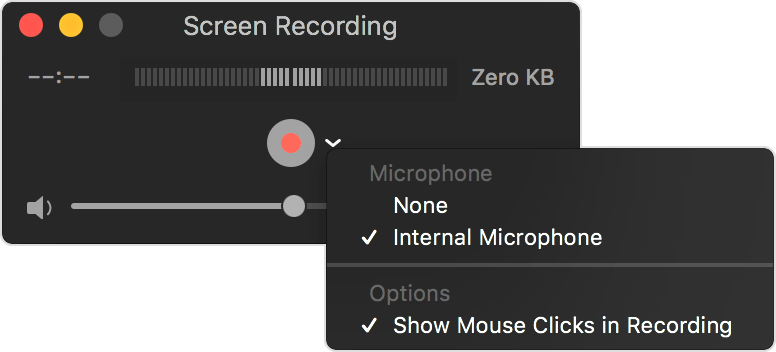
  2. Before starting your recording, you can click the arrow next to  to change the recording settings:
    • To record your voice or other audio with the screen recording, choose a microphone. To monitor that audio during recording, adjust the volume slider (if you get audio feedback, lower the volume or use headphones with a microphone). 
    • To show a black circle around your pointer when you click, choose Show Mouse Clicks in Recording.
  1. To start recording, click  and then take one of these actions:
    • Click anywhere on the screen to begin recording the entire screen.
    • Or drag to select an area to record, then click Start Recording within that area.
  1. To stop recording, click  in the menu bar, or press Command-Control-Esc (Escape).
  2. After you stop recording, QuickTime Player automatically opens the recording. You can now play, edit, or share the recording."


How to record the screen on your Mac


Please don't hesitate to let us know if the steps resolved your issue or if you need additional assistance.


Take care.

3 replies
Question marked as Top-ranking reply

Apr 2, 2020 2:51 PM in response to JJC73JJC

Greetings JJC73JJC,


Thank you for using Apple Support Communities. It seems like you want to record the screen of the MacBook Pro and record sound too.


"Use QuickTime Player

QuickTime Player also has a screen-recording feature, and you don't need macOS Mojave to use it. 

  1. Open QuickTime Player from your Applications folder, then choose File > New Screen Recording from the menu bar. The Screen Recording window opens.
  2. Before starting your recording, you can click the arrow next to  to change the recording settings:
    • To record your voice or other audio with the screen recording, choose a microphone. To monitor that audio during recording, adjust the volume slider (if you get audio feedback, lower the volume or use headphones with a microphone). 
    • To show a black circle around your pointer when you click, choose Show Mouse Clicks in Recording.
  1. To start recording, click  and then take one of these actions:
    • Click anywhere on the screen to begin recording the entire screen.
    • Or drag to select an area to record, then click Start Recording within that area.
  1. To stop recording, click  in the menu bar, or press Command-Control-Esc (Escape).
  2. After you stop recording, QuickTime Player automatically opens the recording. You can now play, edit, or share the recording."


How to record the screen on your Mac


Please don't hesitate to let us know if the steps resolved your issue or if you need additional assistance.


Take care.

This thread has been closed by the system or the community team. You may vote for any posts you find helpful, or search the Community for additional answers.

Recording webinars on my MacBook Pro

Welcome to Apple Support Community
A forum where Apple customers help each other with their products. Get started with your Apple Account.