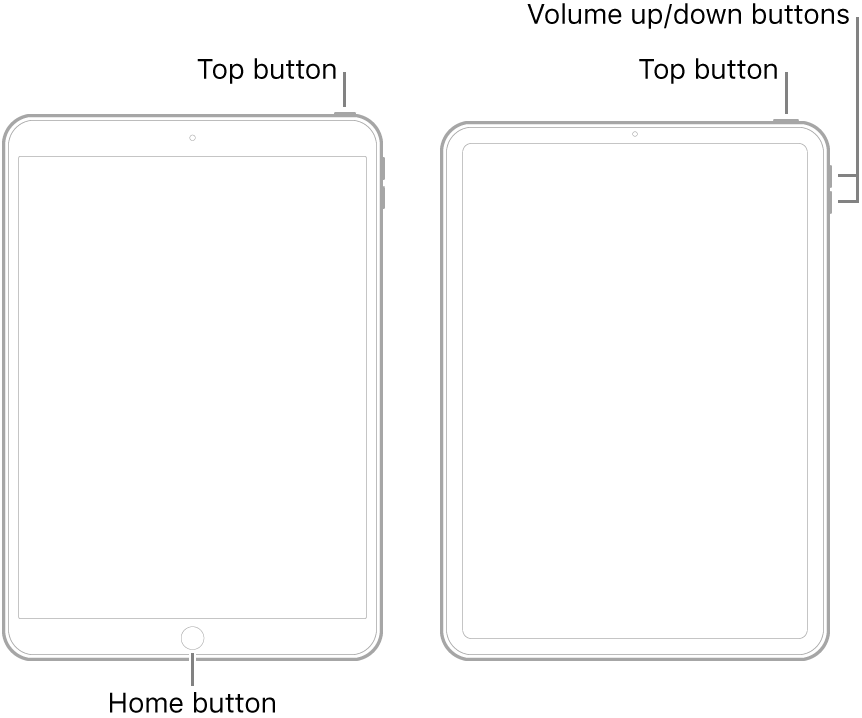
The restart was well worth an initial punt as this often clears isolated issues.
The next steps are to progress through increasingly invasive reset procedures. Your locally stored data will be preserved if you take the appropriate precautions. Before proceeding, ensure that you have a current iCloud or iTunes backup of your device.
When you’re happy to proceed, you need to reset your iPad settings. This initial reset will not delete any data - but will reset all system settings; you’ll need to rejoin your WiFi network post-reset:
Settings > General > Reset > Reset All Settings
After you iPad restarts - and you have rejoined your WiFi network, test your printer connectivity.
If this is not successful, the next step is to fully reset the iPad - which will delete all data - but you will be invited to restore your data from your backup (for which you have already diligently created):
Settings > General > Reset > Erase All Content & Settings
Again, after you iPad restarts - and you have rejoined your WiFi network and restored your data, test your printer connectivity.
If this still doesn’t work, we’ll worry about this later.