Impossible to delete file - Catalina

Hi!


ive got a plug-in file from an old canon camera that found itself in the relocated files folder when installing Catalina.


Everything else in the folder I could delete apart from this .plugin file and the folders above it. Moving it and taking ownership of the folders allowed them to be removed, every trick I can find to remove this file does not work.


Moving to the bin is ok, but on emptying it states “the operation can’t be completed because item ... is in use”. Any variation of “rm” or “Sudo rm”, “rm -r” etc does not remove the file and states that the directory is not empty. Same in the recovery terminal.


First aid finds an issue in normal mode but not when in recovery mode.


Im at my wits end! Any help gratefully received. It’s getting formatted and rebuilt if this doesn’t work!


cheers!


MacBook Pro

Posted on Apr 29, 2020 3:24 PM

Reply
Question marked as Top-ranking reply

Posted on May 5, 2020 11:13 AM

It seems the answers you're getting are just running in circles. When that happens it's time to jump off that merry-go-round and try another carnival ride.


If you're interested in doing that, try deleting the ~/.Trash folder in Single User mode. To do that you will need to mount the filesystem using the same mount -uw /System/Volumes/Data command as before, and at the localhost prompt type the following:


rm -rv /Users/john/.Trash


... using your actual "short user name" instead of mine.


You may or may not get a confirmation asking you if you really want to do that, which is the purpose of the -rv option as well as to satisfy your curiosity whether it is actually deleting anything. Otherwise the usual localhost prompt would reappear, leading one to surmise nothing happened. Typing the single character y (followed by Return of course) is sufficient to confirm.


And in case you were wondering yes I tried it myself. The .Trash folder gets deleted. It's gone. I confirmed its absence in Single User mode. Upon exiting Single User mode and logging in as usual, macOS recreated it on its own, so no manual re-creation was required. Dragging items to the Trash, emptying the Trash, everything worked normally.


Two caveats that I hope I don't have to repeat: (1) back up your Mac which just goes without saying, and (2) bear in mind that I don't have and don't know how to create that "zombie folder" so it's not possible for me to completely duplicate your concern.


Let me know what you think.

18 replies
Question marked as Top-ranking reply

May 5, 2020 11:13 AM in response to Tawb

It seems the answers you're getting are just running in circles. When that happens it's time to jump off that merry-go-round and try another carnival ride.


If you're interested in doing that, try deleting the ~/.Trash folder in Single User mode. To do that you will need to mount the filesystem using the same mount -uw /System/Volumes/Data command as before, and at the localhost prompt type the following:


rm -rv /Users/john/.Trash


... using your actual "short user name" instead of mine.


You may or may not get a confirmation asking you if you really want to do that, which is the purpose of the -rv option as well as to satisfy your curiosity whether it is actually deleting anything. Otherwise the usual localhost prompt would reappear, leading one to surmise nothing happened. Typing the single character y (followed by Return of course) is sufficient to confirm.


And in case you were wondering yes I tried it myself. The .Trash folder gets deleted. It's gone. I confirmed its absence in Single User mode. Upon exiting Single User mode and logging in as usual, macOS recreated it on its own, so no manual re-creation was required. Dragging items to the Trash, emptying the Trash, everything worked normally.


Two caveats that I hope I don't have to repeat: (1) back up your Mac which just goes without saying, and (2) bear in mind that I don't have and don't know how to create that "zombie folder" so it's not possible for me to completely duplicate your concern.


Let me know what you think.

May 5, 2020 12:08 PM in response to Tawb

If John's latest post doesn't work, there is a way to get rid of the item. It's tedious, but the only suggestion I can think of that will work is to use CCC to create a clone that excludes the one item, then erase the main drive and clone the fixed volume back.


1) Create a new folder somewhere easy to locate, such as on your desktop. Name it something obvious, like "Kill this".

2) Move the stuck file into the new folder so it's the only thing in it.

3) If you don't already own a copy, download Carbon Copy Cloner. You'll still be able to use it as a 30 day trial.

4) You will need an empty partition somewhere. Either on an external drive, or a new, hard partition on the internal drive. This would be preferable (in this case) rather than a new volume group.

5) The main trick: Use CCC to clone everything to the empty volume except the new folder the stuck file is in, as shown next. Use the option to Copy Some Files.
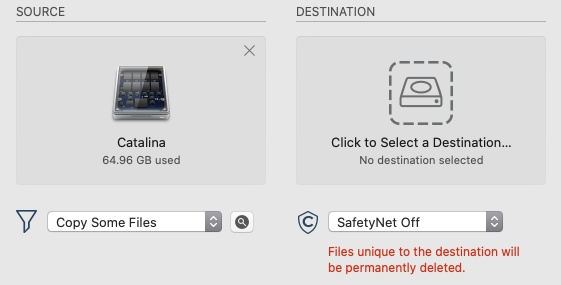


Click the magnifying glass to the right of the drop down menu. By default, everything is checked to copy, other than the hidden Trash folders. Though there's a separate check box not shown in my screen shot to include those if you want. Navigate to your desktop and uncheck the one folder:
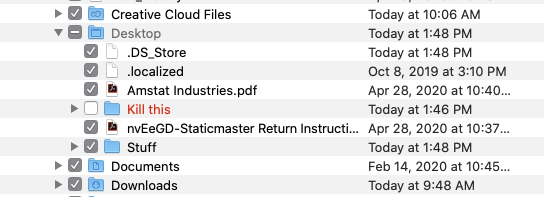


6) Choose the empty destination drive and start the cloning process. Do not try and use the Mac while the clone is being created. You don't want the contents of the drive to change at the same time CCC is trying to create an exact copy (minus the one folder).

7) When the clone is complete, boot to the newly copied clone.

8) Use Disk Utility to erase the main drive.

9) Launch CCC and copy the entire clone back with Copy All Files. The destination being the main drive you just erased.
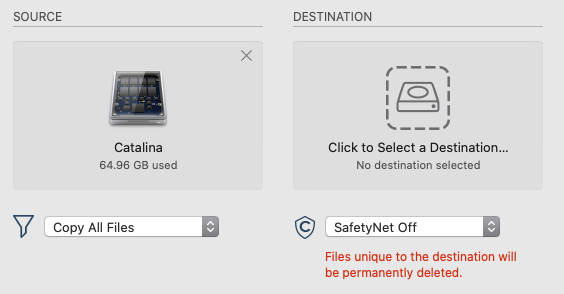


Mostly, this is just a lot of sitting around watching a clone go to one drive, and then back to the other. But still far less work than erasing the drive, followed by reinstalling the OS, your third party apps, and manually bringing all of your personal data back in. Using these steps, the final drive will be exactly as it started, but without the one folder containing the stuck file.


May 1, 2020 8:44 PM in response to Tawb

Try booting into Internet Recovery Mode using Command + Option + R instead of Single User Mode so you are not booted to the drive at all. Use the command line to try and delete the folder. You will need to adjust the path of the folder since the path will now need to be pre-pended with "/Volumes/<volume-name>". when using the "rm -rf " command.


Have you tried to first delete all the "files" in the folder before trying to delete the folder (yes I know it appears empty)? Maybe even create a new file within that folder, then try deleting it?


Have you tried to remove the folder from the Trash and just use the Finder instant delete feature of highlighting the folder in the Finder and pressing Command + Option + Delete?


I recall the same thing happening to one our systems recently, but I don't recall what I did to "resolve" it.

Apr 30, 2020 12:08 PM in response to Tawb

That's good information, thanks!


Where you typed ls and you got .DS_Store and cnbao310.plugin, you were in that user's .Trash directory. Go there again in the same manner, but at that point type


cd cnbao310.plugin


That will open that directory (folder), which as you determined is not empty. Type ls again and you will see its contents. You can use rm again to remove each of its contents. If they are also directories, you have to drill down into each one of them using the cd command again, finding out what's in them again, and attempting to remove them again.


Does that make sense?


I could suggest a different command to attempt to remove all of that directory's contents including subdirectories and so forth but it sounds as though you're comfortable with navigating Single User mode, and it might be beneficial for you to know what's being deleted.


You don't need quotes unless the item (file or folder) contains spaces.


If you get lost, the command pwd prints the directory you're in. Back out one at a time using cd .. as you have been.


You ought to be successful.

Apr 30, 2020 12:52 PM in response to Tawb

Not only is there nothing in that folder, it's as though it doesn't exist. It's a zombie folder.


I've run into this problem before. I know I fixed it, but the bad news is that I forgot how 😂


I may have completely erased the affected volume and restored a Time Machine backup. It's my last ditch suggestion. I'll search my memory and determine if I might have come up with something short of that.


There is a “canon” related item (Driver?) in the disabled software section in system information. These line up with files in the extensions folder... should I remove these whilst I’m in single user mode, could they be related to this issue?


I doubt it. They're disabled and inert so removing them is your choice. You don't have to do it in Single User mode.

Apr 29, 2020 9:25 PM in response to John Galt

Good morning John,


Firstly thank you for your reply. Sorry I should have also stated that I tried safe mode and also a brief boot up with csrutil disabled (don’t worry, it’s back on now)!


Single user mode sounds like something I haven’t tried!


As a bit of background, potentially this file is a from an old user account - this MacBook Pro belonged to a family member before me. Only one user account now and I’m named in the permissions for the file as read and write. Strangely it’s a “.plugin” file with 0kb size that the system views as a directory.


Best Regards,

Tom

Apr 30, 2020 11:15 AM in response to John Galt

Thanks again for the continued help!


Well that all went absolutely swimmingly until the final step, the same dreaded error message! I jumped up and back down the file tree to check the links (it’s my partner’s laptop, hence the name!), tried to delete... “directory not empty”. Tried a few rm options to no avail.


Image attached, perhaps it’s there for life!


Cheers,

Tom

Apr 30, 2020 12:40 PM in response to John Galt

This is the strangest thing. It’s 0kb and there’s nothing in it. Permissions and contents in the attached pic.


There is a “canon” related item (Driver?) in the disabled software section in system information. These line up with files in the extensions folder... should I remove these whilst I’m in single user mode, could they be related to this issue?


Thanks,

Tom

Apr 30, 2020 2:11 PM in response to Tawb

I know. I call it a "zombie folder" for lack of a better term. Be patient but if no one else helps, I'll provide a means of deleting the entire .Trash folder and recreating it in Single User mode. Before I provide those instructions I'll inflict them on my own Mac first so I know they'll be safe for you to try.


Unfortunately I can't guarantee it will solve the problem because I don't have a "zombie folder" and don't know how to create one.

This thread has been closed by the system or the community team. You may vote for any posts you find helpful, or search the Community for additional answers.

Impossible to delete file - Catalina

Welcome to Apple Support Community
A forum where Apple customers help each other with their products. Get started with your Apple Account.

