Uninstall ICloud photos but keep photos on PC

For a number of reasons I would like to uninstall iCloud and Icloud photos from my PC. I don't want to lose any of my photos which are in the ICloud Photos download file on my PC. Do I need to copy the photos from the download folder to another folder on my PC, or do the photos actually already exist on the PC? Meaning I would not have to copy anything before uninstalling Icloud and Icloud photos.

iPhone XR

Posted on May 3, 2020 12:31 PM

Reply
Question marked as Top-ranking reply

Posted on May 4, 2020 12:54 PM

Hi mandpw,


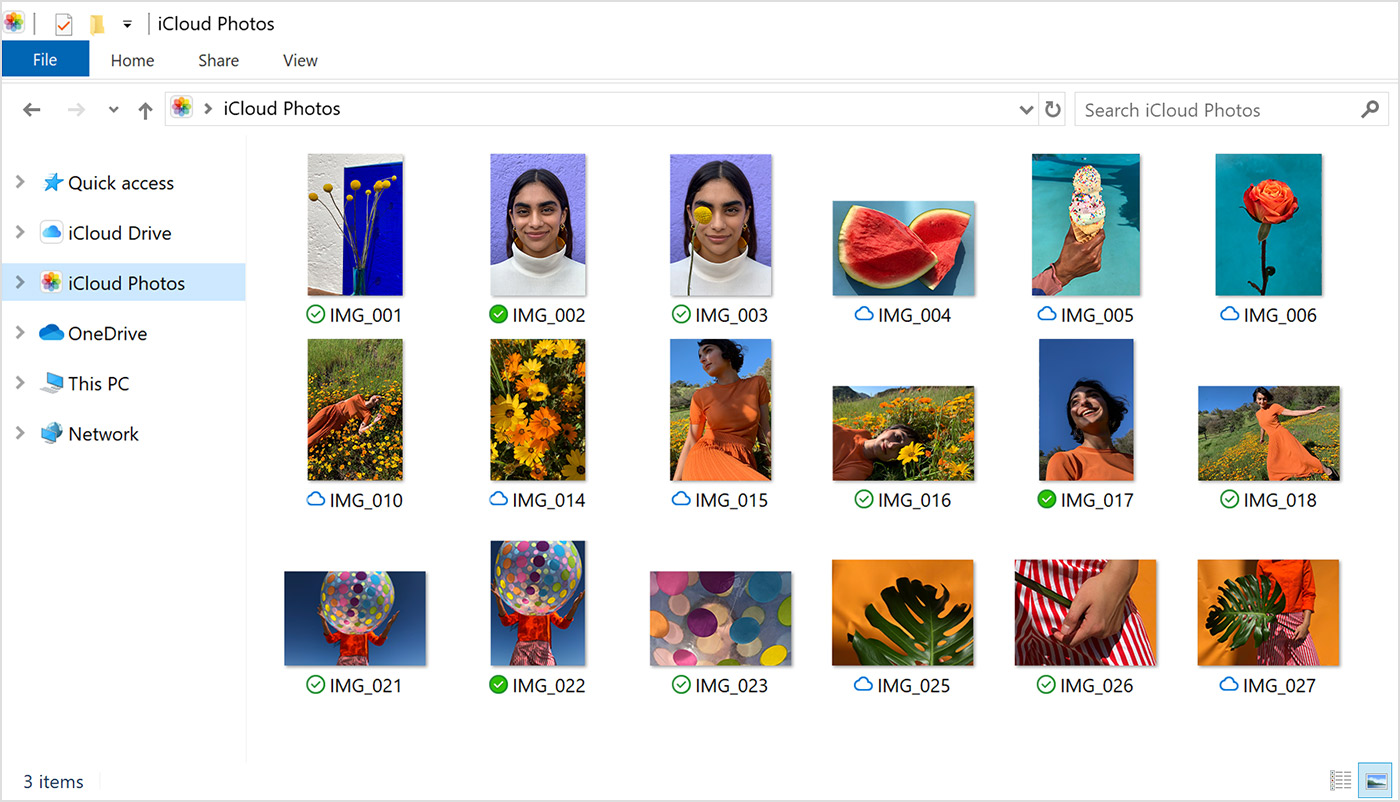
The Download folder contains your photos. Since the icon shows an iCloud, that means the photos are not on your computer. Can you right-click on the Downloads folder and choose "Always keep on this device?"


(This should also be in the Options button to the right of Photos in iCloud for Windows - see screenshot in my earlier post).


If you don't see the icon on the folder itself, when you open the folder you will see the status icons on the individual thumbnails. See the screenshot below.


Set up and use iCloud for Windows


Download your photos and videos from iCloud Photos

"New photos and videos you add to iCloud Photos will automatically download to your PC. You can also download your collection by year when you follow these steps:

  1. Open a File Explorer window.
  2. Under Favorites, click iCloud Photos.
  3. Click Download photos and videos.
  4. Choose the photos and videos you want to download and click Download.

Your photos and videos download to the location you set in iCloud Photos Options."


When you turn on Photos, iCloud for Windows creates a Photos folder in File Explorer called iCloud Photos. iCloud Photos uploads new photos and videos that you add to the iCloud Photos Uploads folder on your PC so you can see them in the Photos app on your iPhone, iPad, iPod touch, and Mac, and on iCloud.com. New photos and videos you take automatically download from iCloud Photos. You can also choose to download your entire collection by year. "


Turn off or uninstall iCloud for Windows

If you turn off a service in iCloud for Windows, your information won't automatically stay up to date in iCloud, and you won't see updates made on your other devices. Follow these steps to turn off a service or iCloud:

  • To turn off a service on your PC, Open iCloud for Windows, then select or deselect that service. To save your changes, click Apply. 
  • To turn off iCloud for Windows, open iCloud for Windows, then sign out. 


If you want to uninstall iCloud for Windows, remember to make a copy of your iCloud data and save it on your PC."


Archive or make copies of the information you store in iCloud


Take care.



4 replies
Question marked as Top-ranking reply

May 4, 2020 12:54 PM in response to mandpw

Hi mandpw,


The Download folder contains your photos. Since the icon shows an iCloud, that means the photos are not on your computer. Can you right-click on the Downloads folder and choose "Always keep on this device?"


(This should also be in the Options button to the right of Photos in iCloud for Windows - see screenshot in my earlier post).


If you don't see the icon on the folder itself, when you open the folder you will see the status icons on the individual thumbnails. See the screenshot below.


Set up and use iCloud for Windows


Download your photos and videos from iCloud Photos

"New photos and videos you add to iCloud Photos will automatically download to your PC. You can also download your collection by year when you follow these steps:

  1. Open a File Explorer window.
  2. Under Favorites, click iCloud Photos.
  3. Click Download photos and videos.
  4. Choose the photos and videos you want to download and click Download.

Your photos and videos download to the location you set in iCloud Photos Options."


When you turn on Photos, iCloud for Windows creates a Photos folder in File Explorer called iCloud Photos. iCloud Photos uploads new photos and videos that you add to the iCloud Photos Uploads folder on your PC so you can see them in the Photos app on your iPhone, iPad, iPod touch, and Mac, and on iCloud.com. New photos and videos you take automatically download from iCloud Photos. You can also choose to download your entire collection by year. "


Turn off or uninstall iCloud for Windows

If you turn off a service in iCloud for Windows, your information won't automatically stay up to date in iCloud, and you won't see updates made on your other devices. Follow these steps to turn off a service or iCloud:

  • To turn off a service on your PC, Open iCloud for Windows, then select or deselect that service. To save your changes, click Apply. 
  • To turn off iCloud for Windows, open iCloud for Windows, then sign out. 


If you want to uninstall iCloud for Windows, remember to make a copy of your iCloud data and save it on your PC."


Archive or make copies of the information you store in iCloud


Take care.


May 4, 2020 12:02 PM in response to brenden dv

Thank you for your prompt reply. I have tried your suggestions but am stumped.

I use Windows 10 and Icloud for Windows. I have gone to ICloud Drive on my pc and am told that there are no files in that folder. My photos are obvious in ICloud Photos but there are no icons such as you have suggested (green checks, etc.). Also nowhere an opportunity to "Always keep on this device".

I have gone online to ICloud.com and have essentially the same results.

I note that my icloud photos shows three folders download, upload, and shared. The download folder contains my photos. The folder icon on "download" is cloud. Might this mean that these are online only? If so, how do I copy them to my PC. Nothing else seems to work.

Thanks again for your kind assistance.

May 4, 2020 1:29 PM in response to Joseph_S.

Tried again. There is no option to "always keep on this device" in either a right click on the downloads folder or within the "options" of iCloud for Windows. When I open the download folder, all of my photos are filed there by year, but there are no icons of any sort to show where the file is located.

Is there any other way to tell where they are? Or, is there any other way to save them somewhere in case uninstalling iCloud for Windows automatically removes the photos from the PC?

May 4, 2020 9:46 AM in response to mandpw

Good afternoon mandpw,


Welcome to the Apple Support Communities!


I understand you have been using iCloud for Windows to sync your iPhone photos to your Windows PC. You would like to stop using iCloud and want to keep the photos on your computer.


Do you have Windows 10 on your PC? First check to see if your files are being stored in iCloud Drive, or locally (on your computer). Follow these steps:


Get help using iCloud for Windows


Where can I find photos or files on iCloud for Windows?

To access your photos on iCloud for Windows 10, choose Start, then choose iCloud and select iCloud Photos.


Your files live in iCloud Drive, with indicators that show their current status and where they are located:

  • A closed green check  means the file is stored locally on your device, can be accessed offline, and isn't be eligible to be removed with Microsoft Storage Sense.
  • An open green check  means the file is stored locally on your device, can be accessed offline, and is eligible to be removed with Microsoft Storage Sense.
  • A cloud icon  means the file is stored online and can only be accessed or downloaded when you are online.
  • A sync icon  means the file is being uploaded or downloaded, or is in queue to download or upload.
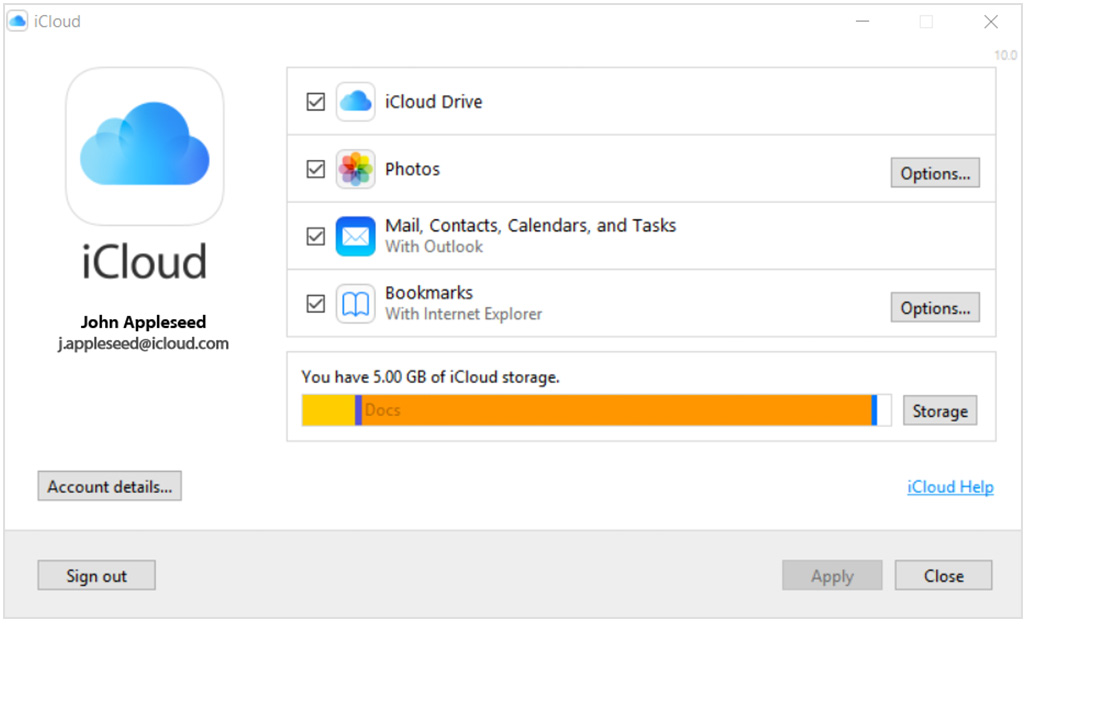

If you use iCloud for Windows 10, you can store a file or folder locally on your PC so you can access it without an internet connection:


  1. Open iCloud for Windows on your PC.
  2. Select iCloud Drive, then choose the file or folder you want to store locally.
  3. Right-click on the file and choose Always Keep on this Device.


Once you have confirmed that the files are stored locally on your computer, be sure to back them up by copying the folders to an external hard drive.


Then, all you have to do is open iCloud for Windows and remove the checkmark from Photos.


Source: Set up iCloud on your Windows PC


You can still keep iCloud Drive enabled if you wish to share other files or documents between your PC and iCloud.


Take care.


This thread has been closed by the system or the community team. You may vote for any posts you find helpful, or search the Community for additional answers.

Uninstall ICloud photos but keep photos on PC

Welcome to Apple Support Community
A forum where Apple customers help each other with their products. Get started with your Apple Account.