time zone pop up

i had a pop up on my phone saying that the time zone was going to change & i had put yes & it shut off my phone. when it turned back on the time didnt change & its getting me paranoid.

Posted on May 6, 2020 12:06 AM

Reply
1 reply

May 6, 2020 7:09 AM in response to hyvnyeji

May be you have still not reached the new Time Zone.


How to get updated time zone information for your Apple device

iPhone, iPad, iPod touch, Apple Watch, Apple TV, and Mac periodically get updated time zone information. You can also check manually.
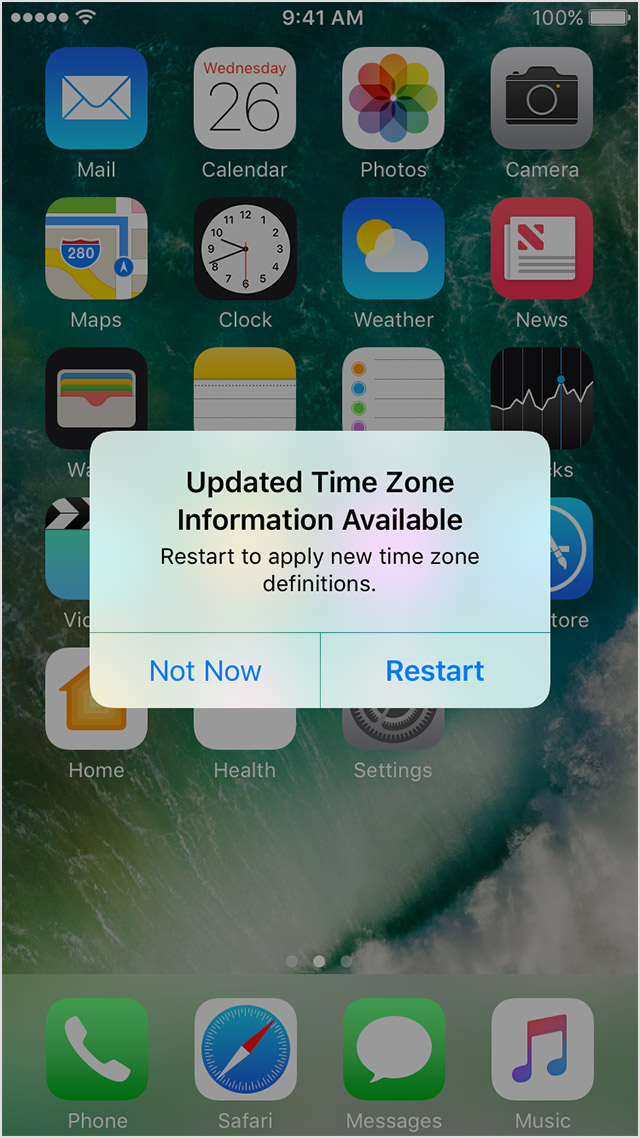


If a country, region, or government announces a time-related change, such as a change to a time zone or Daylight Saving Time:

  • Apple sends a time zone update to your device.
  • Your device displays an alert that updated time zone information is available.

To accept the new time zone definitions from Apple, choose Restart in the alert. Otherwise, your device gets the update the next time you restart it.


How to check for time zone updates

If you didn't get the time zone alert, you can still check for time zone updates manually.

On your iPhone, iPad, iPod touch, or Apple Watch

These steps require iOS 10 or later and watchOS 3 or later. If that excludes your device, you can set the time zone manually.

  1. Make sure that your device is connected to the Internet.
  2. On your iOS device, go to Settings > General > Date & Time.
  3. To check for time zone updates for your Apple Watch, do this on the iPhone that is paired with your Apple Watch.
  4. If you see an alert saying that updated time zone information is available, restart your device to get the update. When you see the message on your Apple Watch, restart it as well. 
  5. If you don't see the alert on your iOS device, return to the previous settings screen, wait a few minutes, then tap Date & Time again. If you see a time zone update message near the bottom of Date & Time settings, restart your device to get the update. Wait a few minutes, then restart your Apple Watch.


How to set the time zone manually

  • iPhone, iPad, iPod touch: Go to Settings > General > Date & Time. Make sure that Set Automatically is turned off, then choose a time zone.
  • Apple Watch: Set the time zone on the iPhone that is paired with your Apple Watch.
  • Apple TV: Go to Settings > General > Time Zone. Make sure that Set Automatically is turned off, then choose a time zone.
  • Mac: Choose Apple menu > System Preferences, then click Date & Time. In the Time Zone pane, make sure that ”Set time zone automatically using current location” is deselected, then choose a time zone. You might need to click  to unlock these settings before you can make changes.


The option to turn on automatic date and time updates might not be available with all wireless carriers or in all countries or regions.

This thread has been closed by the system or the community team. You may vote for any posts you find helpful, or search the Community for additional answers.

time zone pop up

Welcome to Apple Support Community
A forum where Apple customers help each other with their products. Get started with your Apple Account.
