Reinstall MacOS while retaining existing applications?

Hello there, I have a personal Macbook Pro (Mojave 10.14.6) that was used in a corporate environment which installed corporate apps like Carbon Black, blocked my USB ports for write-access, installed encryption etc. I have a few applications (Lotus Notes and VMWare Fusion come to mind) that contain archived emails and VM's from my previous corporate life that I wish to retain.


The question is: is there a way to perform a fresh install of either Mojave or Catalina (to remove the corporate restrictions) while retaining the above applications (Lotus Notes, VMWare Fusion)? Is it a simple matter of copying over the required Applications directory to a fresh install or is it much more complicated than that?


Additionally, is there a way of retaining/restoring all my Safari, Firefox and Chrome login credentials (to various sites) from my current Macbook Pro. I plan to use the same AppleID for iCloud after reinstall. The monthly plan with this AppleID does have some generous storage in iCloud.


I do have a Synology NAS that I can (and do) backup my key data folders to. I can also perform a time-machine backup to the NAS, if that will help in the process.


Any tips/pointers or tools would be gratefully appreciated? Thanks

Posted on May 24, 2020 6:21 PM

Reply

Similar questions

3 replies

May 26, 2020 9:51 AM in response to SargeThomas

Hello SargeThomas,


Welcome to Apple Support Communities!


I understand from your question that you wish to restore your computer and erase the hard drive but keep some specific files/Applications. I can certainly help you with this!


First, before restoring or erasing the hard drive I would perform a backup with Time Machine. This will give you the ability to revert back to your old computer's snapshot if something were to go wrong. You can see more information on Time Machine backups here: Back up your Mac with Time Machine


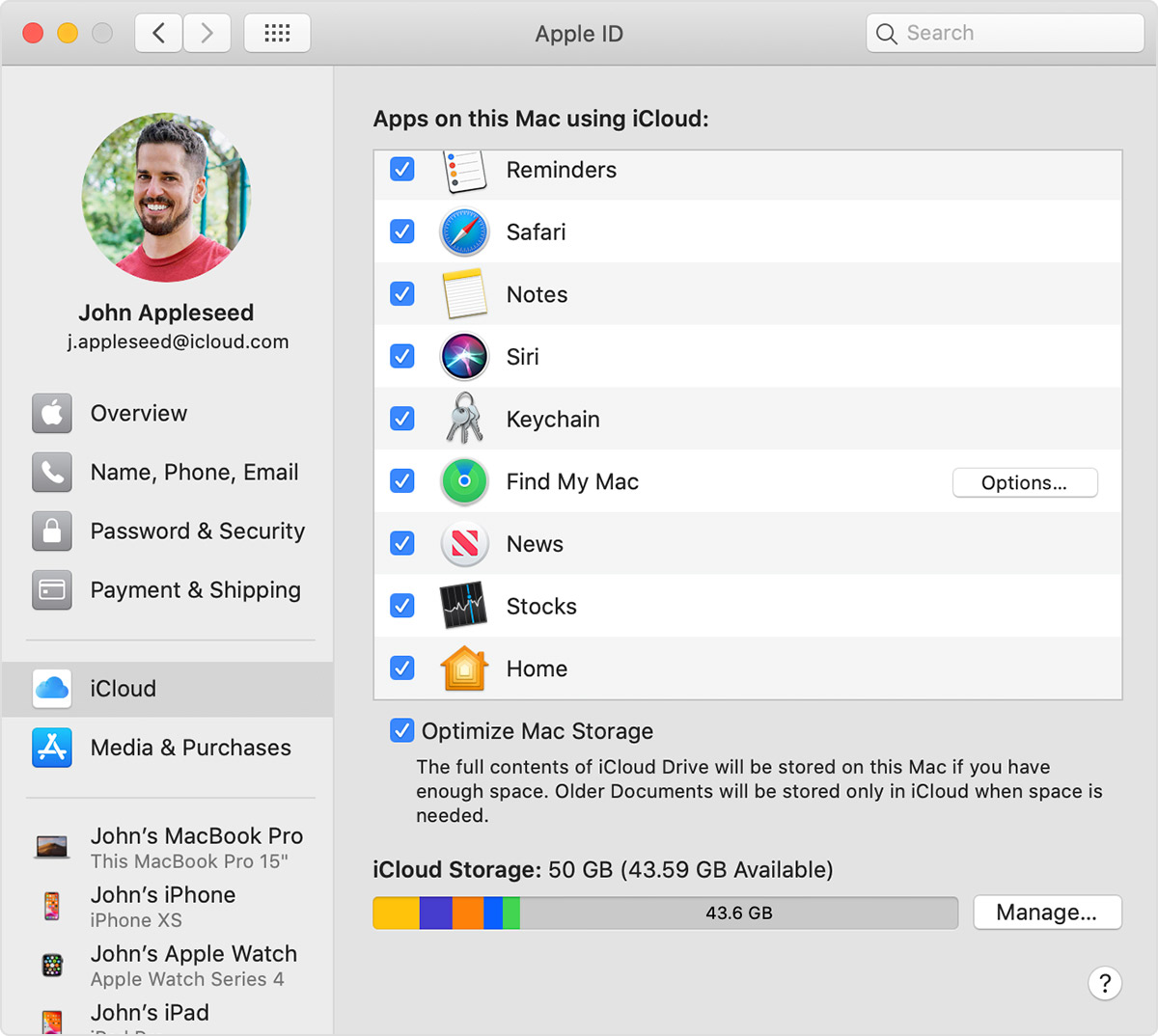
With having a Time Machine backup, after restoring the computer you can go into the drive the backup is saved on and pick and choose files to bring back to your new snapshot of your computer, being Apps, files, etc. With bringing back your saved passwords etc, if you have iCloud Keychain enabled and are successfully able to sign back into your Apple ID, the passwords will come back as well. Set up iCloud Keychain


Turn on iCloud Keychain on your Mac
Choose Apple menu  > System Preferences. 
In macOS Catalina, click Apple ID, then click iCloud in the sidebar. In macOS Mojave or earlier, click iCloud.
Select Keychain.
If you choose to "Approve Later" when signing into your Apple ID, you need to approve with an old passcode or from another device when prompted. If you are unable to approve, reset your end-to-end encrypted data when prompted. 


I hope this is able to resolve your issue. If you have any more questions or this does not resolve your issue, please reach back out on the thread!


Cheers.

Jun 2, 2020 4:26 PM in response to chrisg_01

Hi Chris, thanks for the detailed reply, so much appreciated.

I will perform a time-machine backup to my Synology NAS, so that I have a complete backup to restore from.

I do have three follow-on questions:

  • How do I install a clean image of macOS Mojave (10.14.6) on my laptop? (where do I get the image from?)
  • how do I selectively restore particular application (vs all apps) s from the Time Machine backup? (Lotus Notes is my target app to restore)
  • if all else fails, how do I restore the current image (including OS and apps)to my Mac? is that possible from Time Machine?


Thanks, Sarge


Jun 4, 2020 6:27 AM in response to SargeThomas

Hi SargeThomas,


To answer your questions,


To install a clean copy of macOS, follow this article: How to reinstall macOS from macOS Recovery. You will need to perform step 2 and erase your disk.

2. Decide whether to erase (format) your disk
You probably don't need to erase, unless you're selling, trading in, or giving away your Mac, or you have an issue that requires you to erase. If you need to erase before installing macOS, select Disk Utility from the Utilities window, then click Continue. Learn more about when and how to erase.


To selectively restore parts of your backup, you will just drag them from your backup drive in Finder to the destination you would like on your computer. It is just like moving/copying files in Finder.


To restore the entire time machine backup back onto your computer, follow this article: Restore your Mac from a backup


Cheers!

This thread has been closed by the system or the community team. You may vote for any posts you find helpful, or search the Community for additional answers.

Reinstall MacOS while retaining existing applications?

Welcome to Apple Support Community
A forum where Apple customers help each other with their products. Get started with your Apple Account.