MacBook Pro is too slow

Today my MacBook Pro is experiencing slowness., and the condition is not getting improved by restarts.

I have created an Etrecheck report, this shows serious issues about performance but could not understand the fixes. kindly help me fix this issue


EtreCheckPro version: 6.2.6 (6C020)

Report generated: 2020-07-10 13:31:36

Download EtreCheckPro from https://etrecheck.com

Runtime: 33:14

Performance: Poor


Problem: Computer is too slow


Major Issues:

    Anything that appears on this list needs immediate attention. 


    No Time Machine backup - Time Machine backup not found.

    Poor performance - EtreCheck report shows poor performance. This is unusual.

    Software performance problems - Software seems to be causing performance problems.


Minor Issues:

    These issues do not need immediate attention but they may indicate future problems or opportunities for improvement. 


    Unsigned files - There are unsigned software files installed. Apple has said that unsigned software will not run by default in a future version of the operating system.

    Limited drive access - More information may be available with Full Drive Access.


Hardware Information:

    MacBook Pro (13-inch, 2017, Two Thunderbolt 3 ports)

    MacBook Pro Model: MacBookPro14,1

    2.3 GHz Dual-Core Intel Core i5 (i5-7360U) CPU: 2-core

    8 GB RAM - Not upgradeable

        BANK 0/DIMM0 - 4 GB LPDDR3 2133 

        BANK 1/DIMM0 - 4 GB LPDDR3 2133 

    Battery: Health = Normal - Cycle count = 222


Top Processes Snapshot by CPU:

    Process (count) CPU (Source - Location)

    EtreCheckPro 36.36 % (Etresoft, Inc.)

    WindowServer 31.42 % (Apple)

    (DesktopServicesH) 24.60 % (?)

    MacOS_STM_Extension 13.20 % (App Store)

    kernel_task 9.80 % (Apple)


Performance:

    System Load: 31.02 (1 min ago) 105.13 (5 min ago) 213.14 (15 min ago)

    Nominal I/O speed: 0.61 MB/s

    File system: 120.60 seconds (timed out)

    Write speed: 279 MB/s

    Read speed: 428 MB/s


MacBook Pro 13″, macOS 10.15

Posted on Jul 10, 2020 1:21 AM

Reply
2 replies

Jul 14, 2020 7:45 PM in response to fynmanoj

Signpost reporter & Spotlight are reporting high CPU usage. I'm not familiar with Signpost Reporter. It seems Google Chrome has crashed as well. Google Chrome is known to slow down a computer. Try using another browser such as Firefox or Safair to see if it helps.


Run the Apple Diagnostics.


Run Disk Utility First Aid on both the physical drive and the Container. To see the physical drive you will need to click on "View" within Disk Utility and select "Show All Devices". Even if First Aid shows everything is "Ok" make sure to examine the details of the scan to see if there were any unfixed errors. I know this doesn't make sense, but I've seen First Aid report everything is Ok, but the details show errors which were not repaired.


If there are any unfixed errors in the details, then I recommend you clone the drive using Carbon Copy Cloner, then boot the external clone drive. Launch Disk Utility and erase the physical drive. Then use Carbon Copy Cloner to restore the cloned external drive to the internal SSD. Even if First Aid doesn't show any errors you may want to try this. I've found it can still speed things up on occasion and I have no idea why.


See if your laptop qualifies for this free Apple SSD repair program:

https://support.apple.com/13-inch-macbook-pro-solid-state-drive-service


FYI, here is a current list of the publicly acknowledged free repair programs for various Apple products (some products such as your laptop has multiple programs available):

https://support.apple.com/exchange_repair

Jul 14, 2020 1:57 PM in response to fynmanoj

Hey fynmanoj,


Thanks for using Apple Support Communities! We understand you're experiencing an issue with your Mac performance. We definitely understand how important it is to have your Mac working as expected, and we're happy to help.


We can definitely provide some help to resolve performance issues. First, let's rebuild the Spotlight index on your Mac. While it may not seem relevant, there does appear to be some high CPU usage from one of Spotlight's components.


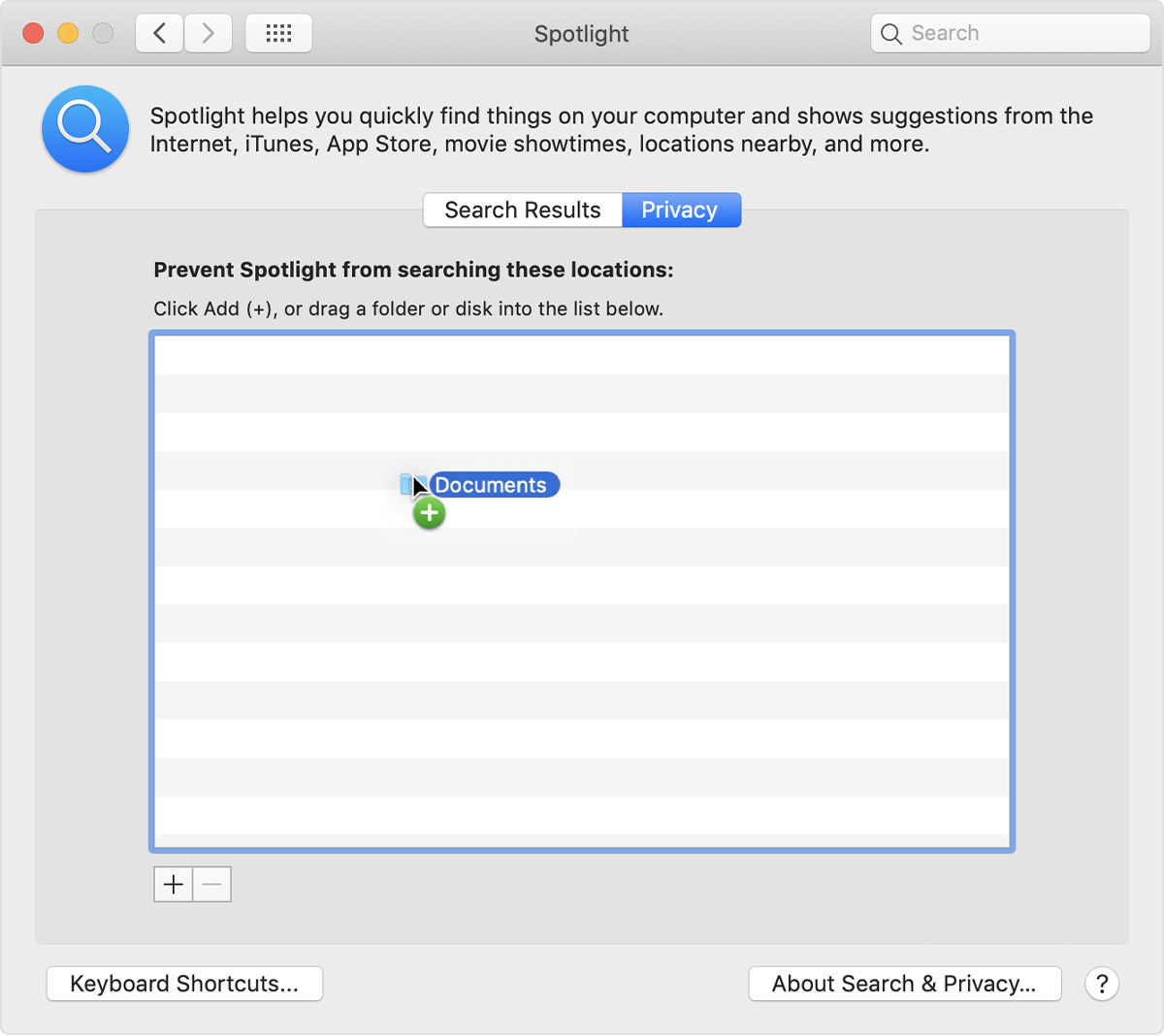
On step 3, drag the Macintosh HD from your Desktop to the Privacy tab.

"1. Choose Apple menu  > System Preferences, then click Spotlight.

2. Click the Privacy tab.

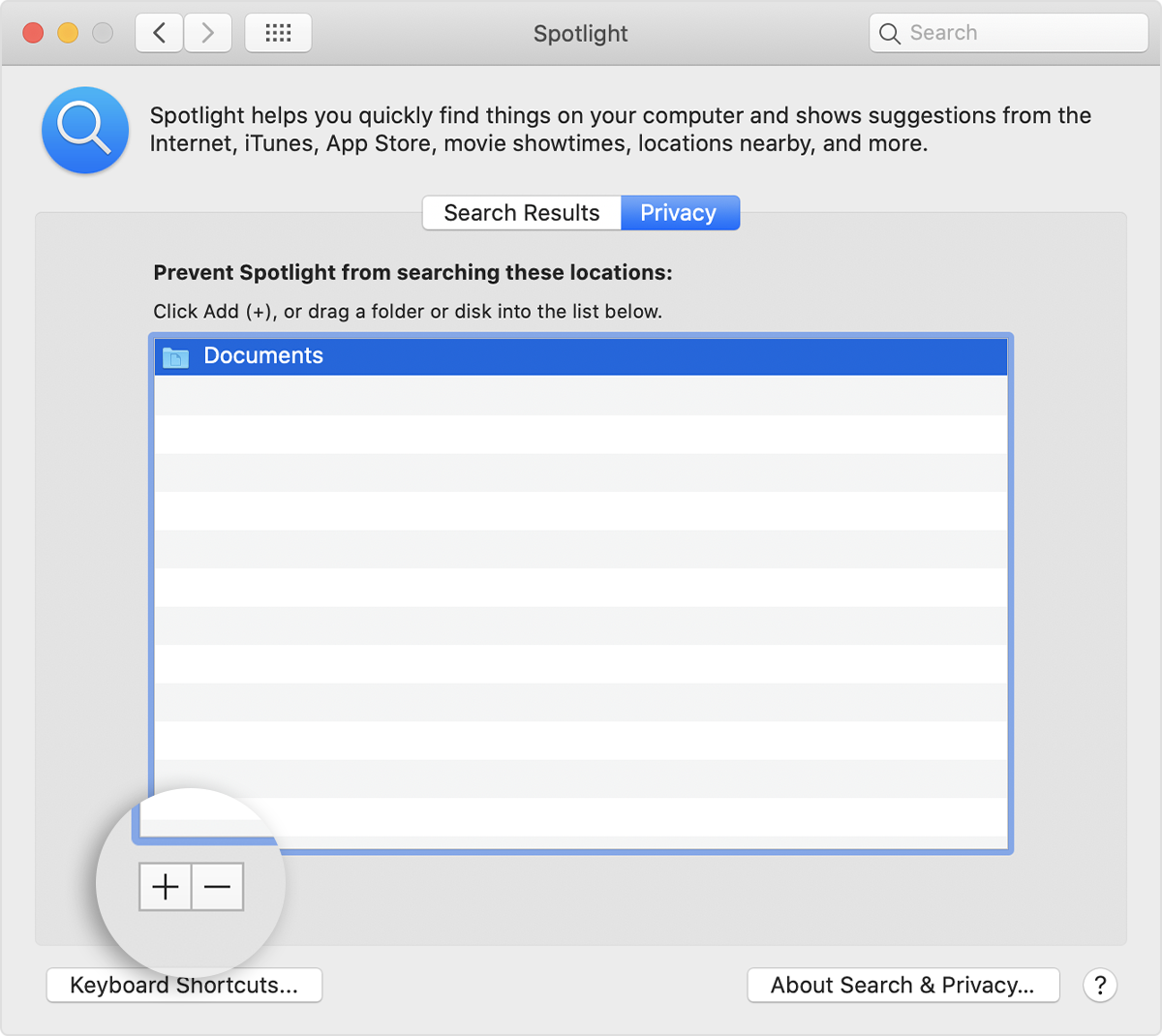
3. Drag the folder or disk that you want to index again to the list of locations that Spotlight is prevented from searching. Or click the add button (+) and select the folder or disk to add.

You can add an item to the Privacy tab only if you have ownership permissions for that item. To learn about permissions, choose Help from the Finder menu bar, then search for “permissions.”


4. From the same list of locations, select the folder or disk that you just added. Then click the remove button (–) to remove it from the list.


5. Quit System Preferences. Spotlight will reindex the contents of the folder or disk. This can take some time, depending on the amount of information being indexed."


Additionally, we recommend checking out what to do when your Mac is running slow here: If your Mac runs slowly


Thanks again, and have a great day!

This thread has been closed by the system or the community team. You may vote for any posts you find helpful, or search the Community for additional answers.

MacBook Pro is too slow

Welcome to Apple Support Community
A forum where Apple customers help each other with their products. Get started with your Apple Account.